How to Track Inventory Across Multiple Warehouses and Record Stock Transfers
On this page 64 sections
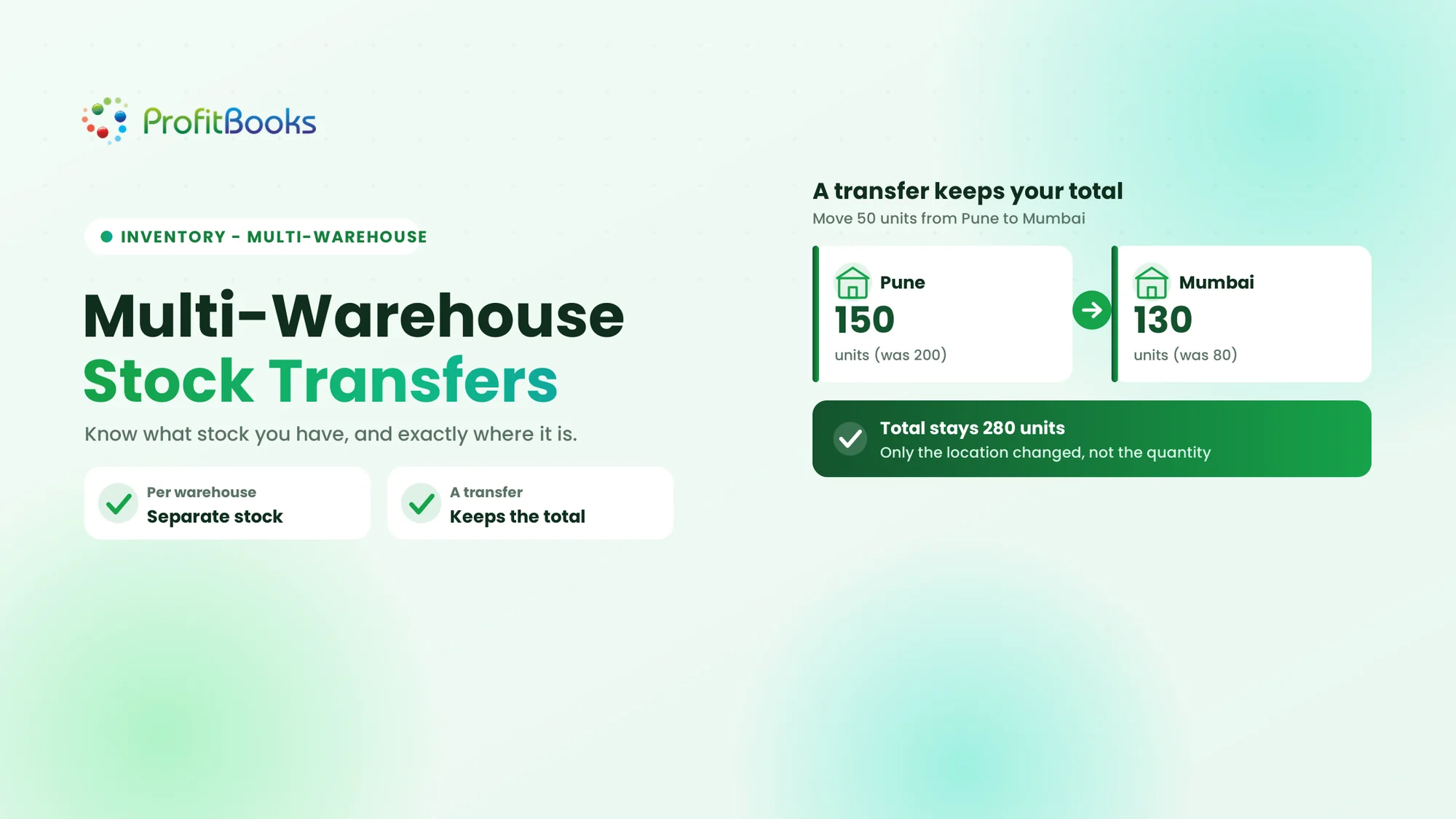
Multi-warehouse inventory management is the process of tracking, managing and monitoring stock stored across multiple warehouses, stores, godowns or other business locations. It shows how much stock is available at each location, where products are stored, and how inventory moves between locations.
By Mohnish Katre, Co-founder, ProfitBooks
Last reviewed: 19 November 2026. Product steps and screenshots reflect the ProfitBooks interface at the time of writing. Screens can change, so confirm against your account.
A business can hold enough stock overall and still run short at the one location that needs it. The warehouse taking an order is empty, while the same product sits untouched in another godown across the state. The shortage is not a stock problem, it is a visibility problem: the records do not show where each item is physically available. Warehouse-wise tracking and properly recorded stock transfers fix that.
This guide covers multi warehouse inventory management from the ground up: how to track stock by location, how to move goods between warehouses without losing count, and how to record both sides of a transfer so every location's balance stays correct. It then shows the exact steps to set up warehouses, record a transfer, and check warehouse-wise stock in ProfitBooks, with screenshots from the live app.
What Is Multi-Warehouse Inventory Management?
The core idea is the difference between total stock and warehouse-wise stock. Suppose a distributor holds 500 units of a product across three warehouses.
| Warehouse | Available stock |
|---|---|
| Pune | 250 units |
| Mumbai | 150 units |
| Nashik | 100 units |
| Total | 500 units |
The business has 500 units in total, but only 250 are physically in Pune. A combined figure cannot tell the sales team whether a particular warehouse can fulfil an order. Warehouse-wise tracking answers the question total stock cannot: not just how much, but where.
Multi-warehouse tracking vs single-warehouse inventory
Single-warehouse tracking records stock at one storage location, so a single figure is enough. Multi-warehouse tracking keeps a separate running balance for each location. Both rely on accurate purchase, sales, adjustment, and transfer records, but multi-warehouse tracking adds the extra discipline of always recording which location a movement belongs to.
Why Businesses Need to Track Stock Across Multiple Warehouses
1. Knowing exactly where products are available
A business may have enough stock overall but too little at the location receiving an order. Warehouse-wise records show the actual availability at each place, so a promise to a customer is based on real local stock.
2. Avoiding unnecessary purchases
Without visibility across locations, a business can reorder a product that is already sitting in another warehouse. Stock availability across all locations should be checked before raising another purchase order.
3. Managing customer orders from the right location
Warehouse-wise quantities help identify which location is best placed to fulfil an order, based on what is in stock and how far it has to travel.
4. Maintaining accurate stock records
When goods move between locations, both warehouse records must reflect the movement. Otherwise one location shows excess stock while another shows a shortage that does not really exist.
5. Improving warehouse accountability
Separate location records let managers review movements and investigate differences between recorded and physically counted quantities, which is central to controlling inventory shrinkage.
6. Getting a clearer picture of inventory value
Warehouse-wise quantities, combined with proper inventory valuation records, show where inventory is held and how much capital is tied up at each location. Quantity tracking alone does not establish the full accounting valuation, but it is the foundation for it.
How to Set Up a Multi-Warehouse Inventory Tracking System
Before recording inventory across locations, a business needs a few things in place.
1. Identify and name every warehouse
List all storage locations with clear, consistent names, for example Pune Main Warehouse, Mumbai Distribution Centre, Nashik Storage Facility, and Pune Retail Store. Clear names matter because staff select a location during purchases, sales, and transfers, and a vague name invites the wrong choice.
2. Assign responsibility for each location
Identify the manager or person responsible for stock records, receipts, dispatches, and physical counts at each location.
3. Maintain a consistent product catalogue
Use the same product names, SKUs, or codes across every warehouse. Do not create duplicate product records just because an item is stored in different locations, or warehouse-wise totals stop making sense.
4. Establish opening stock for each warehouse
Record the quantity of every product at each location when the system starts. Opening quantities should come from a verified physical count, not an estimate.
| Product | Pune | Mumbai | Nashik |
|---|---|---|---|
| Steel bolts M8 | 500 | 300 | 150 |
| Hex nuts M8 | 800 | 400 | 200 |
| Washers | 250 | 350 | 100 |
The figures above are illustrative opening quantities. The point is that every product has a known starting balance at every location.
5. Define how stock movements will be recorded
Agree a process for recording purchases, sales, transfers, returns, wastage, and adjustments, so every movement is captured against the correct location in the same consistent way.
How to Track Stock Across Multiple Warehouses
Several everyday transactions change warehouse-wise stock. Each one has to be recorded against the right location.
Record purchases against the correct warehouse
When goods arrive from a supplier, record the purchase against the warehouse receiving them. If a distributor buys 200 units of steel bolts and receives them at Pune, Pune stock rises by 200 while Mumbai and Nashik stay unchanged. Recording a purchase against the wrong warehouse makes the stock appear available at the wrong location.
Record sales from the warehouse that fulfils the order
When products are sold, the stock reduction should sit with the warehouse that dispatches them. If a customer orders 50 units from Mumbai, Mumbai stock falls by 50 while the other locations stay the same. Verify the actual fulfilment location, especially when an order is split across warehouses.
Record returns and adjustments at the correct location
Customer returns, supplier returns, damaged goods, and other adjustments should be recorded against the warehouse where the stock is physically received, dispatched, or written off. Document the reason and direction of each movement rather than lumping everything into one vague category.
Review warehouse-wise stock regularly
Review quantities by product and location, compare the records against physical counts, and investigate unexplained differences before they compound.
What Is a Stock Transfer Between Warehouses?
A stock transfer is the movement of inventory from one warehouse or storage location to another within the same business. It reduces the available quantity at the sending location and increases it at the receiving location, without changing the total quantity the business holds.
A transfer is an internal movement. It should identify the source and destination warehouses, record the product, quantity, and date, update both locations' stock, and stay traceable for later review.
A simple stock transfer example
A distributor has 200 units of a product in Pune and 80 in Mumbai. A customer order in Mumbai needs 120, so the business transfers 50 units from Pune to Mumbai.
| Warehouse | Before transfer | Transfer | After transfer |
|---|---|---|---|
| Pune | 200 | -50 | 150 |
| Mumbai | 80 | +50 | 130 |
| Total | 280 | 0 net change | 280 |
The transfer changes where the inventory is, not how much the business holds. The total stays at 280 units throughout.
Common Reasons Businesses Transfer Stock Between Warehouses
1. Meeting customer demand at another location
Move products to a warehouse where orders are higher or local stock is running short.
2. Rebalancing excess inventory
One warehouse may have surplus while another nears a shortage. A transfer redistributes available stock instead of buying more.
3. Supporting seasonal demand
Move products closer to locations expecting higher demand during a season.
4. Preparing for sales or promotional periods
Position inventory at locations expected to handle higher order volumes during a sale or promotion.
5. Moving stock to a retail store or distribution point
A central warehouse supplies smaller stores, regional depots, or fulfilment locations.
6. Consolidating or reorganising storage locations
Move inventory when closing, relocating, or reorganising a warehouse. In every case the stock stays within the business, so a transfer, not a purchase or sale, is the correct record.
How to Record a Stock Transfer Between Warehouses
The recording process is the same in principle whatever software a business uses.
Step 1. Identify the source warehouse
Confirm the warehouse the goods will move from, and check the available quantity there before starting.
Step 2. Select the destination warehouse
Identify the warehouse receiving the goods, and confirm it is correct before recording the movement.
Step 3. Select the products and quantities
Record each product and the quantity being moved, for example 50 units of Steel bolts M8 from Pune to Mumbai.
Step 4. Enter the transfer date and details
Record when the transfer takes place and add a reference or description that helps identify the movement later.
Step 5. Save the transfer record
Save the transaction so the inventory records reflect the movement between the two locations.
Step 6. Verify stock at both warehouses
Check that the sending warehouse shows the reduced quantity and the receiving warehouse shows the increased quantity.
| Field | Example |
|---|---|
| Transfer reference | TR-001 |
| Transfer date | 19 November 2026 |
| Source warehouse | Pune |
| Destination warehouse | Mumbai |
| Product | Steel bolts M8 |
| Quantity transferred | 50 units |
| Reason | Replenishment |
| Status | Recorded |
The record above is illustrative, not a mandatory universal format. In a basic internal transfer, the same quantity leaves one location and enters another; it is neither a purchase nor a sale.
How to Record Stock Transfers in ProfitBooks
ProfitBooks lets businesses create multiple warehouses and record inventory transfers between locations, so each warehouse keeps its own stock record rather than relying on manual adjustments. Multi-warehouse support depends on the plan, with one warehouse on the Startup and Essential plans, three on Growth, and unlimited on SMB Pro.
Step 1. Create warehouses in ProfitBooks
Open the account menu from your name at the bottom of the left-hand menu, go to Company Settings, and click Inventory. The Warehouses table lists each location with its Name, Manager, City, and Phone.
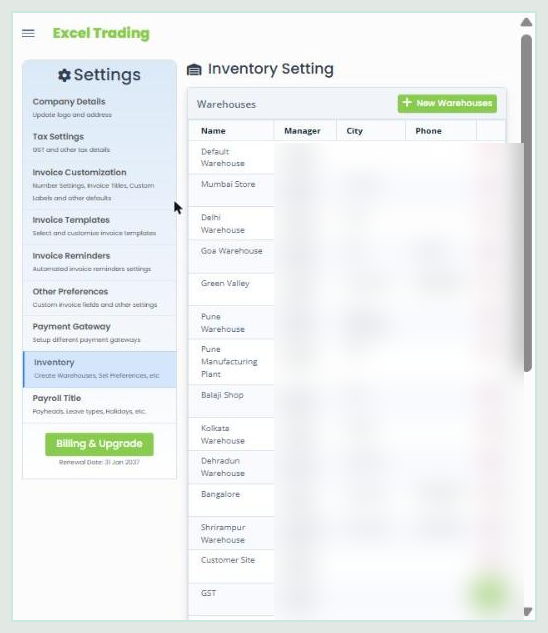
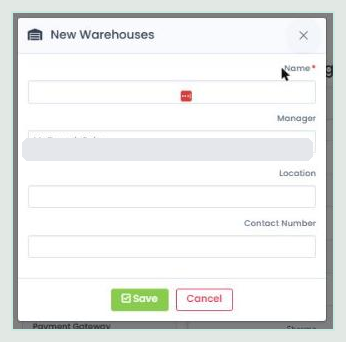
Click New Warehouses to add a location, then fill in the Name (required), Manager, Location, and Contact Number, and click Save. Repeat for every location you operate from.
Step 2. Open the stock transfer screen
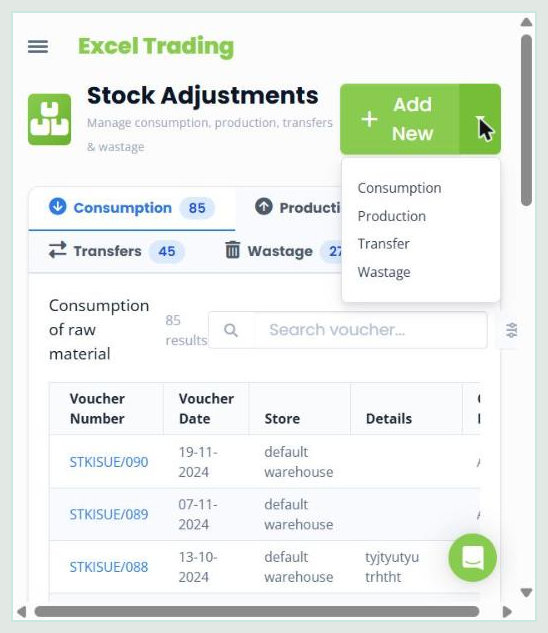
In the left menu, expand Items and click Stock Adjustments. The page has four tabs: Consumption, Production, Transfers, and Wastage. Click the small arrow beside Add New and choose Transfer, because the main Add New button opens a Consumption voucher by default.
Step 3. Create the transfer voucher
On the New Stock Transfer screen, the Voucher Number is filled automatically in the STKTRAN series. Choose the Store the stock is leaving from, which applies to the whole voucher, and check the Voucher Date.
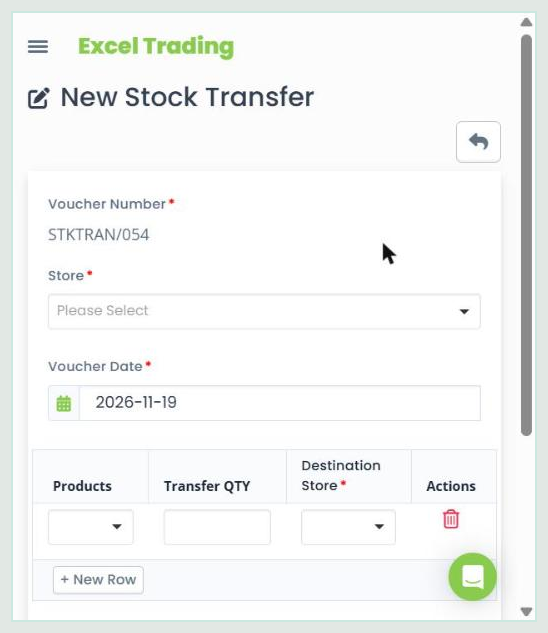
On each product row, select the Product, enter the Transfer QTY, and choose the Destination Store. Each row has its own destination, so one voucher can supply several warehouses. Use + New Row for more products, add an optional note in Details, and click Save.
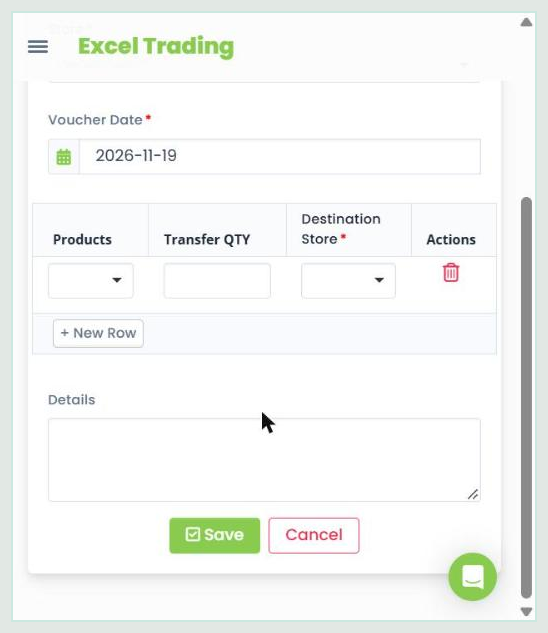
Using the brief's example, to move 50 units of Steel bolts M8 from Pune to Mumbai, set the Store to Pune, add a row for Steel bolts M8 with a Transfer QTY of 50 and a Destination Store of Mumbai, and save.
Step 4. Verify the warehouse-wise stock
To confirm the movement, go to Reports, open Inventory Reports, and run the Store Wise Stock report (called Warehouse Wise Stock on the pricing page, and not available on the Startup plan). Filter by all stores or a single store, click Generate, and export to PDF or a spreadsheet if needed.
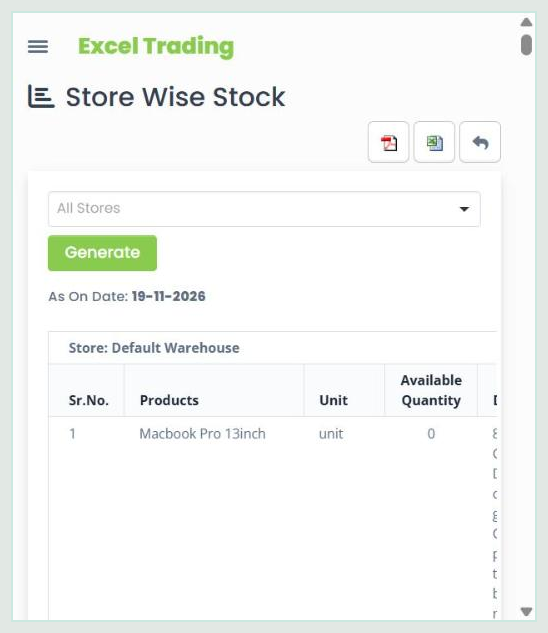
Two accuracy points. The transfer screen records the movement but does not show the before and after balances, so use the Store Wise Stock report to confirm the source went down and the destination went up. Also, an older ProfitBooks Help Centre path describes Items, Manage Stock, Record Transfer; the steps and screenshots above follow the current live app, where transfers sit under Items, Stock Adjustments.
How to Maintain Accurate Stock Transfer Records
Record every movement promptly
Do not wait until the end of the week or month to enter transfers. Delayed entries make warehouse quantities unreliable exactly when someone is relying on them.
Verify quantities before dispatch
The sending warehouse should confirm the quantity physically packed and dispatched before the transfer is recorded.
Confirm goods received at the destination
The receiving warehouse should check the received quantity against the transfer record.
Maintain transfer references
Use identifiable references and descriptions so staff can trace a movement later.
Restrict stock changes to authorised employees
Define who can create or modify transfer records, which reduces the risk of unauthorised changes.
Investigate quantity differences
If the sending warehouse records 50 units but the destination receives 48, investigate the shortage rather than quietly changing the records. A difference between dispatched and received quantities may need a separate adjustment or investigation, and not every system supports an in-transit or partial-receipt workflow.
Common Multi-Warehouse Inventory Tracking Mistakes
1. Tracking only total inventory
A single combined figure hides where products are available. Keep warehouse-wise quantities.
2. Recording transfers as purchases or sales
Internal movements are neither new purchases nor customer sales. Treating them as such distorts revenue, costs, and totals.
3. Updating only the sending warehouse
A transfer must show at both locations. Update only one side and the records stop balancing.
4. Selecting the wrong destination warehouse
The wrong location on the voucher creates misleading stock availability that someone will act on.
5. Recording transfers after a delay
Late entries can lead a sales team to promise stock that is no longer at the recorded location.
6. Ignoring physical stock verification
System quantities should be compared with actual stock at each warehouse from time to time.
7. Not reviewing warehouse-wise reports
Check stock by location regularly to spot unusual quantities and discrepancies early.
How to Monitor Inventory Across Multiple Warehouses
A few reports keep multi-warehouse stock under control.
Warehouse-wise stock report
Shows how much of each product is available at each location. In ProfitBooks this is the Store Wise Stock report.
Product-wise stock report
Helps identify the total quantity and the distribution of a particular product across locations.
Stock movement or stock summary report
Helps review inventory movements and changes over a period, where the reporting system supports it.
Inventory valuation report
Helps understand the recorded value of inventory, not just its quantity.
Low-stock report
Flags products that have reached their reorder levels.
| Product | Pune | Mumbai | Nashik | Total |
|---|---|---|---|---|
| Steel bolts M8 | 150 | 130 | 100 | 380 |
| Hex nuts M8 | 300 | 250 | 120 | 670 |
| Washers | 200 | 180 | 90 | 470 |
This table shows quantities at a point in time, not movement during a period. In ProfitBooks, the Store Wise Stock report supports filtering by warehouse and exporting to PDF or spreadsheet.
Simplify Multi-Warehouse Inventory Management With ProfitBooks
Once a business works from more than one location, warehouse-wise tracking and properly recorded transfers are what keep every balance trustworthy. With ProfitBooks inventory management, you can create multiple warehouses, stores, or godowns, assign stock to the right warehouse during purchases, choose the warehouse for sales, record transfers between locations, review warehouse-wise stock, and filter and export inventory reports, alongside related activities such as wastage and stock adjustments. The payoff is simple: you always know how much stock you have and where it is, without separate spreadsheets or phone calls between locations.
Manage stock across your warehouses with ProfitBooks
Track warehouse-wise inventory, record stock transfers between locations, and keep your inventory records organised in one place.
Explore ProfitBooks inventory →
Frequently Asked Questions About Multi-Warehouse Inventory
What is multi-warehouse inventory management?
It is the process of maintaining separate inventory records for multiple storage locations within one business, so you can see how much of each product is available at each warehouse, store, or godown, and how stock moves between them.
How do businesses track inventory across multiple warehouses?
By keeping warehouse-wise product records, recording each purchase and sale against the correct location, recording transfers between locations, and verifying system quantities against physical counts regularly.
How do you record a stock transfer between warehouses?
Identify the source warehouse, select the destination warehouse, choose the products and quantities, enter the transfer date and a reference, and save the record. Then confirm the balances at both locations.
Does transferring stock between warehouses change total inventory?
No. An internal transfer changes the location of inventory, not the overall quantity, as long as the same quantity is dispatched and received. The source goes down and the destination goes up by the same amount.
What is the difference between a stock transfer and a stock adjustment?
A transfer moves inventory between locations and keeps total stock the same. An adjustment changes the recorded quantity to account for a discrepancy, damage, wastage, or another reason, which does change the total.
Can a business track stock separately for each warehouse in ProfitBooks?
Yes. You create each warehouse under Company Settings, Inventory, and ProfitBooks then keeps a separate stock balance per location, viewable in the Store Wise Stock report. Warehouse limits depend on the plan.
How can businesses identify inventory discrepancies between warehouses?
Through regular physical counts, by verifying transfer records against what was dispatched and received, and by reviewing warehouse-wise reports to spot quantities that do not match expectations.
Can stock transfer reports be exported?
The Store Wise Stock report can be exported to PDF or spreadsheet. Any separate transfer-report export should be confirmed in your own account, as report options can vary by plan and version.