How to Record and Categorise Business Expenses in ProfitBooks
On this page 42 sections
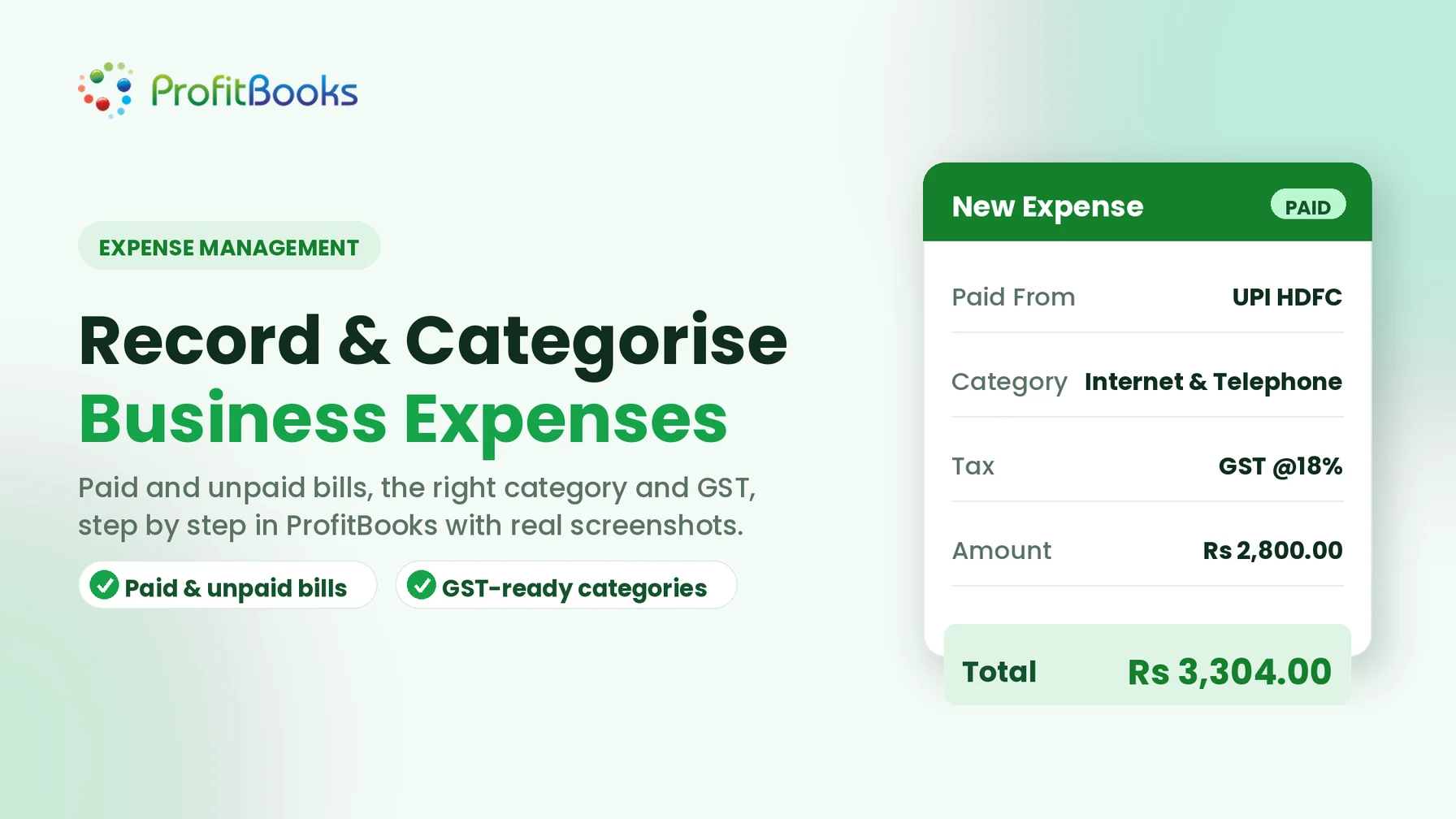
To record a business expense in ProfitBooks, open Expenses > Business Expenses, click + New Expense, choose whether it is Paid or Unpaid, select the paying account or vendor, pick the expense category (Type Of Expense), enter the description, tax and amount, attach the bill, and Save. Categorising means assigning that expense to the right account in your chart of accounts, which is what decides where it appears in your reports.
By CA Mohnish Katre, Co-founder, ProfitBooks
Last reviewed: 27 November 2026. Practical guidance for small businesses in India. Screens and options follow the current ProfitBooks interface; verify the live app before you rely on exact steps.
Every business spends money to keep running. Rent, electricity, internet, travel, office supplies, software subscriptions and professional fees all leave the bank account month after month. Paying these bills is the easy part. Recording them correctly, so your accounts actually reflect what happened, is where most small businesses slip.
When expenses are not captured properly, the problems pile up quietly: missing expense records, a drawer full of unorganised receipts, the same cost booked under two different categories, a bank balance in the software that no longer matches the statement, and financial reports you cannot fully trust. None of these is dramatic on its own, but together they make your books unreliable, which defeats the point of keeping them.
This guide is a practical walk through recording and categorising business expenses in ProfitBooks, with real screenshots from the app. It covers what recording and categorising actually mean, the difference between paid and unpaid expenses, the step-by-step workflow for both, and how to pick the right category every time.
What Does It Mean to Record and Categorise Business Expenses?
People often treat these as a single action. They are two separate decisions, and keeping them distinct is what keeps your books clean.
Recording a business expense
Recording an expense means documenting the expenditure in your accounting system with the details that describe it:
- Date of the expense
- Amount
- Description of what it was for
- Vendor or supplier
- Payment account (or the fact that it is still unpaid)
- Expense category
- Tax details, where applicable
- Supporting document, such as the bill or receipt
For example, a business spends ₹2,500 on internet services. The transaction is recorded with the date, the amount, the supplier, the right expense category and the account it was paid from.
Categorising a business expense
Categorising means assigning the expense to the appropriate account in your chart of accounts. The category is what decides where the amount shows up in your reports and whether anyone reading your books can make sense of your spending. Common examples:
| Expense | Possible category |
|---|---|
| Office rent | Rent Expense |
| Internet bill | Internet or Communication Expense |
| Advertising | Marketing Expense |
| Office stationery | Office Supplies |
| Bank charges | Bank Charges |
| Travel | Travel Expense |
Account names vary from one business to the next depending on how the chart of accounts is set up. The point is consistency: the same kind of expense should land in the same account every time. If you want to understand how these accounts are structured, see our guide to the chart of accounts.
Why Proper Expense Categorisation Matters
Categorisation is not box-ticking. It changes how useful your accounts are to you.
Understand where your money is going
When each expense sits in the right account, you can see at a glance how much goes on rent, on software, on travel or on marketing. Lump everything into a generic Office Expenses bucket and that visibility disappears.
Generate more meaningful financial reports
Correct categorisation is what makes expenses appear under the right heads in your profit and loss and other reports. The reports are only as good as the categories behind them.
Maintain organised accounting records
Consistent categories make your records easier to review, reconcile and hand to an accountant at year end, without a scramble to work out what each entry was.
Simplify expense reviews and budgeting
With clean categories you can compare spending across periods and set realistic budgets, because you are comparing like with like.
Support tax and compliance recordkeeping
Accurate records with supporting documents help you and your accountant review expenses for the relevant tax and GST treatment. Whether a particular expense is deductible or how its input tax is treated depends on the transaction and the rules that apply, so keep the documentation and let that review happen on solid data.
Common Types of Business Expenses
Most businesses deal with a recurring set of expense types. Recognising them makes categorisation faster and more consistent.
| Expense type | Examples |
|---|---|
| Rent and premises | Office rent, warehouse rent |
| Utilities | Electricity, water |
| Communication | Internet, mobile bills |
| Travel | Business travel, transport, accommodation |
| Office supplies | Stationery, printing materials |
| Marketing | Advertising, promotional campaigns |
| Professional services | Legal, consulting, accounting fees |
| Software | SaaS subscriptions, business software |
| Repairs and maintenance | Office repairs, equipment servicing |
| Bank charges | Account fees, transaction charges |
Recurring vs one-time expenses
It helps to separate expenses that repeat from expenses that happen once. Recurring expenses, such as rent, subscriptions and internet bills, come round every month or quarter. One-time expenses, such as a particular repair, an event cost or a one-off service, happen once. Knowing which is which makes it easier to spot a missing entry and to review spending sensibly.
Expense vs asset purchase
Not every business purchase is an expense. Buying a laptop, machinery or furniture is usually an asset rather than a day-to-day expense, because it is used over several years. Treating a large asset purchase as an ordinary expense distorts your profit for the month and your books over time. When a purchase is significant and long-lived, check how it should be recorded rather than defaulting to an expense category.
Paid Expenses vs Unpaid Expense Bills
ProfitBooks lets you record an expense whether or not you have paid it yet, and the distinction matters for the accuracy of your cash position.
What is a paid expense?
A paid expense is one you have already settled. For example, you pay ₹5,000 for office electricity from your bank account. The money has left, so you record the expense category, the payment account, the date, the amount and the supporting document together, in one go.
What is an unpaid or credit expense?
An unpaid expense is one you have incurred but not yet paid. For example, you receive a ₹12,000 office rent bill that you will pay next week. The obligation is real, but the cash has not moved. Recording this as if it were already paid would show money leaving your bank account when it has not, so your software balance would drift away from your actual bank balance. ProfitBooks records it instead as an outstanding bill, which you settle later.
Side by side
| Feature | Paid expense | Unpaid / credit expense |
|---|---|---|
| Payment made | Yes | No, pending |
| Payment account | Selected when you record it | Recorded later, when you pay |
| Vendor details | May be included | Usually important |
| Due date | Not required | Relevant |
| Outstanding liability | None | Remains until paid |
| Payment workflow | Completed in one step | Payment recorded as a separate step |
How to Record a Paid Expense in ProfitBooks
This is the everyday workflow: an expense you have already paid. The example below records a monthly internet bill, paid by UPI.
Step 1: Open the Expenses section
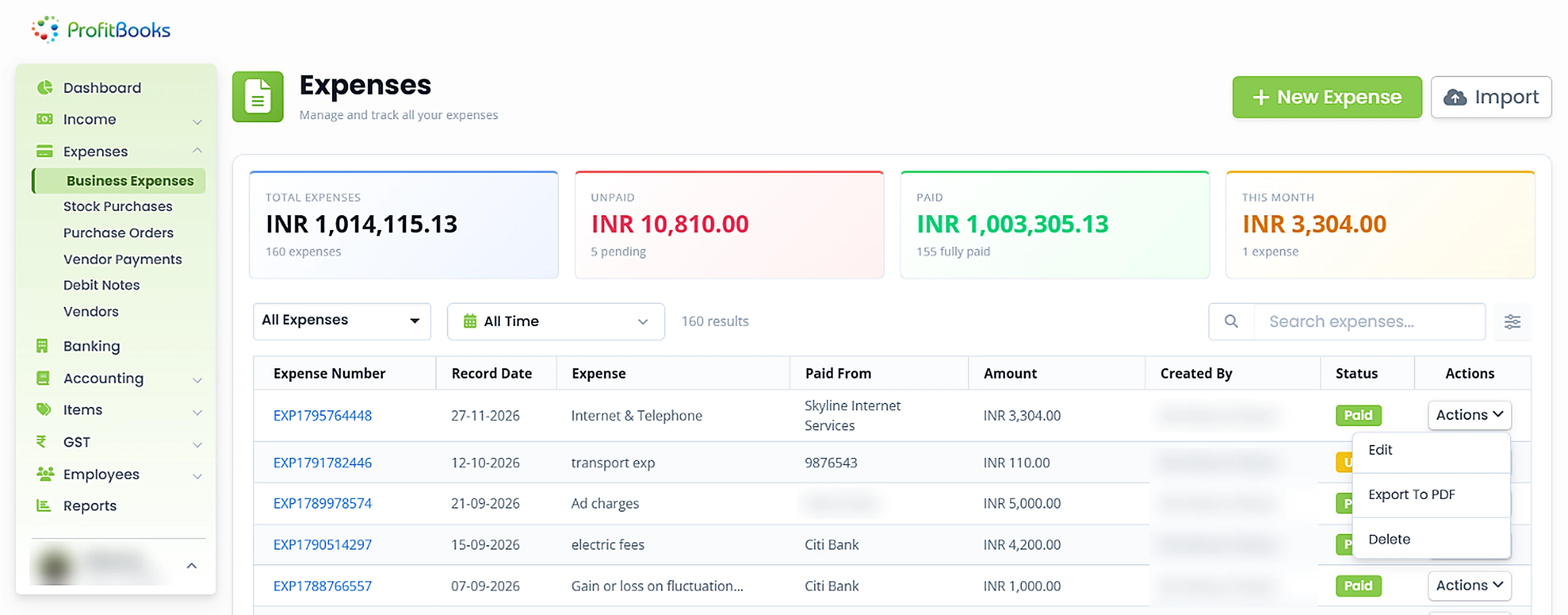
From the left menu, open Expenses and go to Business Expenses. The expenses list shows summary cards for Total Expenses, Unpaid, Paid and This Month, and a table of every expense with its number, date, who it was paid from, amount and status. Use + New Expense to start.
Step 2: Open a new expense and keep the type as Paid
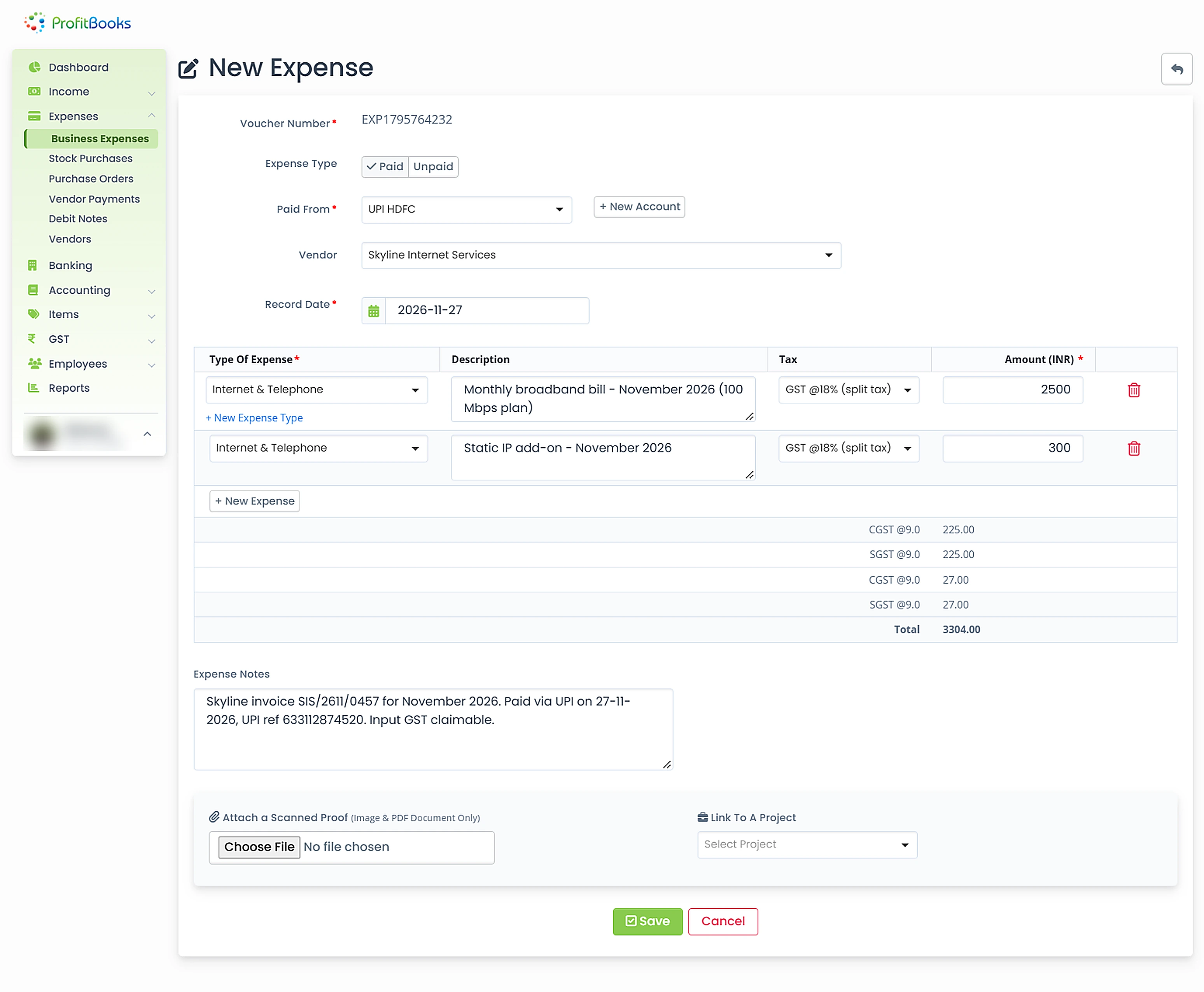
Click + New Expense. The New Expense form opens with an auto-generated Voucher Number (it is regenerated when you save). Leave Expense Type on Paid, which is the default for an expense you have already settled.
Step 3: Select the paying account
In Paid From, choose the account the money actually left, such as a bank, cash or card account (in the example, UPI HDFC). This is the account that gets reduced, so choosing the correct one is what keeps your balances honest. If the account is not listed yet, + New Account lets you add it.
Step 4: Choose the vendor and date
Pick the Vendor the expense was paid to (optional on a paid expense, but useful for tracking spend by supplier). Set the Record Date, which defaults to today; change it to the actual date of the expense if different.
Step 5: Select the expense category
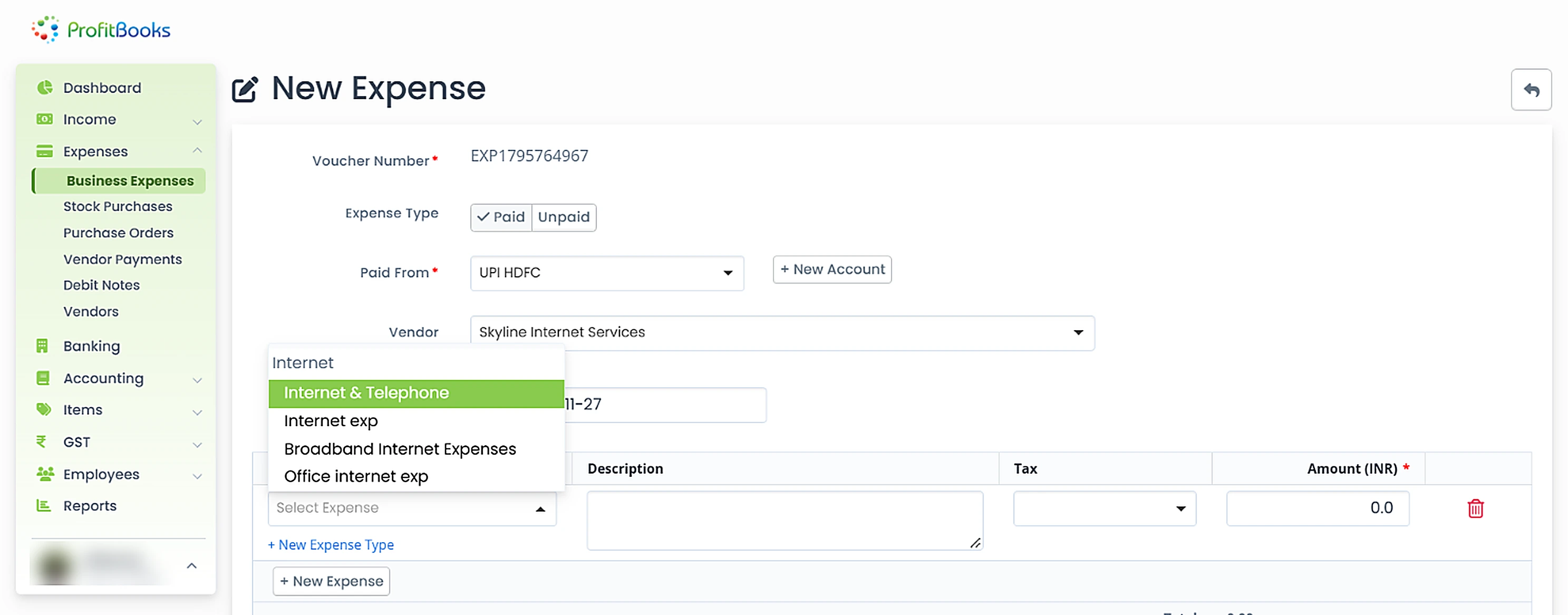
In Type Of Expense, choose the category, which is the ledger account the expense posts to (in the example, Internet & Telephone). Start typing to search your accounts. If the category does not exist yet, + New Expense Type opens a dialog where you set an Account Name and an Account Group such as Indirect Expenses; create the account first, then come back to the expense.
Step 6: Add the description, tax and amount
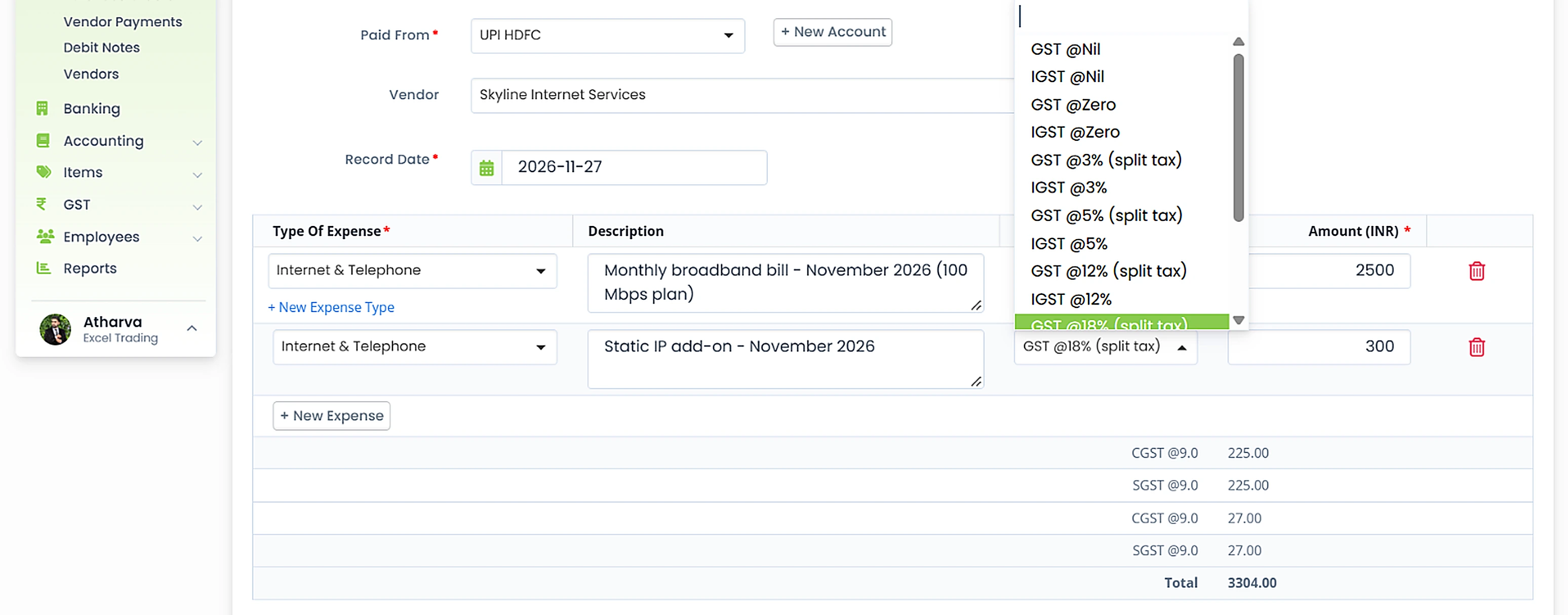
Enter a Description for the line, choose the Tax rate (for example GST @18% split tax, which posts CGST and SGST for an intra-state purchase; IGST is used for inter-state), and enter the Amount (INR). The amount is pre-tax, and ProfitBooks adds the tax on top. You can add more lines with + New Expense, which is handy when one bill covers more than one charge.
Step 7: Add notes and attach the bill
Use Expense Notes for the supplier invoice number and any reference, since the form does not have a separate bill-number field. Under Attach a Scanned Proof, upload the receipt or bill (image or PDF) so the document stays with the entry. A paid expense also offers Link To A Project if you track cost by project.
Step 8: Review and save
Check the details and click Save. If required fields are empty, ProfitBooks blocks the save and lists the errors, so nothing half-finished slips through. Once saved, the detail page shows the subtotal, the GST and the total, with buttons to Edit, Copy Into New, print or delete the expense.
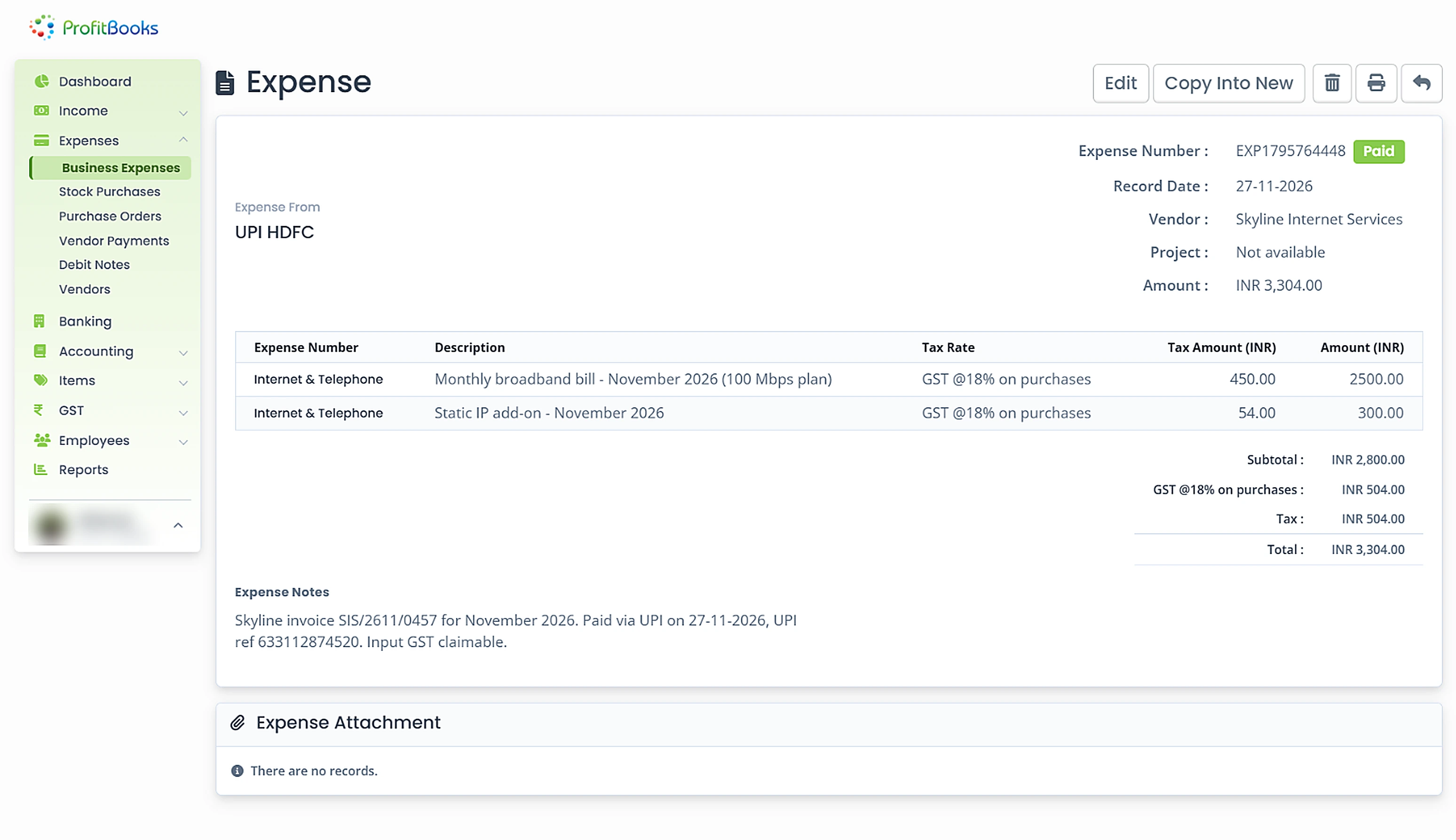
Here is the worked example in one view:
| Field | Example |
|---|---|
| Expense | Monthly internet bill |
| Paid from | UPI HDFC (bank) |
| Vendor | Skyline Internet Services |
| Expense category | Internet & Telephone |
| Description | Monthly broadband bill, November 2026 |
| Tax | GST @18% (split tax) |
| Amount | ₹2,500 + static IP ₹300 |
| Total with GST | ₹3,304.00 |
| Document | Attach the internet bill (image or PDF) |
Where the expense posts
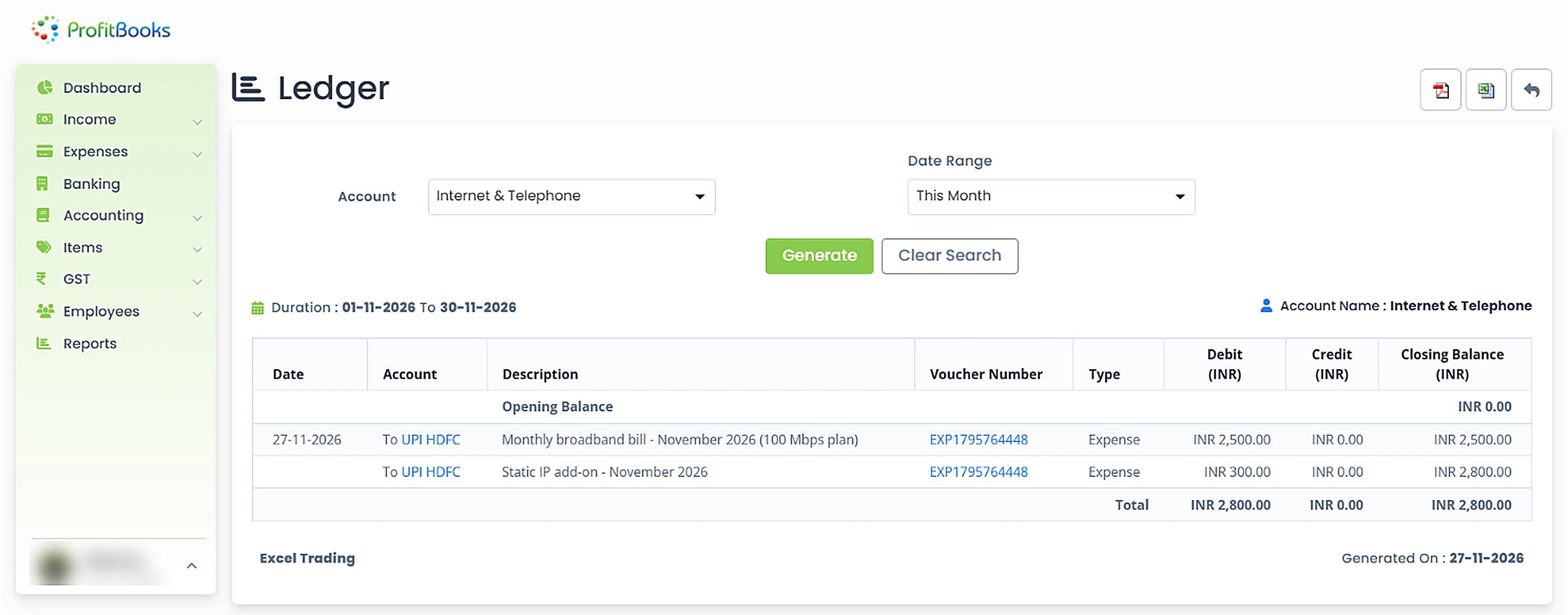
Once saved, the expense flows straight into your reports. In Reports > Transaction Reports > Ledger, the expense account (Internet & Telephone) shows the debit against the account you paid from. In the profit and loss, the net amount rolls up under its expense group. This is exactly why the category you picked matters: it decides where the number lands.
How to Record an Unpaid Expense in ProfitBooks
When you have received a bill but not paid it yet, record it as an unpaid expense so the obligation shows up without pretending the cash has gone.
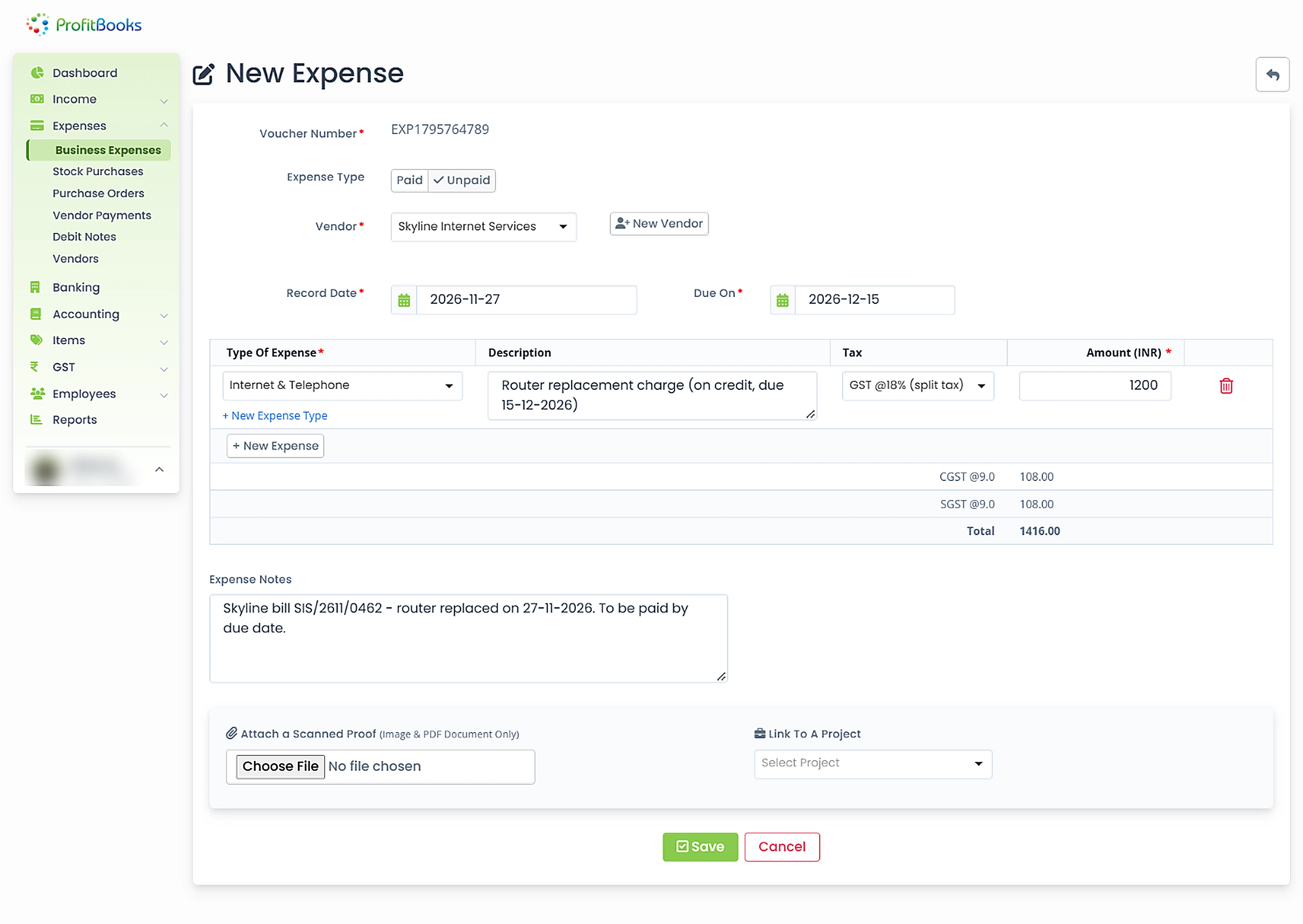
Step 1: Start a new expense and switch to Unpaid
Open + New Expense as before, then set Expense Type to Unpaid. The form changes: the Paid From account disappears (because nothing has been paid), the Vendor becomes required, and a Due On date appears, defaulting to the record date plus seven days.
Step 2: Select the vendor and dates
Choose the Vendor you owe, set the Record Date (when the bill was raised) and the Due On date (when payment is expected). Tracking the vendor and due date is what lets you see what you owe and by when.
Step 3: Enter the expense details
Add the Type Of Expense (category), a Description, the Tax rate and the Amount (INR), exactly as you would for a paid expense. Use Expense Notes for the bill reference.
Step 4: Save the bill as unpaid
Click Save. The expense is recorded without treating it as paid: it carries an Unpaid badge, shows the due date and the amount due, and displays a Make Payment button for later.
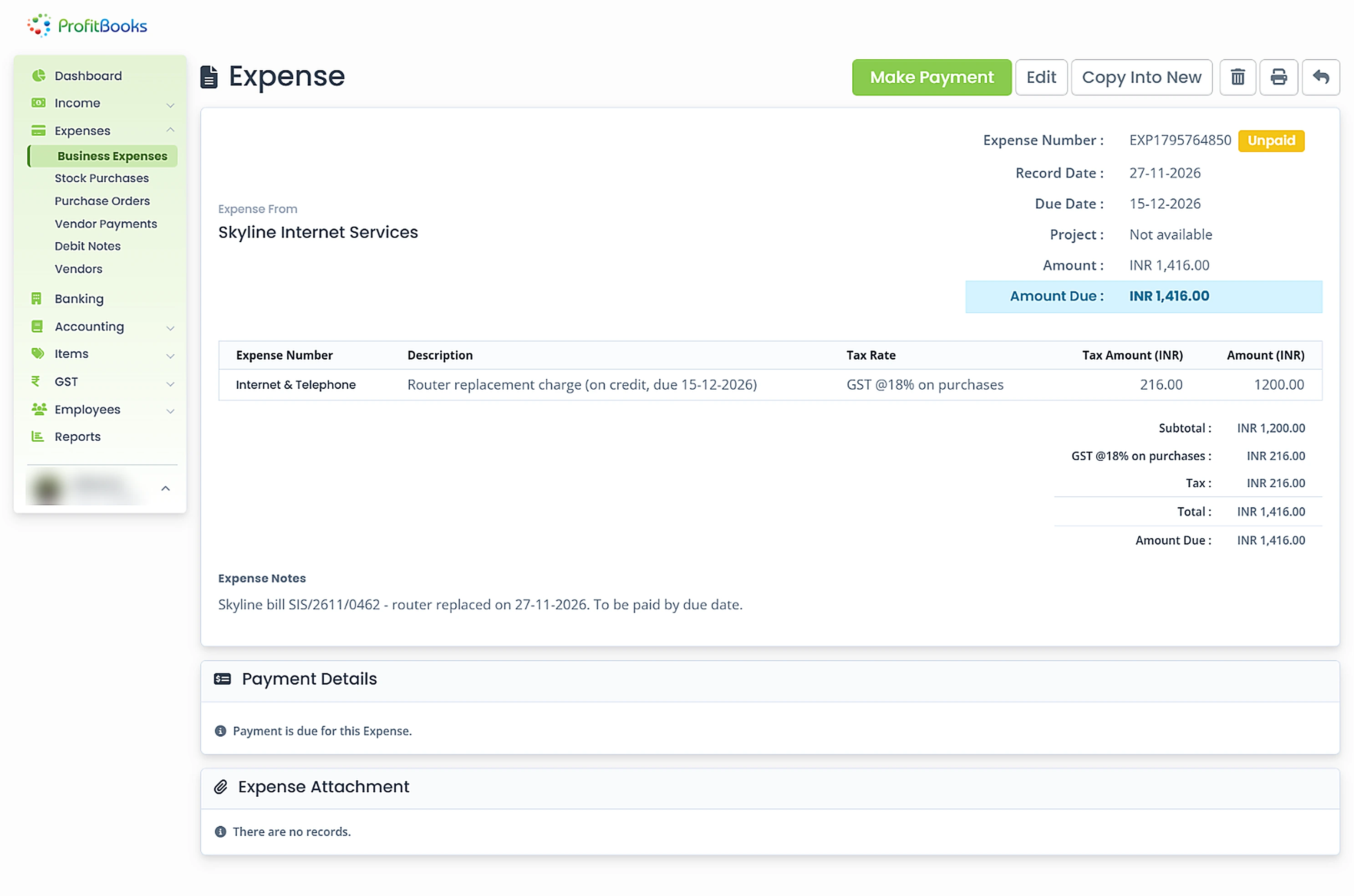
Step 5: Record the payment when you pay it
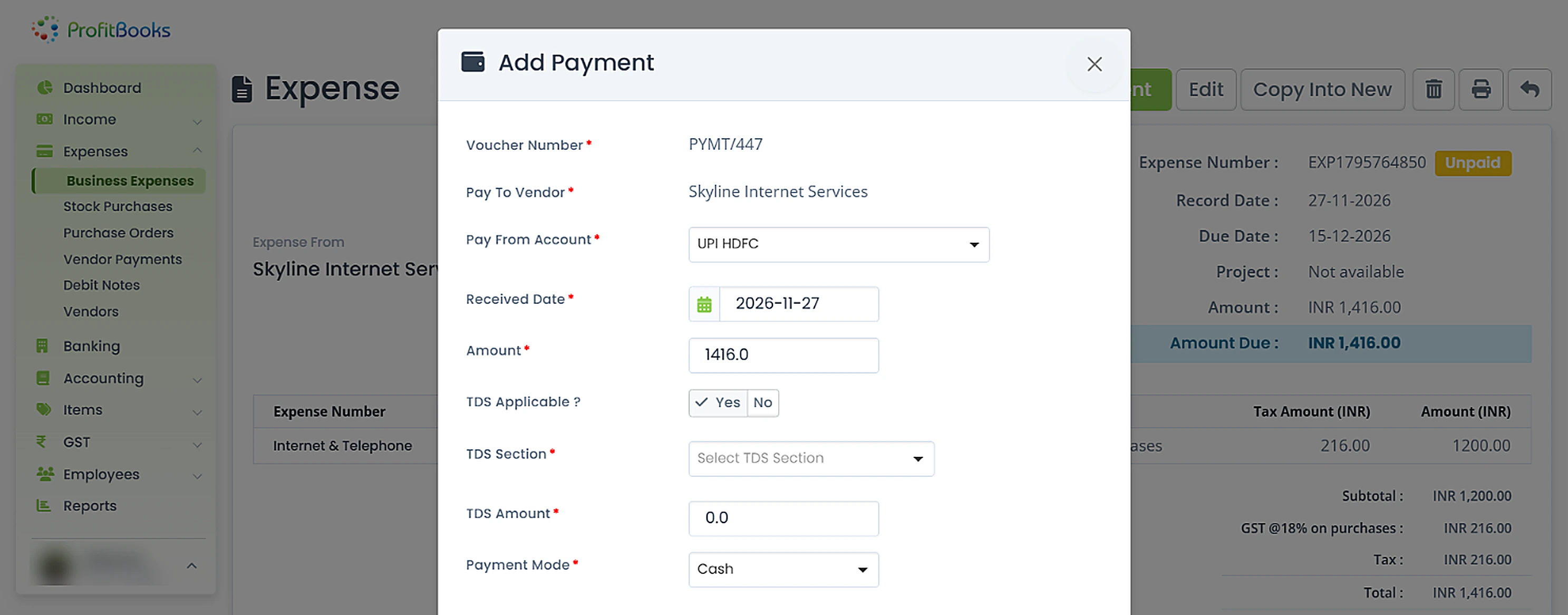
When you settle the bill, open the expense and click Make Payment. The Add Payment screen asks for the Pay From Account, the Received Date, the Amount and the Payment Mode. If tax is deducted at source, you can mark TDS Applicable and choose the TDS Section here. TDS is handled at the point of payment, not on the expense itself. For more on this, see our guide to tax deducted at source (TDS).
If the bill is for stock or inventory rather than a service, record it through the purchase workflow instead. See how the purchase cycle works for goods.
Editing and managing an expense
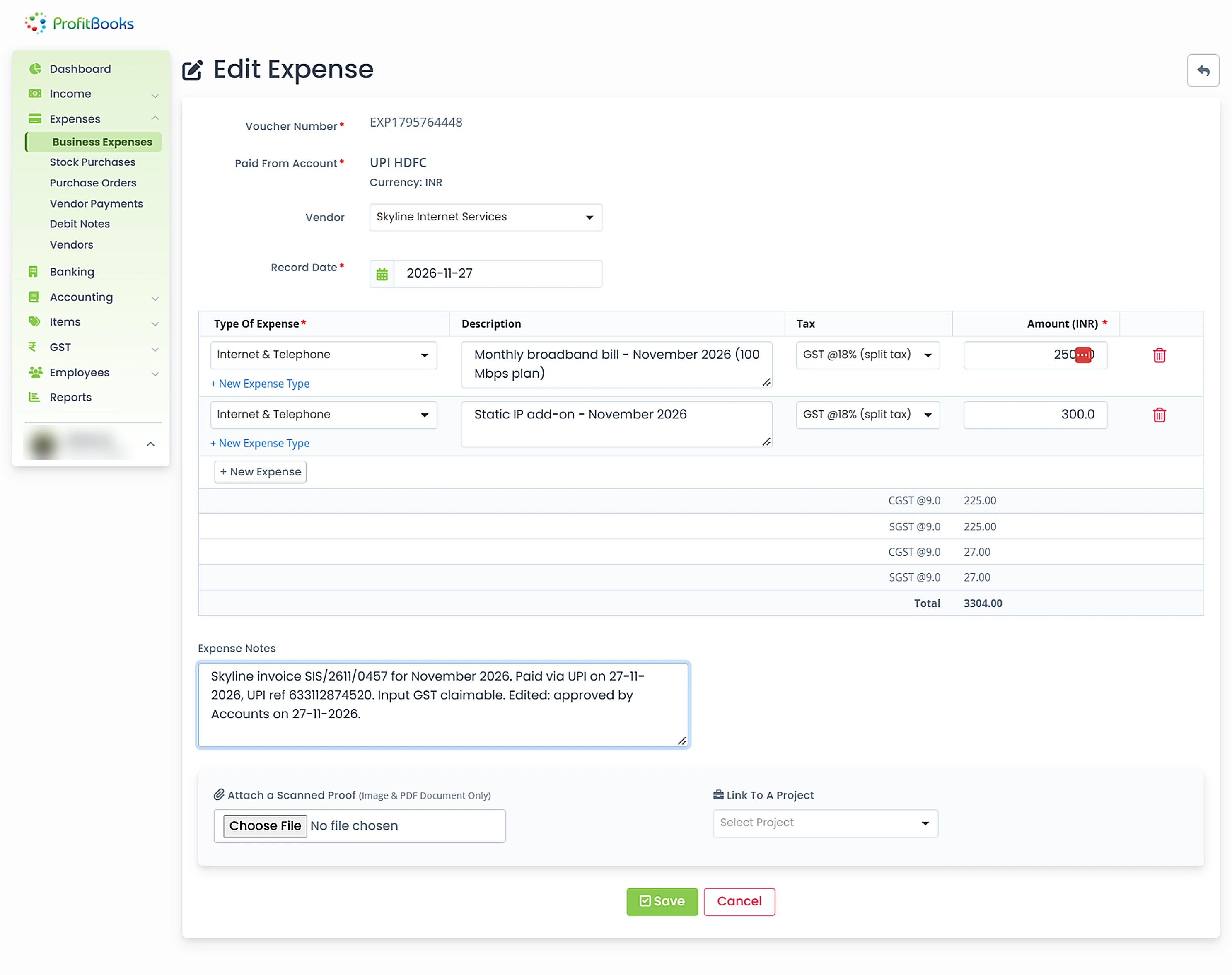
Open any expense and click Edit to change the line items, tax, amount or notes. A few things are locked after creation: the Voucher Number, the Paid From account and the Paid or Unpaid status cannot be changed, so if you picked the wrong status you record a fresh entry. Copy Into New duplicates an expense as a starting point for a similar one, and delete removes it permanently, so delete with care.
How to Choose the Correct Expense Category
Picking the right category is a small decision you make often, so a simple approach keeps it consistent.
Identify the purpose of the expense
Ask what the money was actually spent on. An internet bill is for connectivity used to run the business, so it belongs in an internet or communication account, not a generic one.
Match it to the appropriate account
Choose the category that reflects the nature of the expense, using an account that already exists where possible.
Follow your existing categorisation
Do not create a new category for something you already have an account for. Duplicate categories like Internet, Internet Exp and Broadband spread the same cost across three heads and make reports inconsistent.
Understand direct and indirect expenses
Direct expenses are tied to delivering your product or service. Indirect expenses keep the business running more broadly. How a cost is classified can depend on the nature of your business, so treat the table below as a guide rather than a fixed rule.
| Transaction | Possible category |
|---|---|
| Factory production material | Direct material cost |
| Office rent | Rent Expense (indirect) |
| Digital advertising | Marketing Expense (indirect) |
| Office electricity | Utilities Expense (indirect) |
Common Mistakes to Avoid When Recording Business Expenses
- Choosing the wrong category. It distorts your category-level reports. Fix it by editing the expense and selecting the correct Type Of Expense.
- Recording an unpaid bill as already paid. This makes your software balance diverge from your bank. Use the Unpaid type for bills you have not settled.
- Missing supporting documents. Attach the bill or receipt at the time of entry, while you still have it to hand.
- Using incorrect dates. Set the Record Date to the actual date of the expense so your periods are accurate.
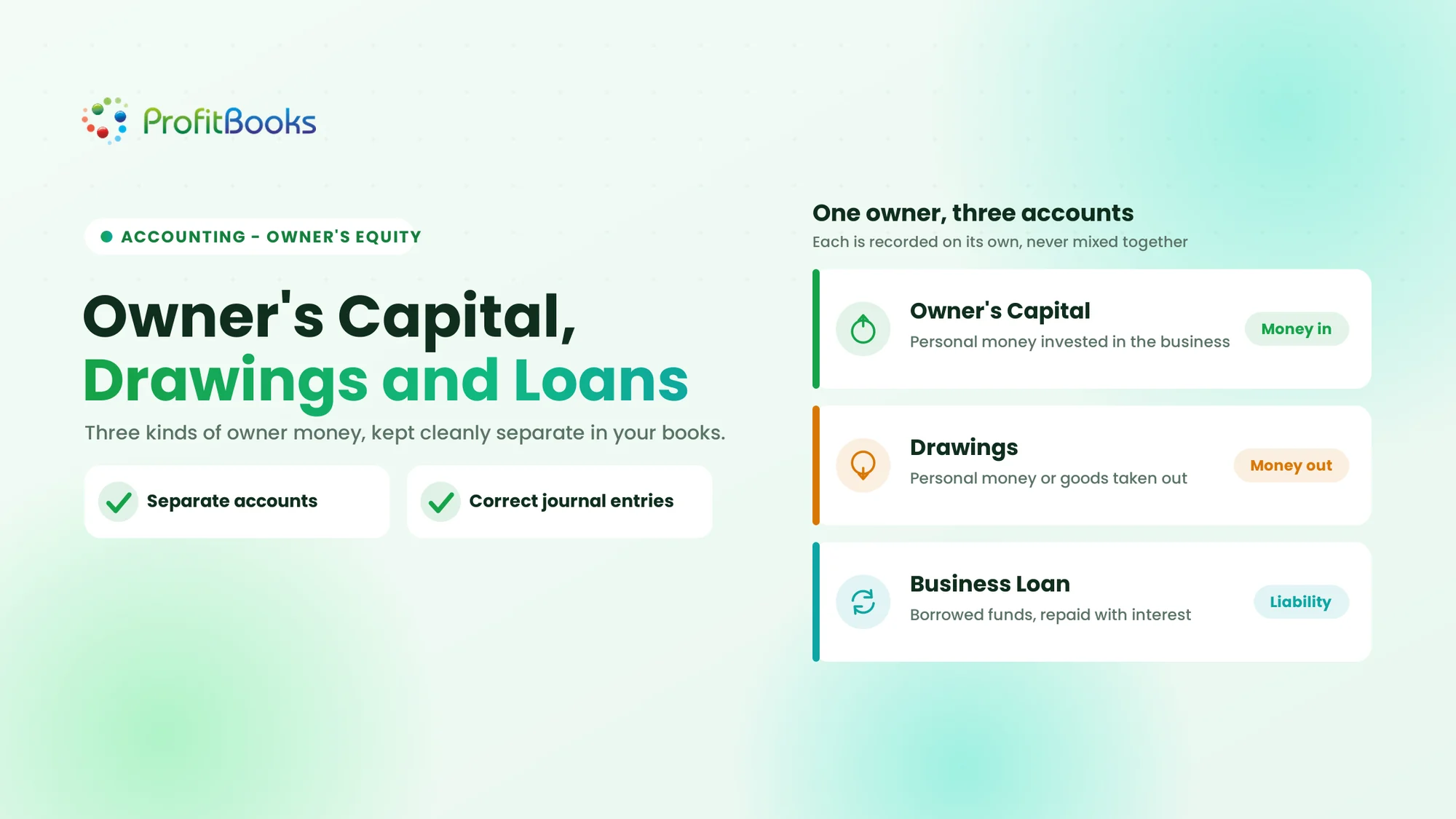
- Treating every payment as an expense. Some payments are asset purchases, loan repayments or transfers, not expenses. Classify them correctly.
- Creating duplicate categories. Reuse existing accounts instead of inventing near-identical ones.
- Ignoring tax details. Set the correct GST rate on each line so your input tax and reports are right.
Best Practices for Managing Business Expenses
- Record expenses regularly instead of leaving a month's pile for later.
- Categorise consistently, using the same account for the same kind of cost.
- Keep receipts and invoices, and attach them to the entry.
- Use the correct payment account, or the Unpaid type when the bill is not yet paid.
- Review your expense records periodically for stray or miscategorised entries.
- Avoid duplicate expense categories.
- Keep personal and business transactions separate.
- Check the details before you save.
- Work with your accountant when you are unsure how to classify something.
Quick expense recording checklist
- Correct date
- Correct amount
- Appropriate expense category
- Correct payment account, or Unpaid status
- Vendor or supplier, where relevant
- Tax details, where relevant
- Supporting document attached
- Details reviewed before saving
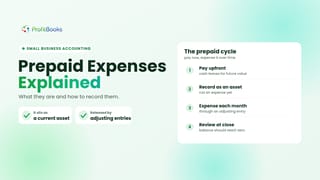
Related reading: 5 Tips for Reducing Business Expenses Effectively, How to Track Small Business Expenses: 4 Easy Steps and Prepaid Expenses Explained.
Frequently Asked Questions
How do I record business expenses in ProfitBooks?
Open Expenses > Business Expenses, click + New Expense, keep the type as Paid, choose the account you paid from, set the date, pick the expense category, enter the description, tax and amount, attach the bill and Save. The expense then appears in your list and your reports.
How do I categorise business expenses?
Choose the right account in the Type Of Expense field, based on what the expense was for and your chart of accounts. The category you pick is what decides where the expense shows up in your profit and loss and other reports.
Can I record an expense before making the payment?
Yes. Set the Expense Type to Unpaid. ProfitBooks then requires a vendor and a due date and records the bill as outstanding. When you pay it, open the expense and use Make Payment.
What is the difference between a cash expense and a credit expense?
A cash or paid expense is one you have already settled, so you record it with the paying account. A credit or unpaid expense is incurred but not yet paid, so it is recorded as an outstanding bill and the payment is recorded later.
Can I attach receipts to expense records in ProfitBooks?
Yes. The New Expense form has an Attach a Scanned Proof field that accepts an image or PDF, so the bill or receipt stays with the entry.
Can one expense be categorised differently from a similar one?
It can, because the right category depends on the purpose and nature of the specific transaction. Similar-looking payments can belong in different accounts, so categorise by what the money was actually for.
Why is expense categorisation important?
It determines how your expenses appear in reports, keeps your records organised and makes spending easy to review. Poor categorisation makes otherwise complete books hard to read.
Is every business payment an expense?
No. Payments can be expenses, but they can also be asset purchases, loan repayments, transfers or other transactions. Recording everything as an expense distorts your profit and your books.
Record and Categorise Expenses Consistently
Recording an expense is more than entering an amount. Categorisation decides how that expense is organised in your accounts, and getting the payment status, the account and the supporting document right is what keeps your books accurate. Done consistently, expense recording turns a drawer of receipts into financial information you can actually use.
ProfitBooks gives you one place to record paid and unpaid expenses, categorise them, attach the bills and see where every rupee went.
Record and organise your business expenses in one place
Explore expense management in ProfitBooks →