Bank Rules in ProfitBooks: How to Auto-Categorise Transactions
On this page 32 sections
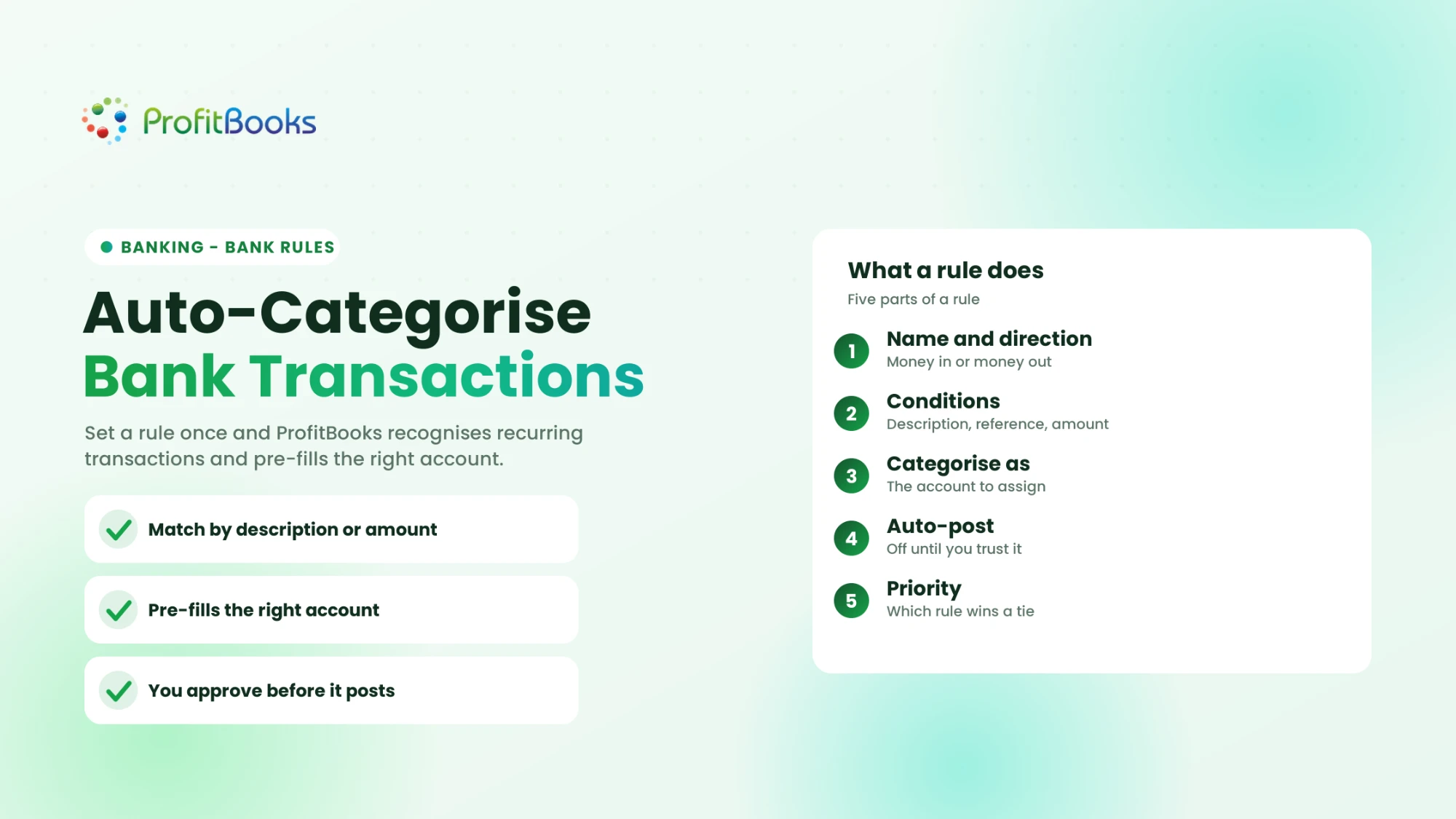
A bank rule is a saved condition that your accounting software uses to recognise a bank transaction and assign it to the right account automatically. When an incoming transaction matches the rule's condition, the software applies the category you set, so recurring entries are classified the same way every time without manual selection.
By Mohnish Katre, Co-founder, ProfitBooks
Last reviewed: 25 November 2026. Practical guidance for small businesses in India. Screens and options follow the current ProfitBooks interface; verify the live app before you rely on exact steps.
Every month, the same transactions land in the bank feed: the shop rent, the electricity bill, the broadband subscription, staff salaries, the quarterly bank charges. Categorising each one by hand, statement after statement, is slow, repetitive work, and it is easy to tag the same recurring payment slightly differently each time, which then muddles the reports built on top of it.
Bank rules take that repetition off your plate. A rule recognises a transaction from its description or amount and pre-fills the right account, so recurring entries are categorised consistently instead of being decided from scratch every time. This guide explains what bank rules are, how they decide what to categorise, and exactly how to create and use them in ProfitBooks, step by step with screenshots from the live app.
What Are Bank Rules in Accounting Software?
The logic behind every rule is a simple IF and THEN:
- IF a transaction matches a condition, for example the description contains "BROADBAND",
- THEN assign the account you chose, for example Internet Expense.
How bank rules work
The flow is the same across most tools:
- A bank transaction is imported or brought into the banking workflow.
- Its description, reference or amount is checked against your rules.
- The transaction matches a rule's condition.
- The software applies the account and other details the rule specifies.
- You review the suggestion and accept it, so you stay in control of the books.
A short, illustrative set of rules shows the pattern (these are examples, not default rules in ProfitBooks):
| Transaction description | Rule condition | Account |
|---|---|---|
| ACT FIBERNET BROADBAND | Description contains BROADBAND | Internet Expense |
| SHOP RENT JUL | Description contains RENT | Rent Expense |
| BANK CHARGES QTR | Description contains BANK CHARGES | Bank Charges |
What can bank rules help automate?
Rules work best on transactions that recur or follow a recognisable pattern, such as:
- Rent, electricity and other utilities.
- Internet and telephone bills.
- Software and SaaS subscriptions.
- Bank charges and fees.
- Recurring vendor payments and salaries.
Why Small Businesses Should Use Bank Rules
Reduce repetitive bookkeeping
A business with a dozen recurring monthly payments makes the same categorisation decision dozens of times a year. Rules make that decision once. The rent, the electricity bill and the internet subscription are recognised and pre-filled each month, so the only entries that need a fresh look are the ones that are genuinely new.
Keep categorisation consistent
When a rule assigns the account, the same recurring transaction lands in the same place every time, provided the condition is set correctly. That consistency is what makes your expense reports and ledgers comparable month to month, instead of the same cost being split across two or three similar accounts.
Save time in the bank workflow
Pre-categorised transactions mean less manual work as you process a statement. Rules handle the categorisation step, not the whole job: matching transactions to invoices and bills and agreeing the balance is bank reconciliation, a distinct activity. Rules simply get the recurring entries ready so you can focus on the reconciliation itself.
Cut repetitive data entry
Choosing the same account from a long chart of accounts, over and over, for near-identical transactions is exactly the kind of repetition rules remove, and it keeps your expense records consistent. You set the account on the rule once instead of selecting it on every transaction.
Improve the review process
With the predictable transactions handled, your attention goes where it is actually needed: the entries that do not match any rule, or that look unusual. Rules do not replace review; they make review faster by shrinking the pile to the things that genuinely need a decision.
How Bank Rules Categorise Transactions
A rule has two halves: the conditions that decide whether it matches, and the action it applies when it does.
Transaction conditions
In ProfitBooks, a rule can match on the fields the bank line actually carries:
- Description or Reference, using text match types such as contains, equals, starts with or ends with.
- Amount, using comparisons such as equals, greater than, less than or up to a limit.
- Direction, that is whether the money came in or went out.
You can combine several conditions and choose whether a transaction must match all of them or any one of them. Text matching ignores case and extra spacing, which helps because banks are inconsistent about both.
The categorisation action
When a transaction matches, the rule assigns the account you chose from your chart of accounts, such as Rent Expense, Internet Expense, Software Expense or Bank Charges. The exact accounts available are your own; a rule simply points a recognised transaction at the right one, and can also set the entry type and an optional memo.
Why transaction descriptions matter
Bank descriptions for the same payment vary between banks, payment methods and billing cycles. The same provider might appear as ACT FIBERNET, ACT FIBERNET BILL or ACT BROADBAND. A rule matching the full string will miss the shorter variants, while a rule matching just "ACT" might catch unrelated transactions. The skill is picking the shortest stable fragment that reliably identifies the payment, and using Preview (shown below) to check what it would catch before you save it.
Practical Examples of Bank Rules for Businesses
A few common patterns, as illustrative conditions and accounts. Match on the actual business purpose of the transaction, not just its narration.
| Transaction pattern | Example condition | Suggested account |
|---|---|---|
| Monthly office rent | Description contains RENT | Rent Expense |
| Internet subscription | Description contains BROADBAND | Internet Expense |
| Bank service charges | Description contains BANK CHARGES | Bank Charges |
| Advertising payment | Description contains GOOGLE ADS | Advertising Expense |
| SaaS subscription | Description contains a vendor name | Software Expense |
| Electricity bill | Description contains ELECTRICITY | Electricity Expense |
| Salary payment | Description contains SALARY PAYMENT | Salaries and Wages |
Example: automatically categorising internet bills
A recurring broadband bill arrives each month, and the statement consistently carries the provider's name. A rule that matches when the description contains the stable part of that name, set to categorise as Internet Expense, recognises the bill each month and pre-fills the account, leaving you to confirm it.
Example: categorising monthly rent
Rent is paid on a regular cycle with a consistent narration. A description-based rule that matches "RENT" and categorises as Rent Expense handles it each month, as long as the condition is specific enough not to catch unrelated payments.
Example: categorising software subscriptions
Recurring software payments usually show the vendor's name in the description. A rule keyed to that name, categorising as Software Expense, keeps those subscriptions consistently classified, provided the account is the right one for how your business treats the cost.
How to Create and Use Bank Rules in ProfitBooks
This is the practical core. The walkthrough follows the current ProfitBooks interface, building a rule for bank charges as the worked example.
Step 1: Open Banking and the Rules tab
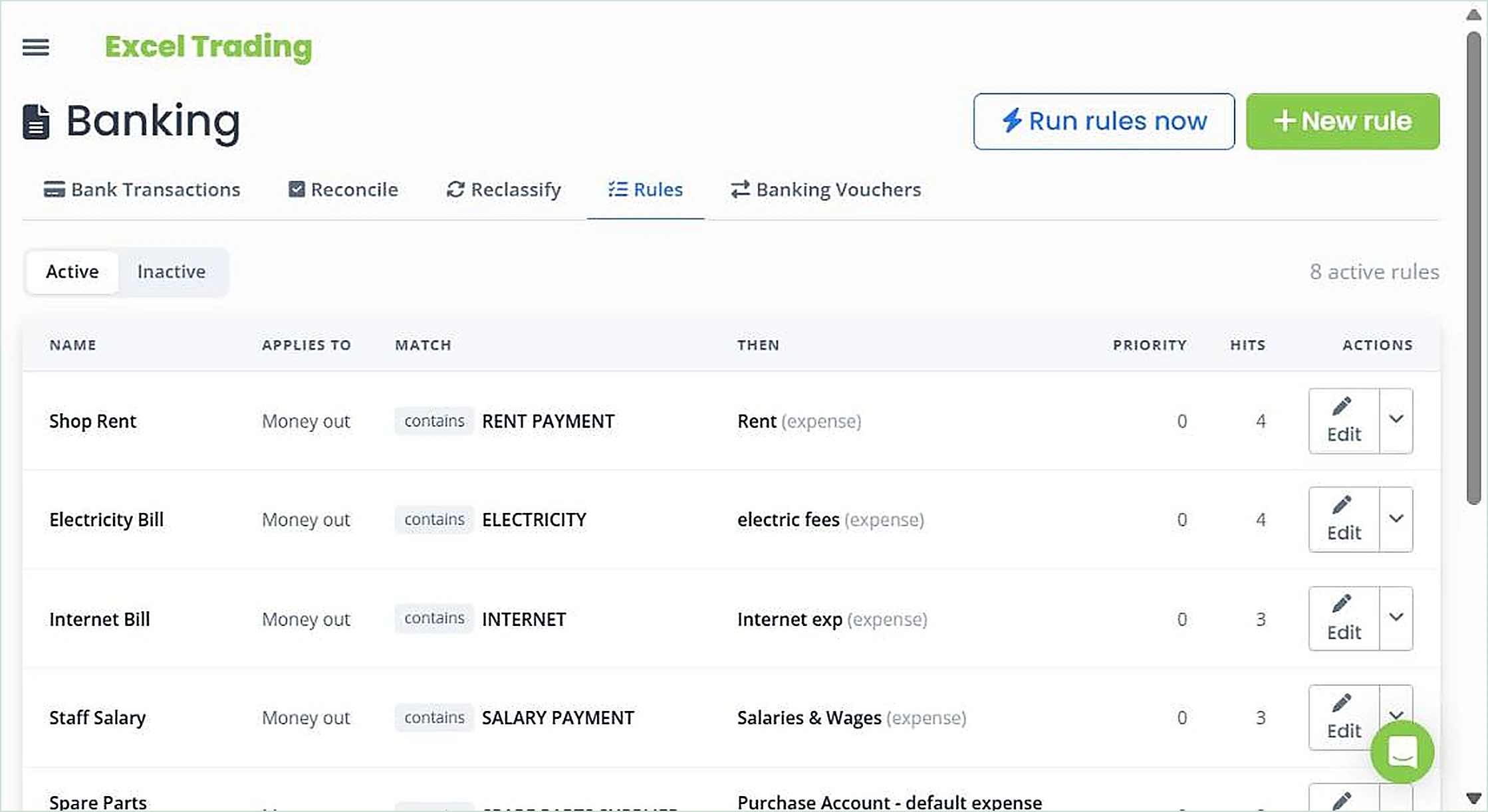
From the left menu, open Banking, then click the Rules tab. This lists your existing rules with their name, which direction they apply to, what they match, what they do (the account and its type), a priority, and a HITS count of how many transactions each has matched. The tab has a Run rules now button and a + New rule button, and an Active / Inactive switch.
Step 2: Start a new rule
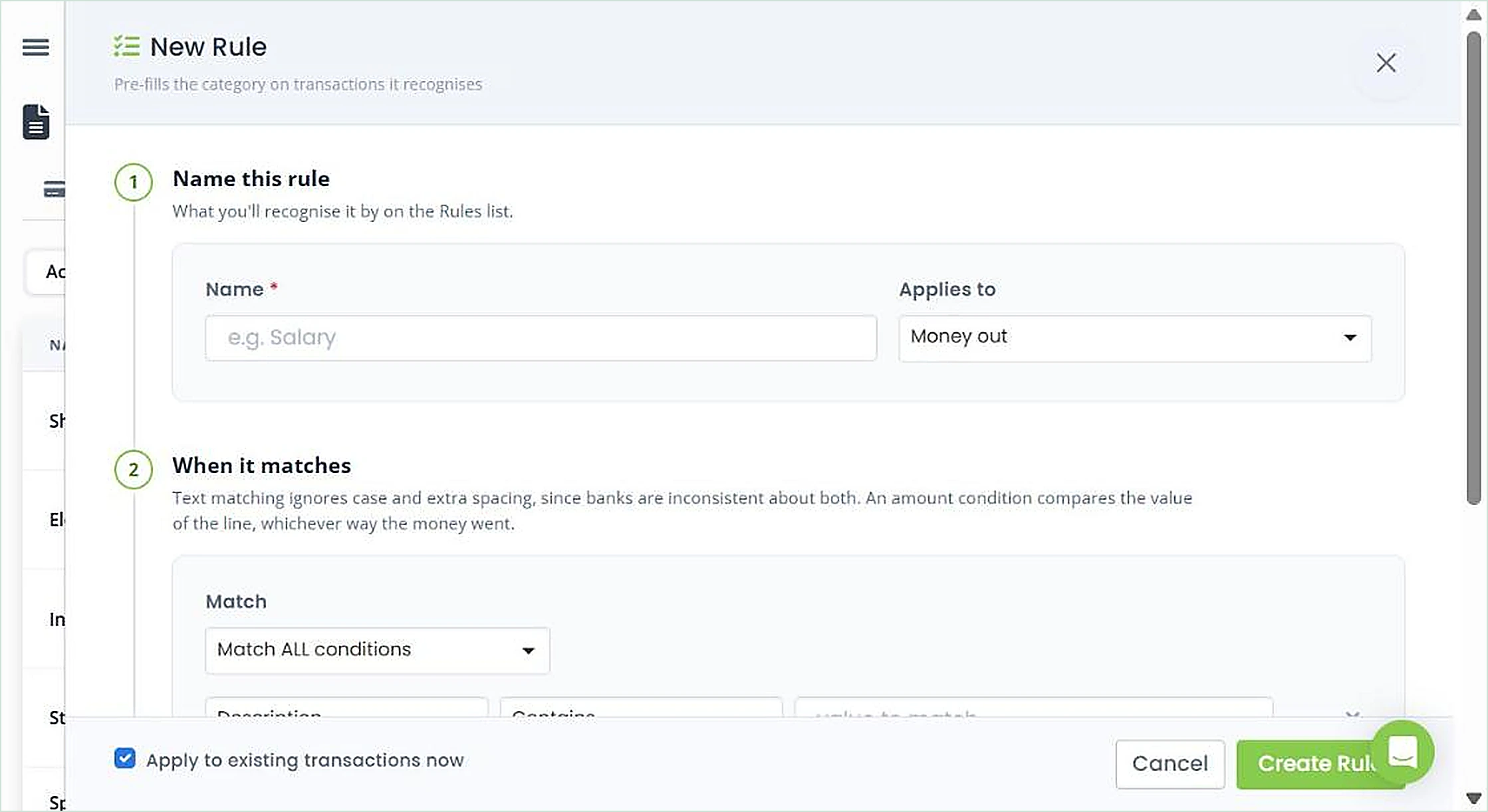
Click + New rule. A side drawer opens, titled New Rule, with three numbered sections: 1 Name this rule, 2 When it matches, and 3 Then. Give the rule a clear name (for the example, "Auto-categorise bank charges") and set Applies to to Money in or Money out. There is no "both directions" option, so make two rules if you need both.
Step 3: Set the matching conditions
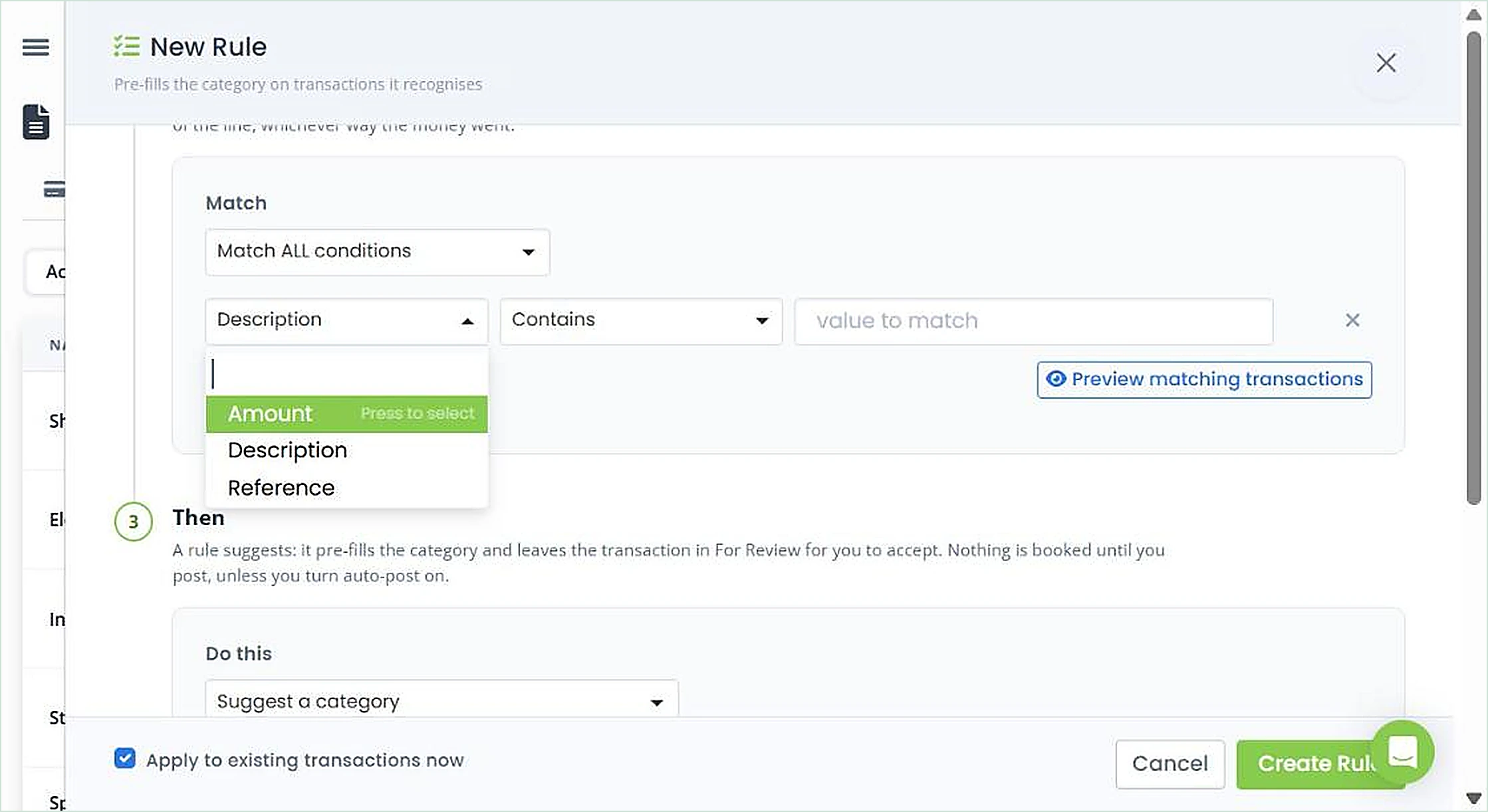
Under When it matches, choose whether the transaction must Match ALL conditions (AND) or Match ANY condition (OR). Each condition row has a field, a match type and a value. The field can be Description, Reference or Amount. For text, the match types are contains, does not contain, starts with, ends with, equals and not equals; for amount, comparisons such as less than or equal to, greater than or equal to, equals and so on.
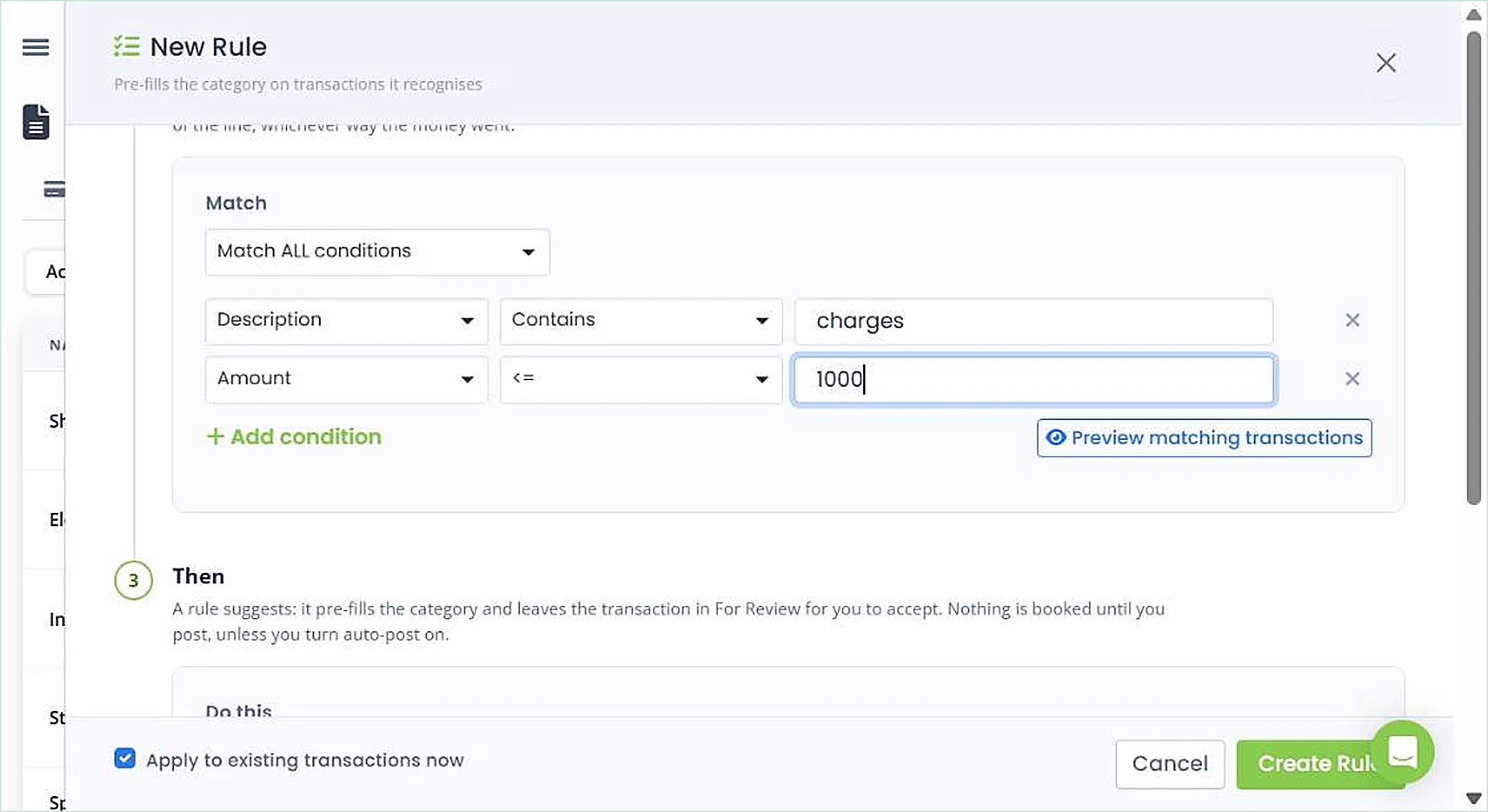
Click + Add condition to combine more than one. In the example, the rule matches when the Description contains "charges" and the Amount is 1000 or less.
Step 4: Preview what the rule would match
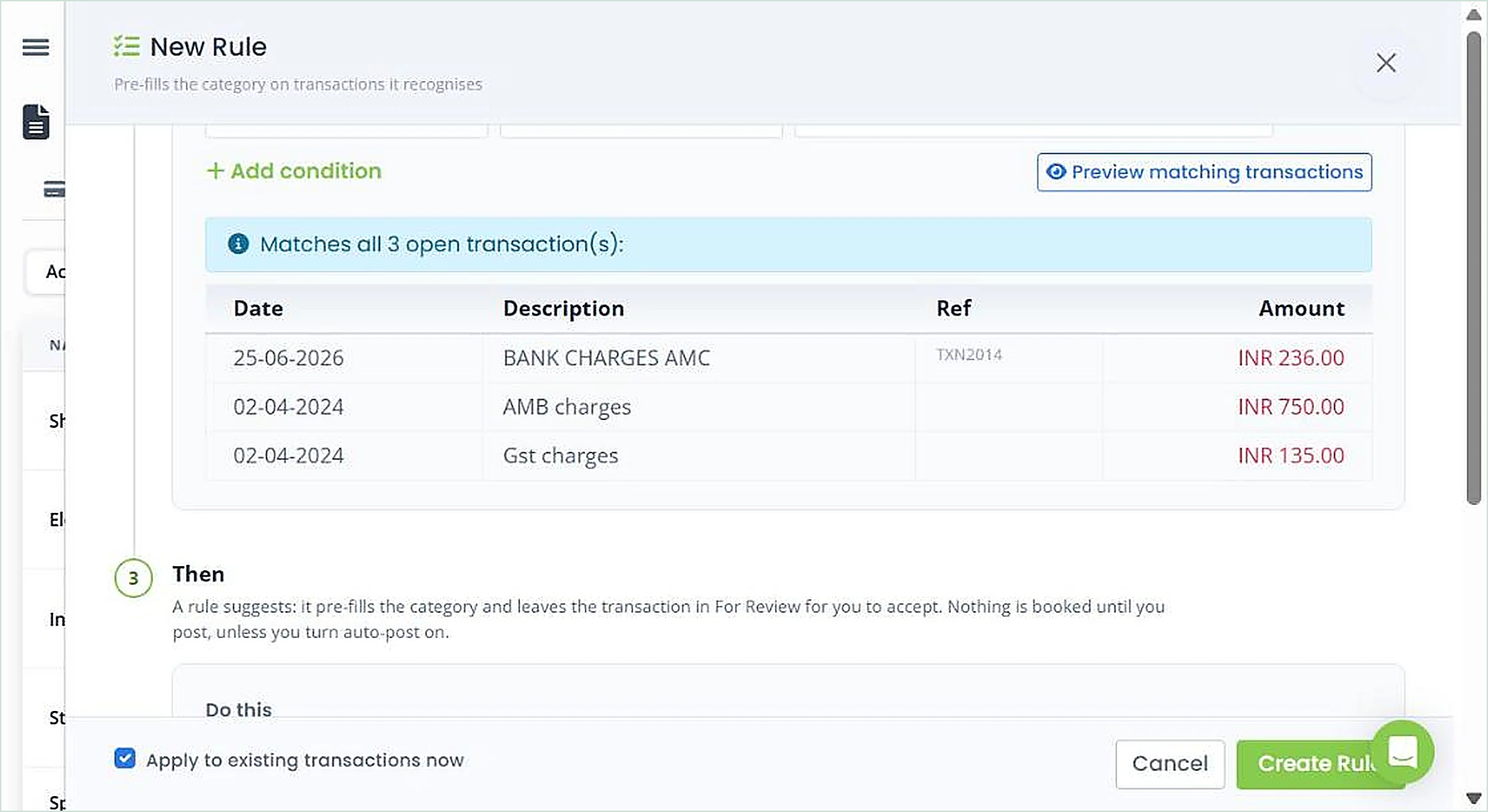
Before saving, click Preview matching transactions. ProfitBooks shows the open transactions the rule would catch, so you can confirm it is neither too broad nor too narrow. The preview is read-only; it is the quickest way to test a condition against your real data.
Step 5: Set what the rule does
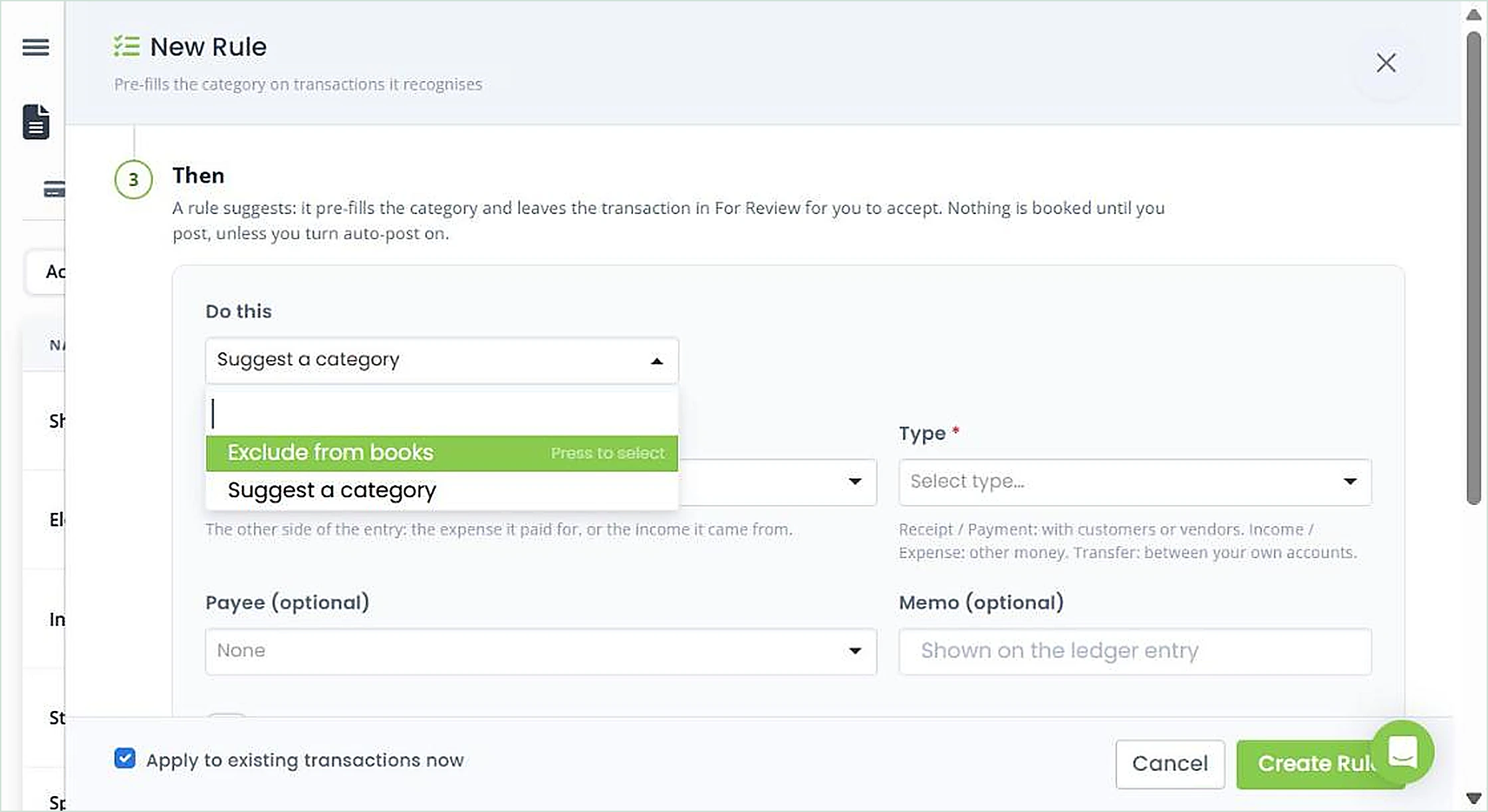
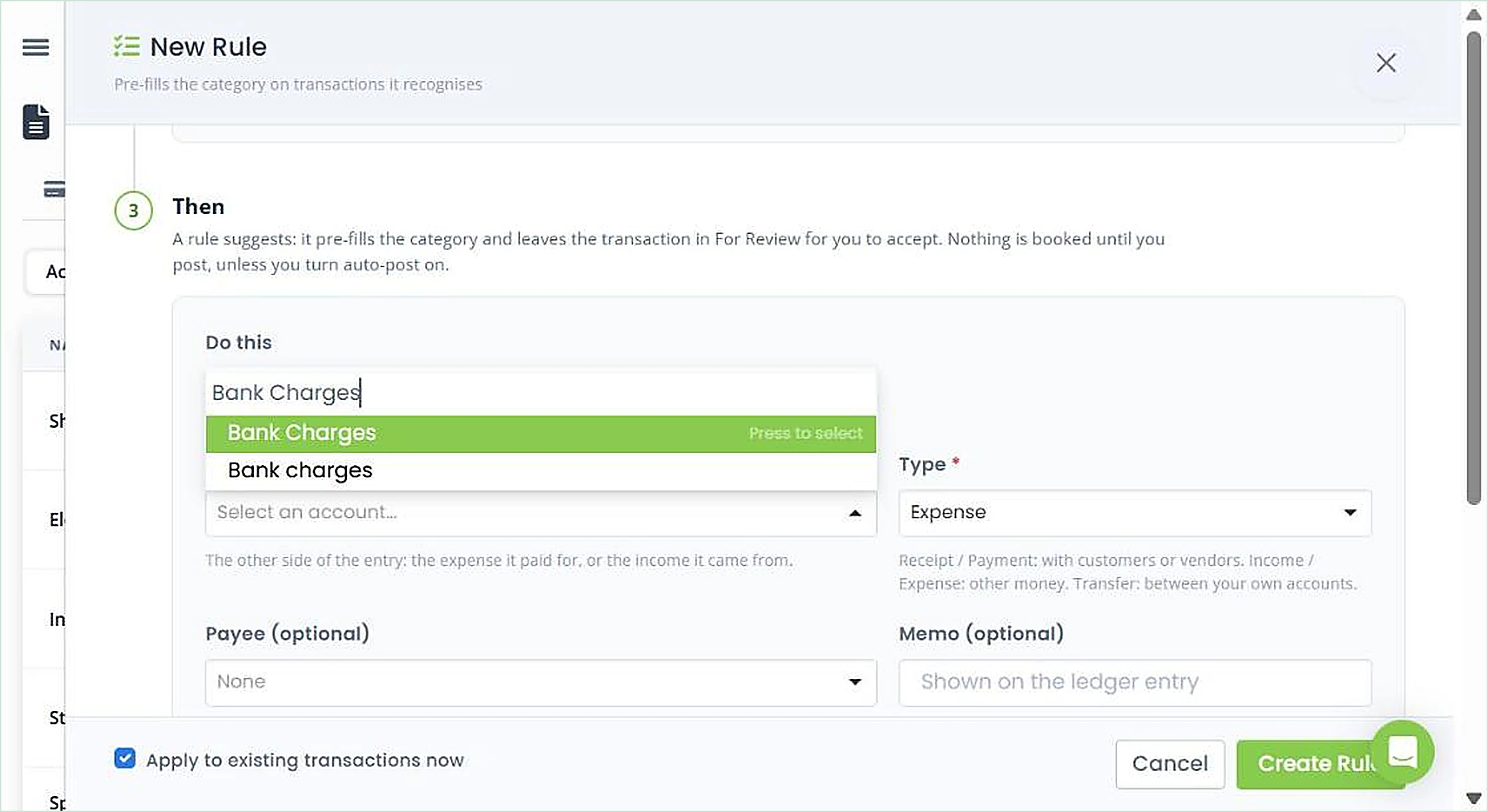
Under Then, the Do this option decides the outcome. Suggest a category pre-fills the account and leaves the transaction in For Review for you to accept; Exclude from books keeps it out. Choose the entry Type (Expense, Income, Payment, Receipt or Transfer), then set Categorise as, the account from your chart of accounts (for the example, Bank Charges). A Payee and a Memo are optional. There is no tax or GST field in the rule itself; the rule sets the account, and tax is handled on the transaction as usual.
Step 6: Decide on auto-post and priority
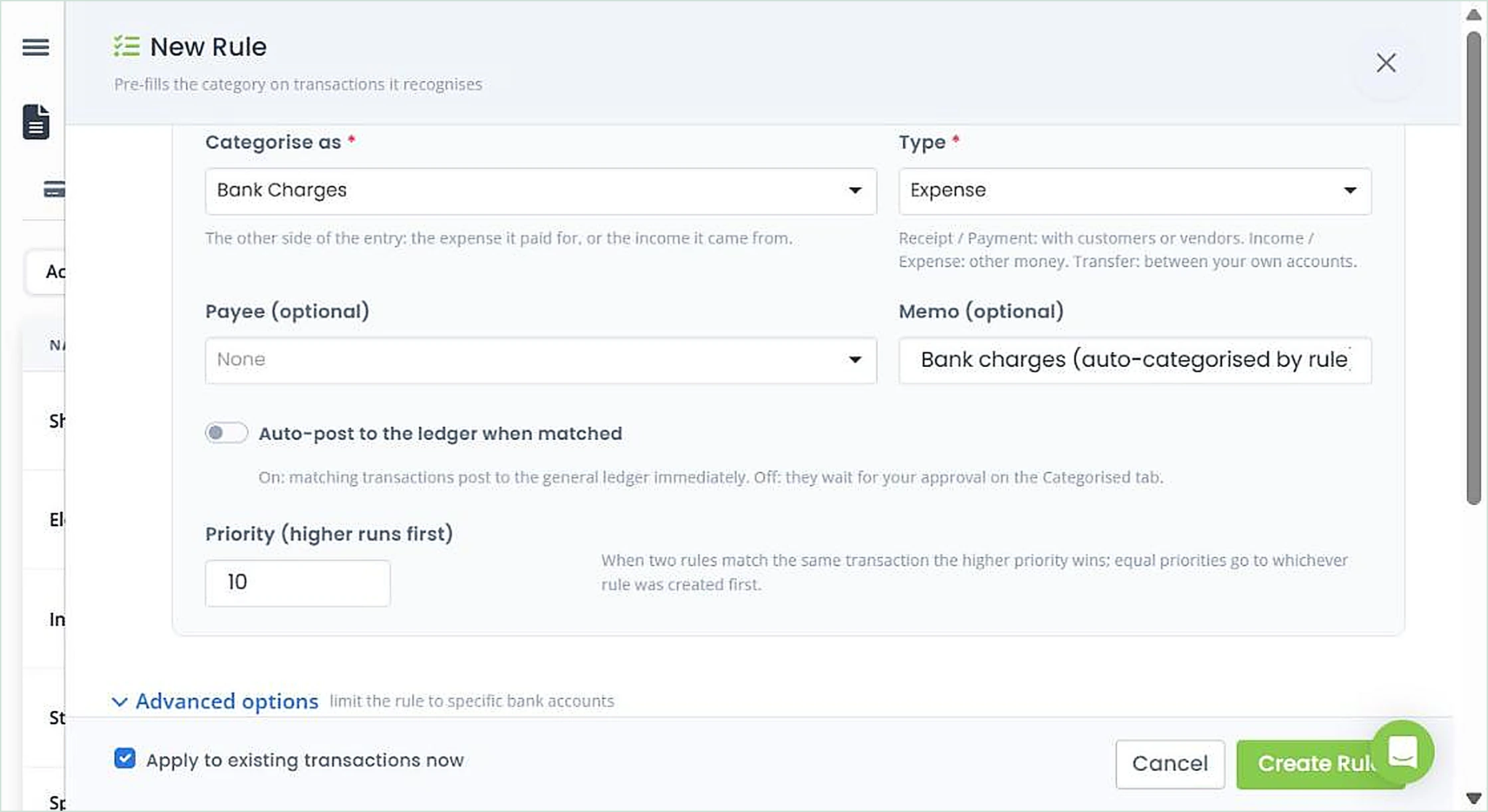
The Auto-post to the ledger when matched toggle is off by default, and this is the important safeguard: with it off, a matched transaction is only suggested and waits for your approval on the Categorised tab, so nothing is booked until you accept it. Turn it on only for transactions you are happy to post automatically. Priority decides which rule wins when two rules match the same transaction (higher runs first). Under Advanced options you can also limit a rule to specific bank accounts; leave them unchecked to apply to all.
Step 7: Create the rule
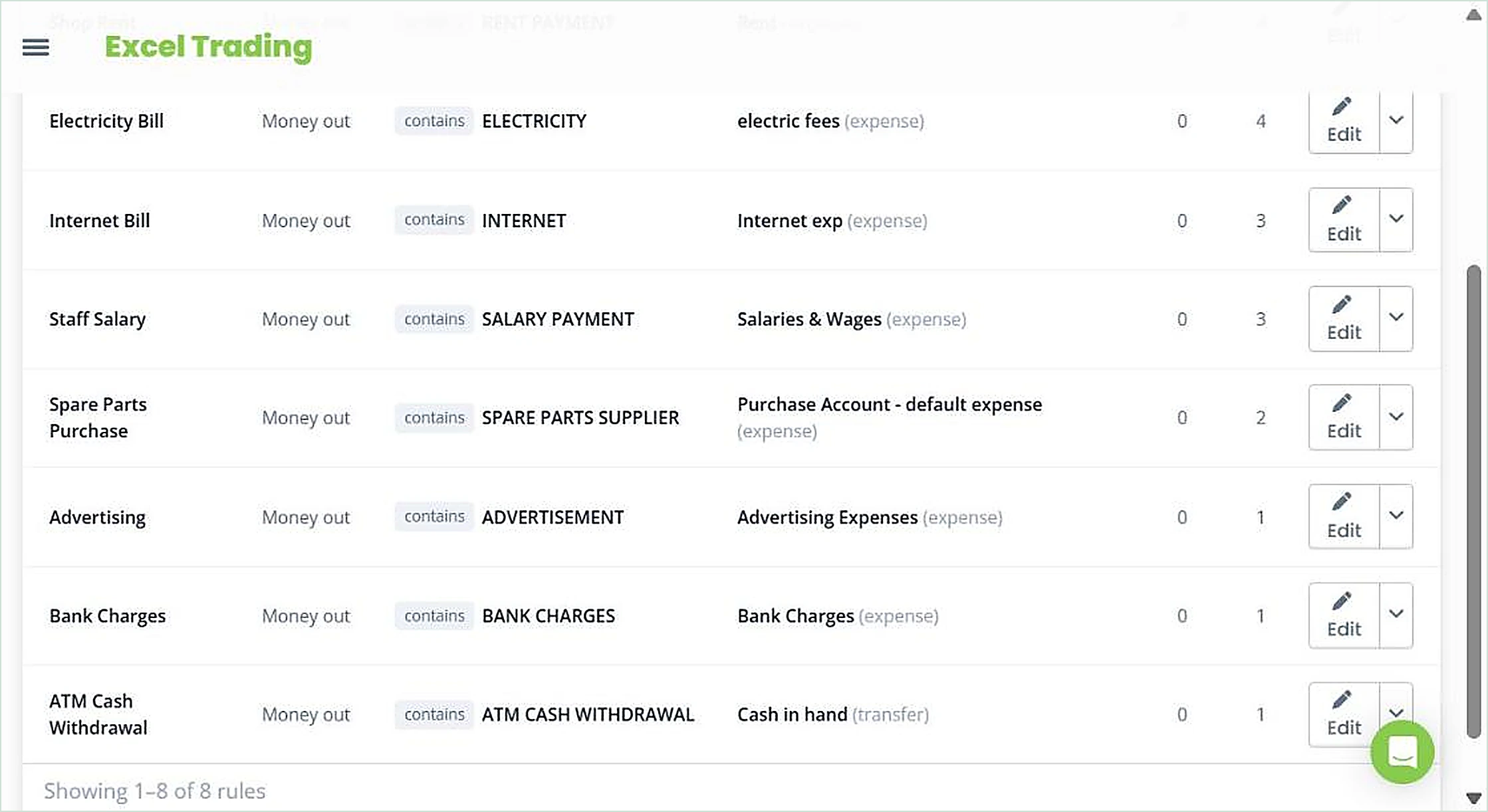
Leave "Apply to existing transactions now" ticked to run the rule over your open transactions as soon as it is saved, then click Create Rule. The new rule appears in the Rules list with its match, its action and a hit count that grows as it catches transactions.
Step 8: Review the transactions it categorises
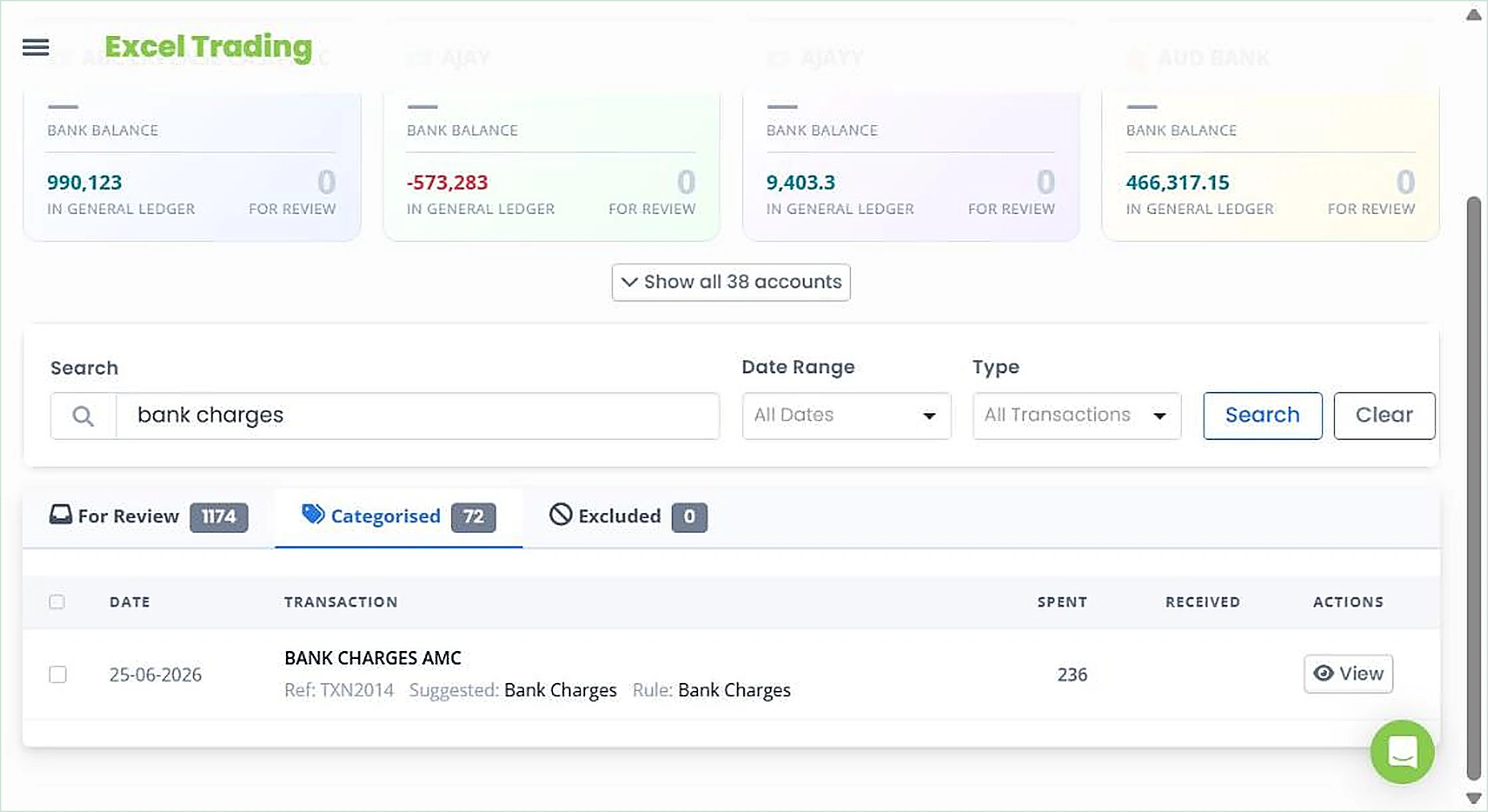
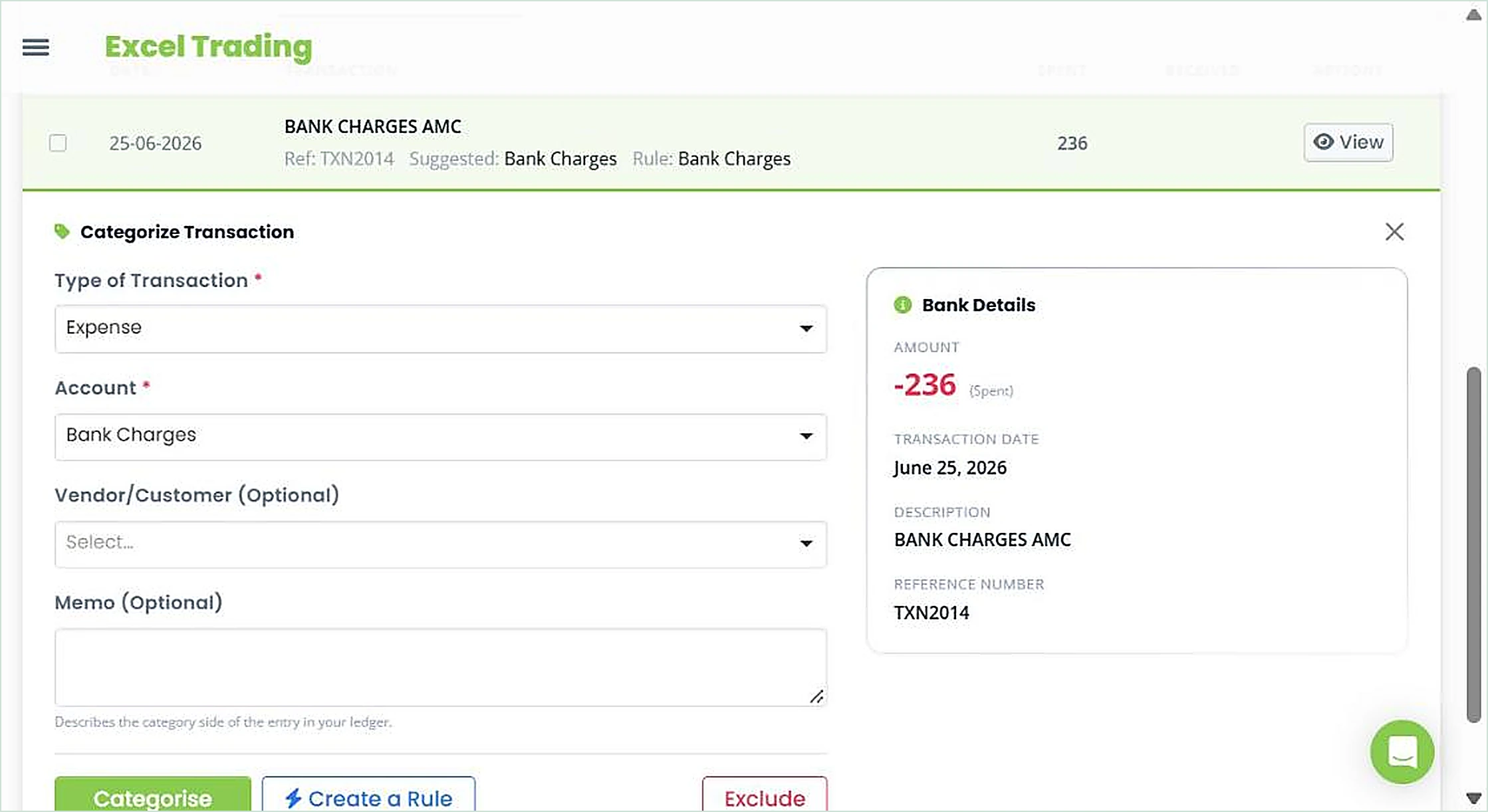
Because auto-post is off, matched transactions move to the Categorised tab under Bank Transactions and are tagged with the suggested account and the rule that matched, ready for you to accept. Open one with View to see the Categorise Transaction panel with the account, type and details already filled in from the rule. The buttons let you Categorise (which posts it to the ledger), start a new rule from the line, or exclude it.
Step 9: Manage and update rules
Rules need the occasional update as vendors change their narration or a recurring payment changes. On the Rules list, Edit opens the same drawer for any change, and the chevron next to it lets you Deactivate, Duplicate or Delete a rule. Deactivated rules move to the Inactive view rather than being lost. Review your rules periodically so a once-good condition does not quietly start missing or miscatching transactions.
Bank Rules vs Manual Bank Transaction Categorisation
| Manual categorisation | Bank rules |
|---|---|
| You pick the account for each transaction | A saved condition categorises matching transactions |
| Repeated work for recurring transactions | Recurring entries are recognised and pre-filled |
| Categorisation can vary between entries | Consistent, when the conditions are set correctly |
| Every transaction needs your attention | Matches are pre-filled, and can post automatically if you choose |
| Best for unusual or one-off transactions | Best for recurring, predictable patterns |
The two work together. Rules handle the predictable, recurring transactions; manual categorisation handles the unusual ones. Automation should speed up your bookkeeping, not replace the review that keeps it accurate, which is why ProfitBooks leaves matched transactions for you to accept unless you deliberately turn auto-post on.
Common Mistakes to Avoid When Creating Bank Rules
- Conditions that are too broad. A condition that matches too many transactions miscategorises the ones it should not. Use Preview to check the reach before saving.
- Categorising on narration alone. A description does not always reveal a transaction's real purpose; understand what the payment was actually for.
- The wrong account. Point the rule at the correct account from your chart of accounts, not just a convenient one.
- Duplicate or conflicting rules. Overlapping rules can fight over the same transaction; priority decides the winner, so keep rules distinct and set priorities deliberately.
- Ignoring transactions after automating. Rules suggest, they do not absolve you of review. Check the Categorised tab rather than assuming everything is right.
- Letting rules go stale. When a vendor changes its narration or a payment changes, update the rule so it keeps working.
Best Practices for Managing Bank Rules
- Create rules for genuinely recurring transactions, not one-offs.
- Use clear, specific conditions, and preview them before saving.
- Assign the correct account from your chart of accounts.
- Avoid conditions that could match unrelated transactions.
- Review the transactions your rules categorise rather than trusting them blindly.
- Update rules when descriptions or payments change.
- Keep rule names clear and descriptive so the list stays readable.
- Leave auto-post off until you are confident a rule is reliable.
The goal is to cut the repetitive work without losing control of the accuracy of your books. A well-kept set of rules does the predictable categorisation for you and leaves you free to look at what actually needs judgement.
Categorise recurring bank transactions automatically
ProfitBooks lets you set bank rules that recognise recurring transactions and pre-fill the right account, with import, categorisation and reconciliation in one connected banking workflow.
Explore ProfitBooks bank reconciliation →
Related reading: Bank Reconciliation: Format and Benefits, Trial Balance: What It Is and How to Prepare One and Customer and Vendor Management: A Practical Guide.
Frequently Asked Questions About Bank Rules
What are bank rules in accounting software?
Bank rules are saved conditions that your accounting software uses to recognise a bank transaction and assign it to the right account automatically. When a transaction matches the condition, the software applies the category you set, so recurring entries are classified consistently without manual selection each time.
How do bank rules automatically categorise transactions?
Each rule has a condition, such as the description containing a certain word or the amount being within a range, and an action, the account to assign. When an incoming transaction meets the condition, the rule pre-fills that account, so the categorisation happens for you.
What transactions can be categorised using bank rules?
Recurring or recognisable transactions work best: rent, utilities, internet and phone bills, software subscriptions, bank charges, recurring vendor payments and salaries. One-off or unusual transactions are better handled manually.
Can bank rules categorise transactions automatically in ProfitBooks?
Yes. In ProfitBooks you create rules under Banking > Rules. A rule can suggest a category, which pre-fills the account and leaves the transaction for you to accept, or, if you turn on auto-post, post the matched transaction to the ledger automatically.
Do bank rules work when importing bank statements?
Rules apply to the transactions in your banking workflow, and in ProfitBooks you can also tick "Apply to existing transactions now" when saving a rule to run it over open transactions immediately, as well as use Run rules now from the Rules tab.
Can I review transactions categorised using bank rules?
Yes. With auto-post off, matched transactions appear on the Categorised tab tagged with the suggested account and the rule, and you accept them from the Categorize Transaction panel. You can also edit or undo a categorisation before it is posted.
Are bank rules the same as bank reconciliation?
No. Bank rules categorise transactions by assigning an account. Bank reconciliation is the separate process of matching your transactions to invoices and bills and agreeing your book balance against the bank statement. Rules make reconciliation faster, but they are not the same thing.
Can bank rules incorrectly categorise transactions?
Yes, if a condition is too broad or based only on narration, a rule can catch transactions it should not. That is why ProfitBooks offers a preview before saving and leaves matches for you to review, and why rules should be checked periodically.
Automate Repetitive Bank Categorisation With Bank Rules
Bank rules turn the repetitive part of bookkeeping into something that happens on its own: set the condition once, and recurring transactions are recognised and categorised consistently from then on. Good conditions keep the categorisation accurate, a quick review keeps you in control, and auto-post stays off until you trust a rule. Used this way, rules sit neatly inside the wider bank transaction and reconciliation workflow, and ProfitBooks gives small businesses a single place to set them up, review what they catch, and keep the books clean.