How to Set Up Your Product Master in ProfitBooks: HSN Codes and Units
On this page 33 sections
A product master is a central record that holds the standard information about the products and services a business sells, purchases or manages. Instead of re-entering the same details on every transaction, you maintain one reusable record per item and the software fills your invoices and bills from it.
By Mohnish Katre, Co-founder, ProfitBooks
Last reviewed: 25 November 2026. Practical guidance for small businesses in India. HSN, SAC and GST reporting rules change from time to time, so verify the current requirements on the GST portal or with your tax adviser before you rely on them.
A business that sells electrical goods, stationery or packaged products has to keep track of product names, quantities, units, classifications and the sale or purchase details behind each item. When those details are entered a little differently every time a transaction is recorded, the result is avoidable errors and a lot of repeated typing. The same item ends up spelled three ways, one invoice carries no HSN code at all, and the stock figures stop matching reality.
A product master is the fix. It is the one place where you maintain reusable information about everything your business sells or buys, so each invoice, bill and report pulls from a single clean record instead of being typed from scratch. This guide explains what a product master is, why the HSN and unit fields carry more weight than they first appear to, and how to set one up in ProfitBooks, step by step with screenshots from the live app.
What Is a Product Master in Accounting Software?
What information does a product master contain?
A single item record usually holds the details a transaction needs, which commonly include the following.
- Product name and an optional description.
- Unit of measure (how the quantity is counted).
- HSN or SAC classification for GST.
- Sales details, such as the sales price and the income account.
- Purchase details, such as the purchase price and the expense account.
- Tax settings, chosen through the sales and purchase tax accounts.
- Inventory configuration, where the item is stock-tracked.
- A category, and any product code you use internally.
How is a product master used?
Once an item exists in the master, it becomes selectable across the places you record transactions, so the same clean details flow into each one:
- Sales invoices and other income vouchers.
- Purchase bills and expense entries.
- Estimates and quotations.
- Inventory and stock transactions.
- Product and inventory reports.
The point to hold on to is that a mistake in the master does not stay in the master. Because every transaction inherits from that one record, an error copies itself into invoices, purchase entries, stock ledgers and tax summaries. A product master is not just a data-entry form; it is a template that stamps every transaction it touches.
Why Is Product Master Setup Important for Small Businesses?
Setting products up properly is less about neatness and more about the day-to-day work it saves and the errors it prevents.
Maintain consistent product information
Standard names, descriptions and units stop the same item appearing as three different records. "A4 Paper", "Printer Paper A4" and "A4 Printing Paper" should be one record, not three, if they are the same item. Consistent records keep your lists searchable and your reports readable.
Simplify sales and purchase entry
Predefined records remove repeated manual entry. When the price, unit, tax and classification are already stored, raising an invoice or recording a bill becomes a matter of selecting the item rather than typing its details again.
Support inventory tracking
Items configured for stock tracking let you record and monitor quantities as you buy and sell. That only works when the item is set up as a stock-tracked product in the first place, which is why the inventory decision belongs at setup. ProfitBooks connects this directly to its inventory management features.
Maintain relevant GST classification information
Accurate HSN or SAC details on each item keep your GST-related product information consistent across every invoice. Setting the classification once, on the item, is more reliable than entering it by hand on each transaction. Setting up the product master is a step towards cleaner GST records, not a guarantee of compliance on its own.
Keep product-level records organised
Standardised product information supports more organised transactions and clearer reporting. When every item carries the same quality of data, the reports built on top of them can be trusted without a clean-up first.
What Information Should You Include in a Product Master?
The exact fields available differ between accounting tools, but a few details matter on almost every item record. Use the table as a checklist of what each field is for.
| Product field | What it is | Why it matters |
|---|---|---|
| Product name | The name used to identify the item | Makes the item easy to select and keeps records consistent |
| Description | Extra detail about the item | Helps tell similar items apart |
| Unit of measure | The unit a quantity is counted in | Keeps quantities consistent across transactions |
| HSN / SAC code | The GST classification identifier | Supports classification and GST-related records |
| Sales configuration | Whether the item is sold, and its price | Makes it available on invoices and income vouchers |
| Purchase configuration | Whether the item is bought, and its price | Makes it available on purchase and expense vouchers |
| Inventory setting | Whether stock is tracked | Supports inventory record-keeping |
| Tax settings | The applicable tax accounts | Pre-fills the right tax on transactions |
| Category | A grouping label for the item | Helps organise and filter the item list |
Not every business needs every field. The information should reflect the actual nature of the product and the business, and the HSN or SAC code and the unit are worth checking carefully before you save, because both flow into GST reporting and stock figures later.
Understanding HSN Codes Before Adding Products
HSN stands for Harmonized System of Nomenclature, an internationally recognised system for classifying goods. Under India's GST system, the HSN code groups a product into a defined category, which is how items are summarised in the HSN-wise statements that feed GST returns. The code is hierarchical: broader categories at two digits, narrowing to four, six or eight digits as you get more specific.
HSN codes vs SAC codes
Goods and services are classified differently. Goods use HSN; services use a SAC, the Services Accounting Code, which always begins with 99 and is six digits long.
| Code | Classifies | Format |
|---|---|---|
| HSN | Goods | 2, 4, 6 or 8 digits |
| SAC | Services | 6 digits, starting with 99 |
How many HSN digits do you need?
Under GST, how many HSN digits must appear on an invoice depends on your aggregate annual turnover in the previous financial year. The thresholds below have applied since 1 April 2021, but GST rules change, so confirm the current position before you rely on them.
| Turnover (previous FY) | HSN digits required |
|---|---|
| Up to Rs 5 crore | 4 digits on B2B invoices (not mandatory on B2C) |
| Above Rs 5 crore | 6 digits on both B2B and B2C invoices |
How to find the correct HSN code for a product
A product name on its own cannot settle the right HSN. Terms like kit, chemical, machine part or processed food can each span several classifications depending on material, degree of processing, intended use and packaging. A practical process:
- Identify the exact product, not just its broad category.
- Review its composition, characteristics and intended use.
- Check the HSN or SAC against a reliable classification source, such as the official search on the GST portal.
- Confirm the classification with a tax professional where there is any ambiguity.
Treat HSN assignment as a check, not a guess. Do not assign codes by eye or invent a GST rate to go with them. Where a classification is genuinely uncertain, verify it against official GST resources or with your accountant before you save it on the item.
Understanding Units of Measurement for Products
A unit of measure defines how a product's quantity is recorded. Choose kilograms and your purchases, sales and stock all count in kilograms; choose pieces and they count in pieces. The field looks trivial, but it sets the counting basis for every transaction on that item.
Common units of measurement
The units below are illustrative, not a fixed list. For GST reporting it helps to keep your unit labels aligned with the recognised Unit Quantity Codes (such as PCS, KGS, MTR, NOS) that the returns expect, so your figures reconcile cleanly at filing time.
| Unit | Meaning | Typical use |
|---|---|---|
| PCS | Pieces | Individual items such as bottles or chairs |
| KGS | Kilograms | Grains, spices, bulk materials |
| GMS | Grams | Small quantities |
| LTR | Litres | Oils, chemicals, beverages |
| MTR | Metres | Fabric, cable, pipe |
| BOX | Box | Boxed or packaged goods |
| NOS | Numbers | Generic countable items |
| HRS | Hours | Time-based services, where used |
How to choose the right unit
Match the unit to how your business actually records the item, and keep it consistent across purchase and sales entries. If you sell by the piece, your unit is pieces, even when your supplier invoices you by the carton; the conversion belongs in your process, and the master should reflect your selling reality.
Why incorrect units cause problems
Record the same item in kilograms on some transactions and pieces on others, with no defined conversion, and the stock ledger becomes fiction. You might see 50 units purchased and 200 units sold, each figure correct in its own unit while being useless read together. Picking one sensible unit per item, and sticking to it, avoids the whole problem.
How to Set Up Your Product Master in ProfitBooks
This is the core of the work. The walkthrough below follows the current ProfitBooks interface, using a real example item, an insulated steel water bottle, so you can see where each field lives.
Step 1: Open Products / Services
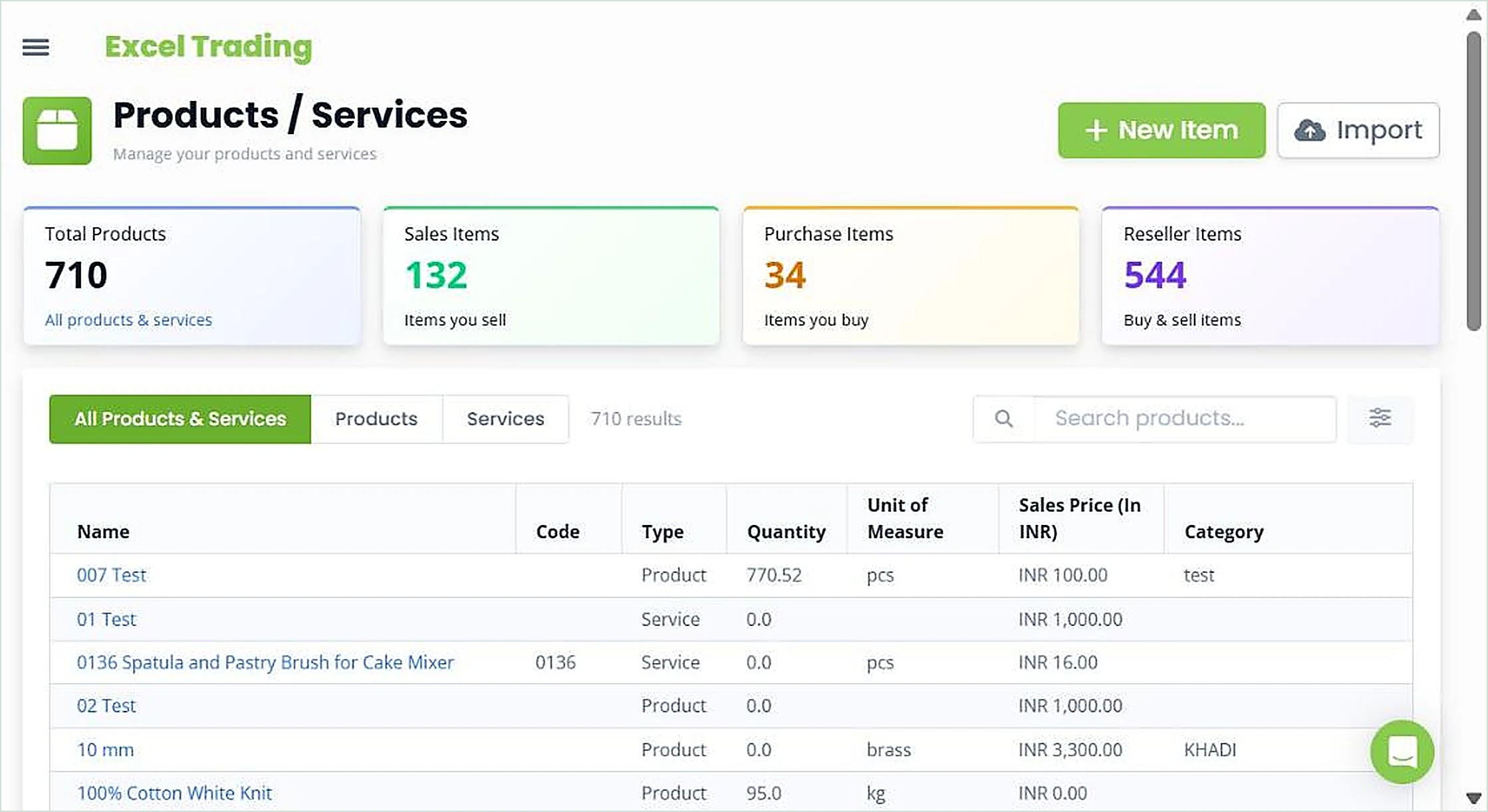
From the left menu, expand Items and open Products/Services. The page lists every item in your account, with summary cards for Total Products, Sales Items, Purchase Items and Reseller Items, and tabs for All Products and Services, Products and Services. The columns show Name, Code, Type, Quantity, Unit of Measure, Sales Price and Category.
Step 2: Click New Item and choose the type
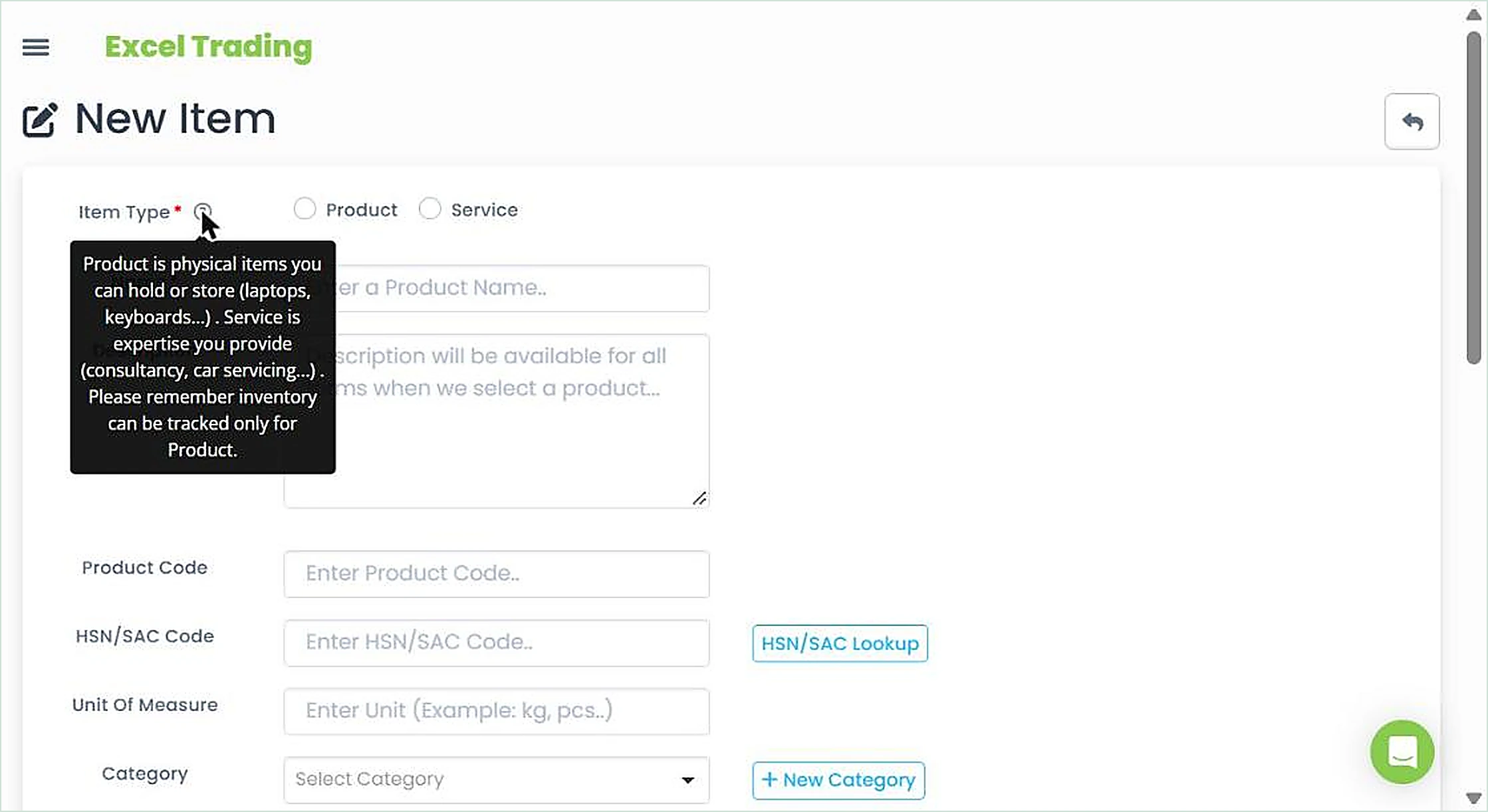
Click + New Item to open the New Item form. The first choice is Item Type, a radio with Product and Service. Pick Product for a physical good you can hold or store, and Service for expertise you provide. This choice decides whether inventory can be tracked, and it cannot be changed after you save, so set it deliberately. Item Type and Name are the only required fields, both marked with a red asterisk.
Step 3: Enter the basic details
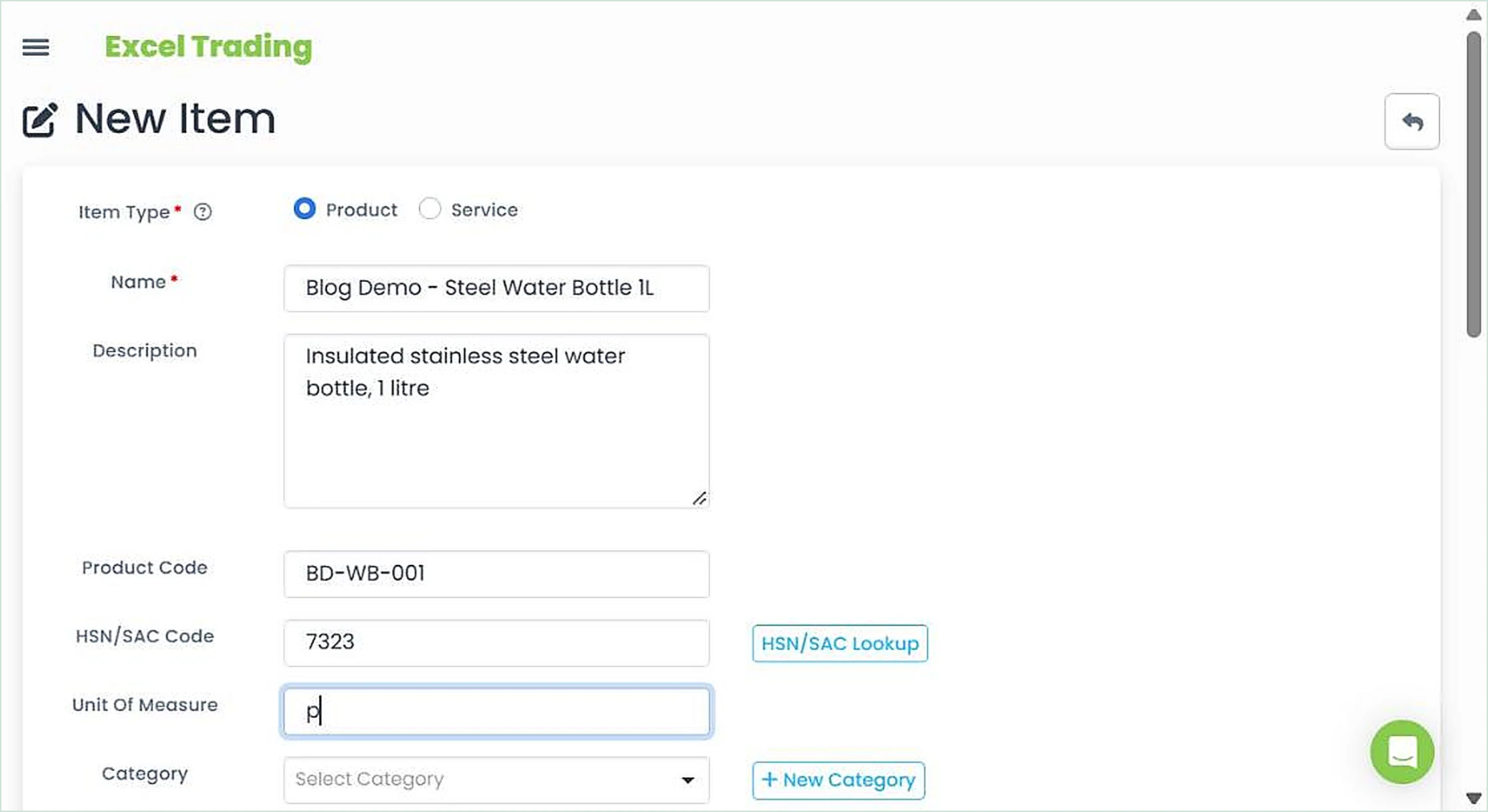
Enter a clear Name, an optional Description, and a Product Code if you use one. Consistent, descriptive names are what keep the item list clean later, so a name like "Steel Water Bottle 1L" serves you better than a bare "Bottle". The example below uses the name, a short description and an internal code.
| Field | Example |
|---|---|
| Name | Steel Water Bottle 1L |
| Description | Insulated stainless steel water bottle, 1 litre |
| Product Code | BD-WB-001 |
The example values are illustrative and are not actual ProfitBooks product data.
Step 4: Enter the Unit of Measure
In ProfitBooks the Unit of Measure is a free-text field. You type the unit you want (for example pcs, kg or visit); there is no dropdown and no separate unit master to maintain. Whatever you type is stored and shown in the item list, so keep your spelling consistent across items, and lean towards the standard codes that GST reporting expects.
Step 5: Add the HSN or SAC code
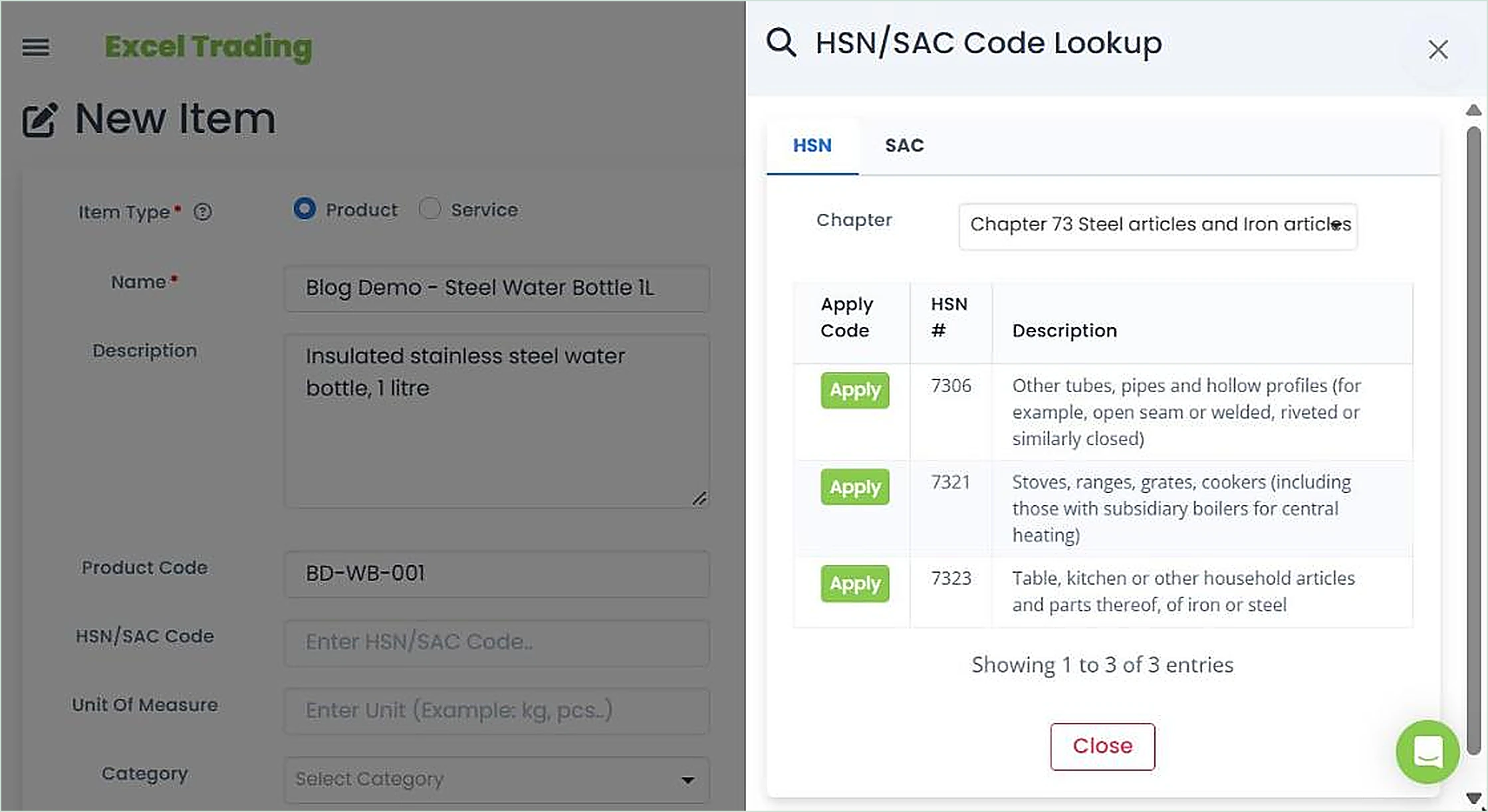
You can type a code straight into the HSN/SAC Code field, or click HSN/SAC Lookup to open a side drawer. The lookup works by chapter rather than free-text keyword: pick a chapter from the searchable dropdown and the matching codes appear, each with an Apply button that drops the code into the field. In the example, chapter 73 (steel and iron articles) is chosen and code 7323 is applied. The drawer also has a SAC tab for services. Always confirm the code is right for your product before saving.
Step 6: Choose a category
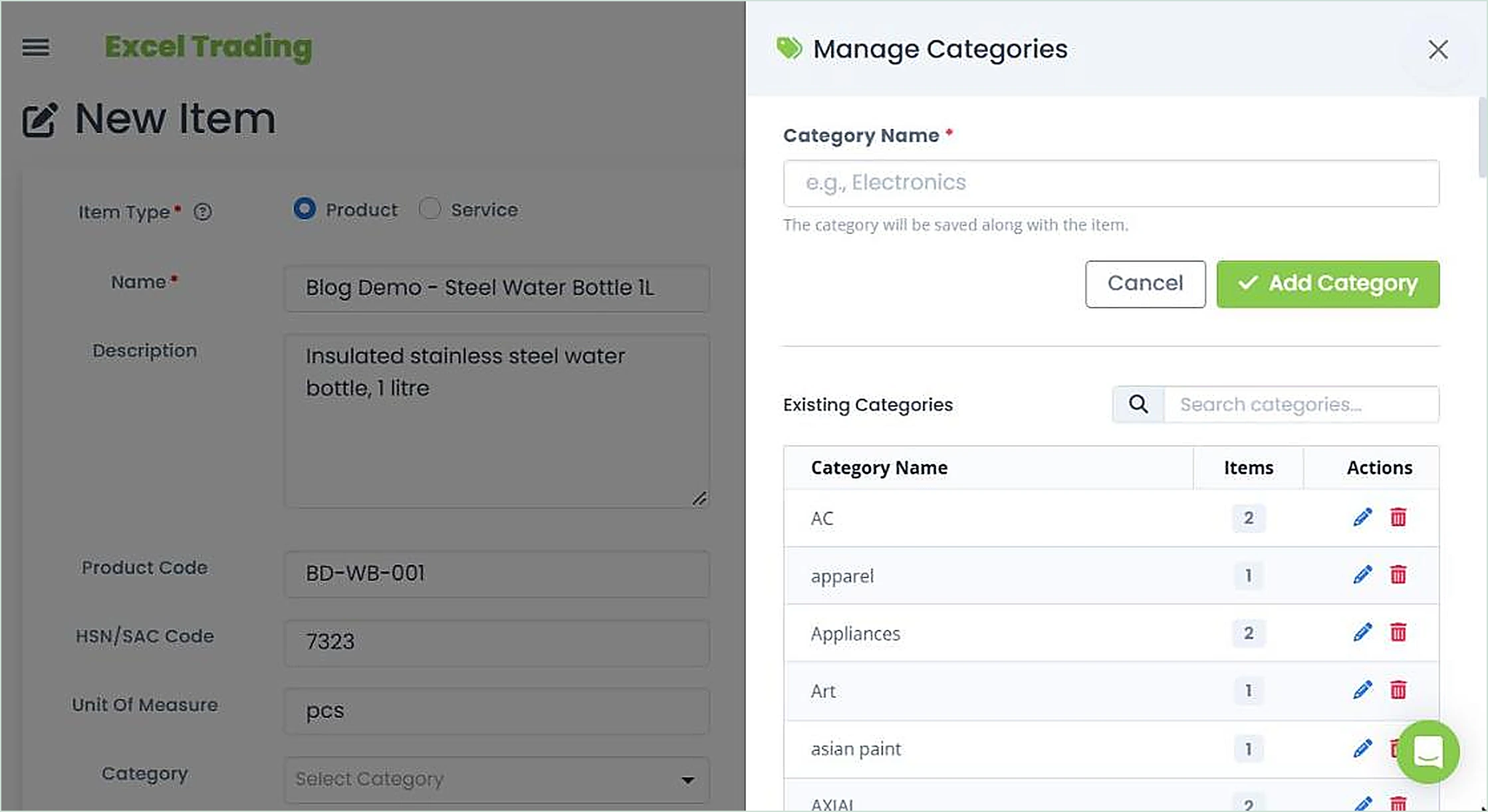
The Category field is a searchable dropdown of your existing categories. To add one without leaving the form, click + New Category, which opens a Manage Categories drawer where you can add, rename and delete categories. A new category is saved and selected straight away. Categories are the one grouping you manage here; units, as noted, are free text, and HSN or SAC codes are entered or looked up per item.
Step 7: Configure the sell and purchase sections
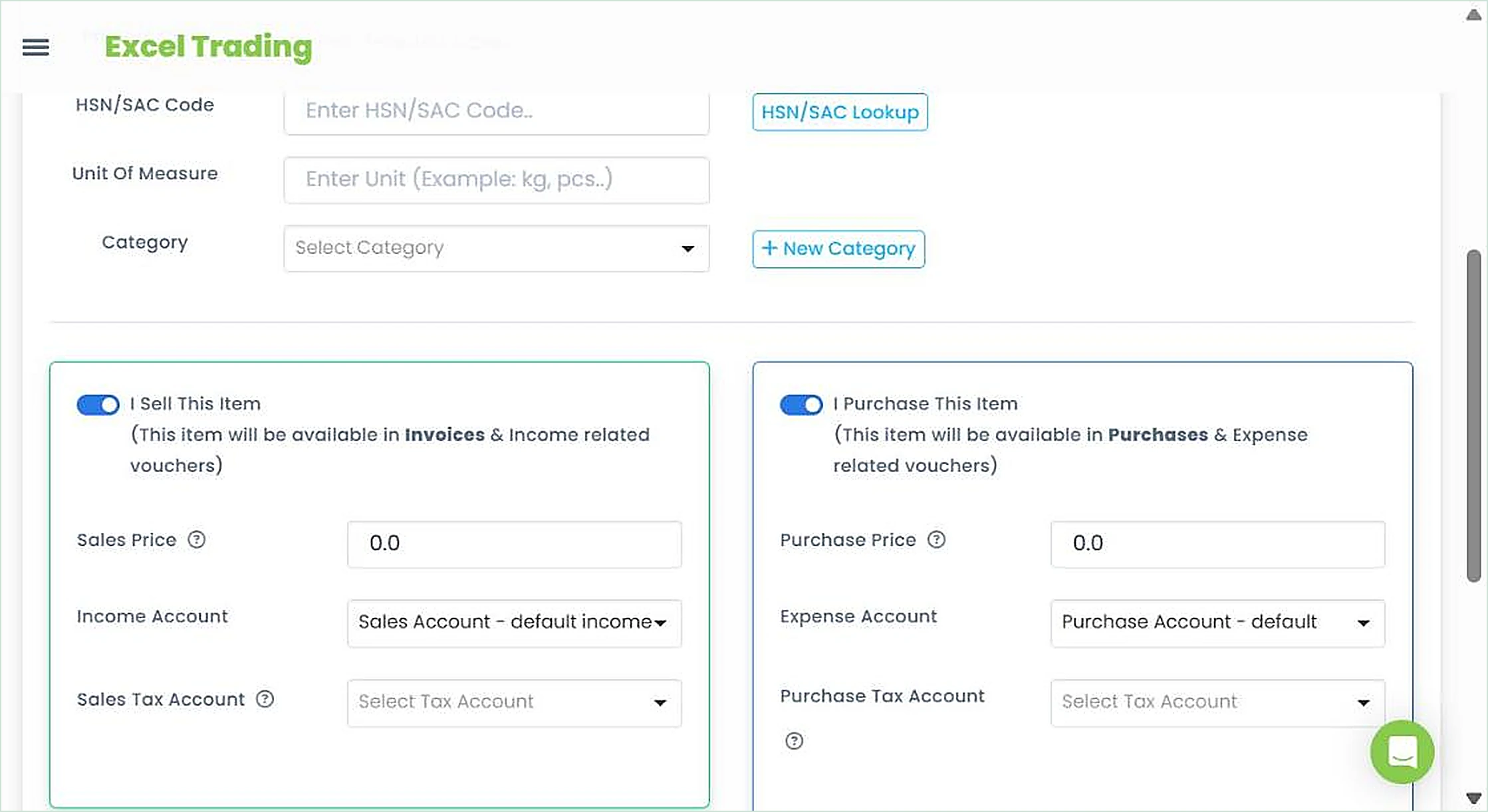
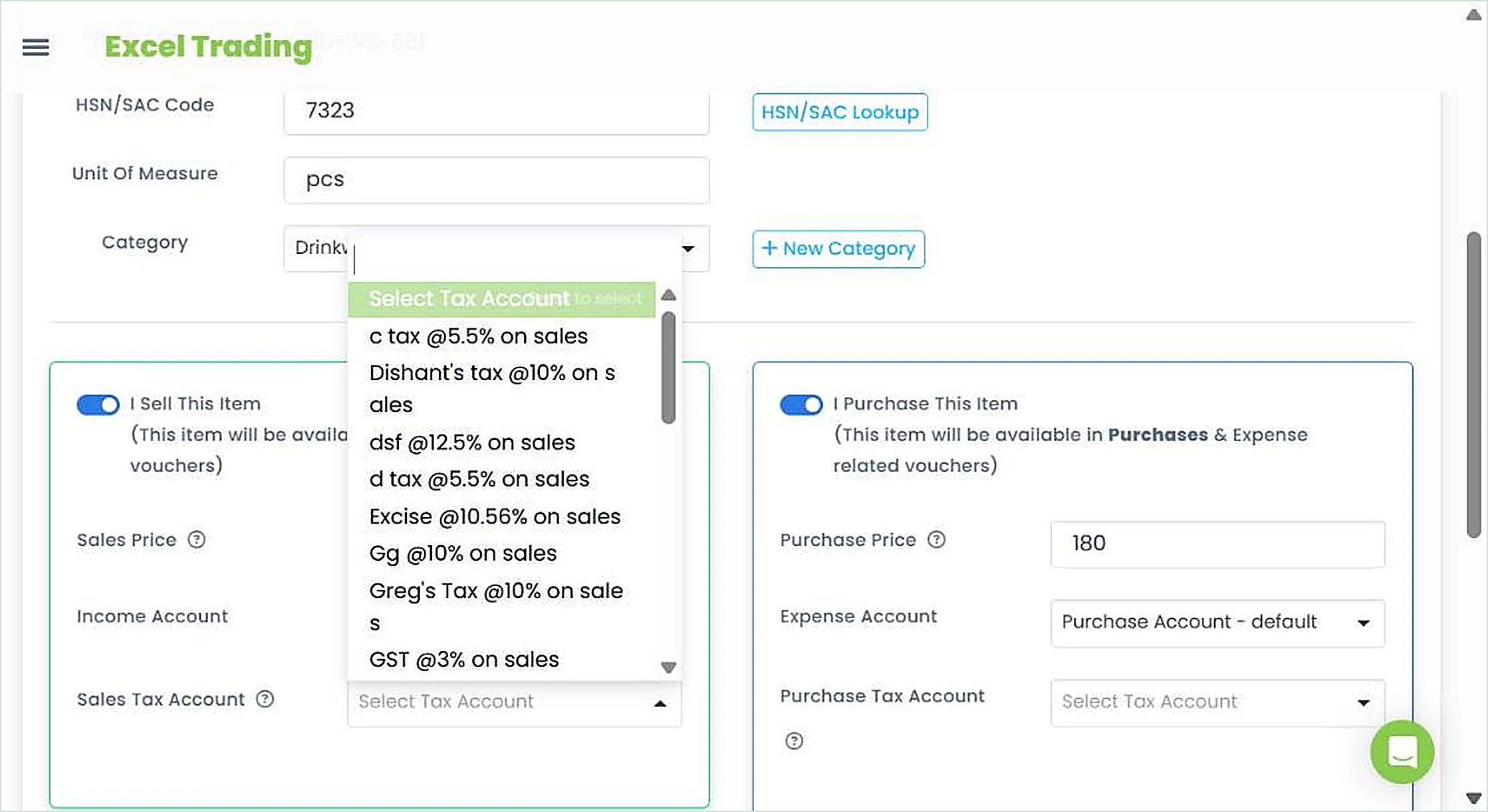
Two cards control how the item behaves on transactions: I Sell This Item and I Purchase This Item, both switched on by default. These toggles are what set the item's type: sell only makes it a Sales item, purchase only a Purchase item, and both a Reseller item. Each card holds a price and an account. The Sales Tax Account and Purchase Tax Account are how you set the GST rate; there is no separate GST percentage field. You pick an account such as GST @18% on sales, and that rate is applied on vouchers automatically.
Step 8: Set up inventory, if the item is stocked
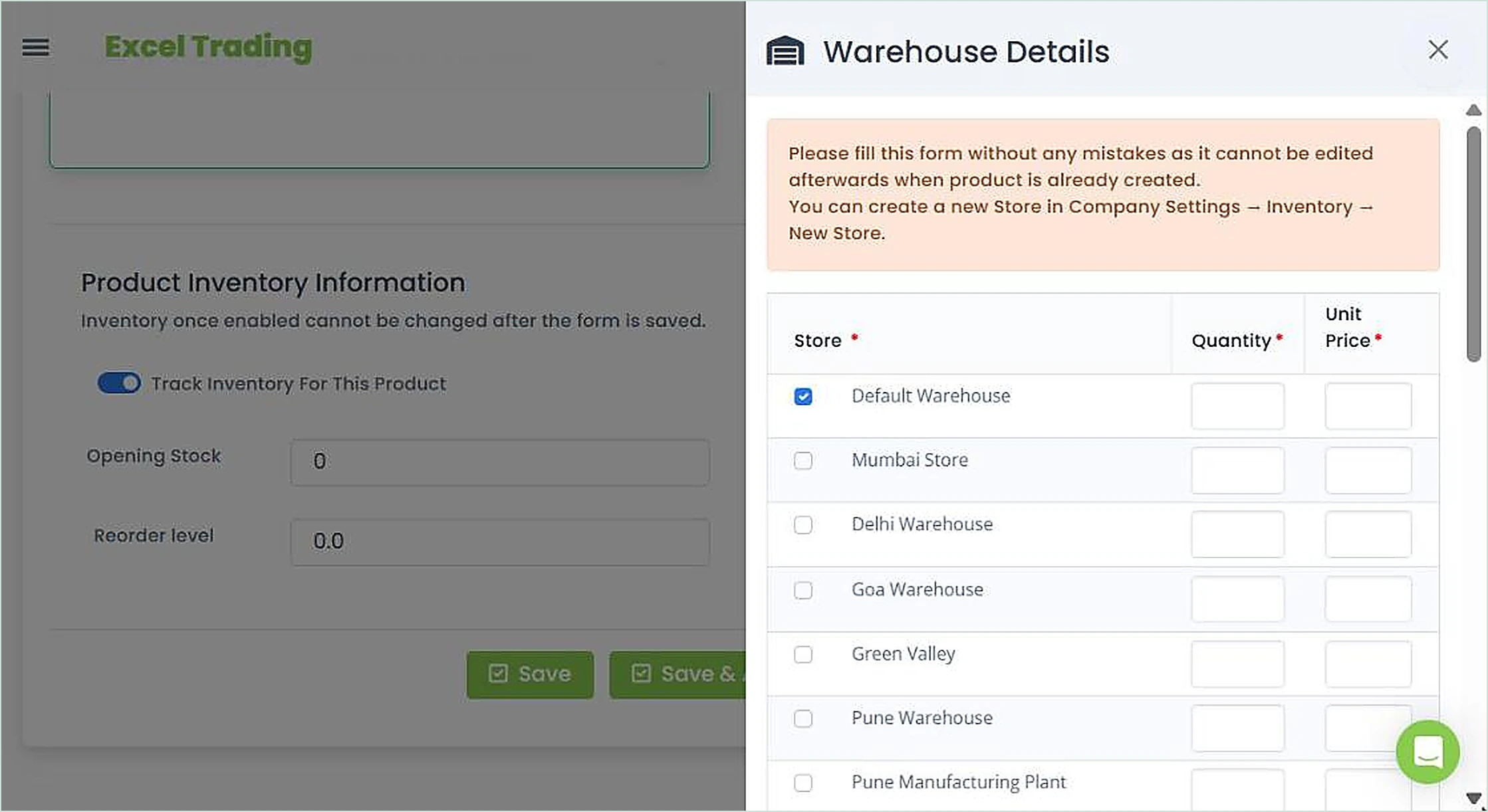
Scroll to Product Inventory Information. The Track Inventory For This Product toggle is off by default. Switch it on only for goods whose stock you want to monitor, and note the warning: inventory, once enabled, cannot be changed after the form is saved. When you turn it on, Opening Stock and Reorder level appear. Clicking Opening Stock opens a Warehouse Details drawer where you set the quantity and unit price for each store or warehouse; the opening value is simply quantity times unit price. Services do not show this section at all.
Step 9: Review and save
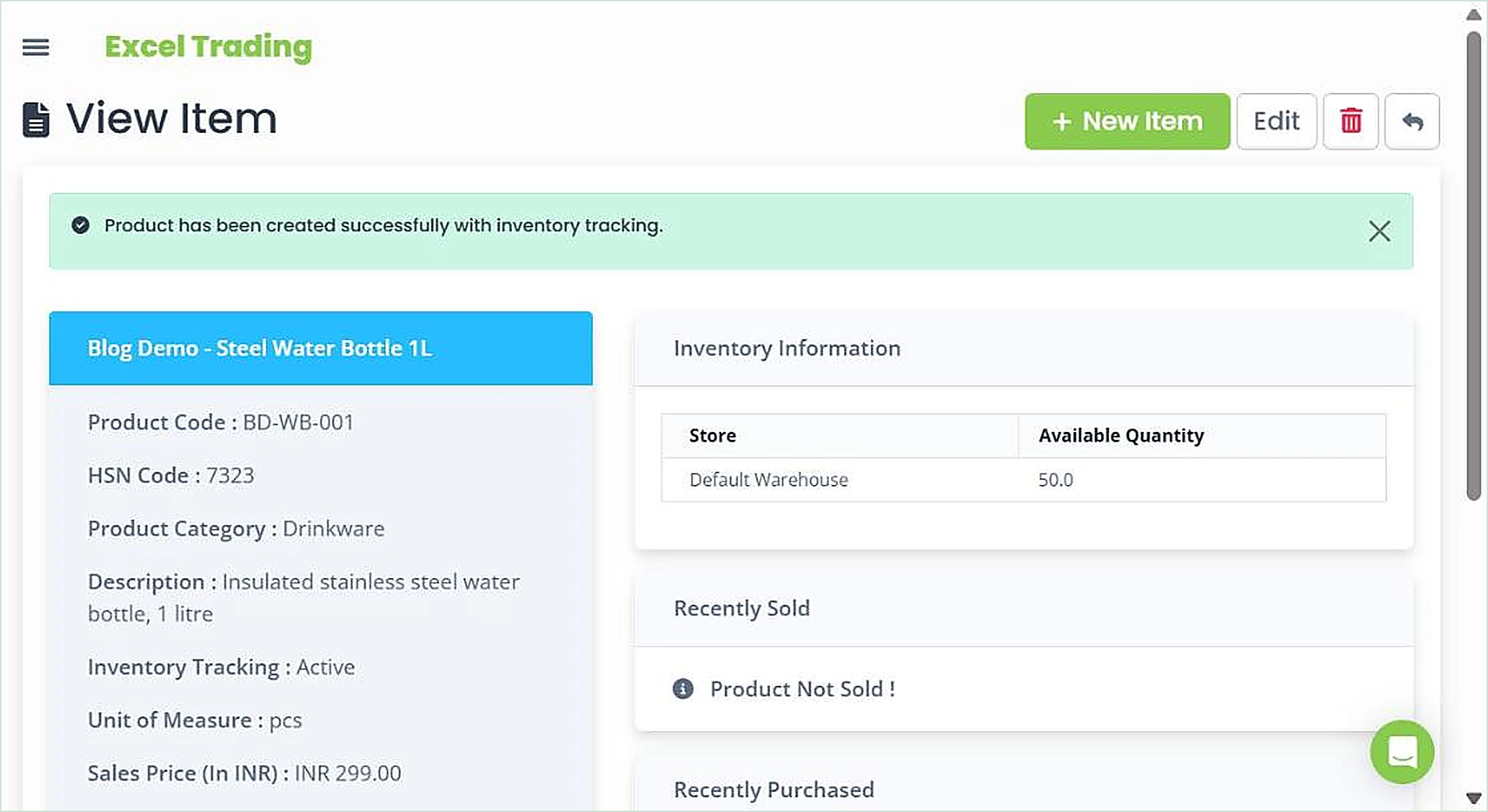
Before saving, run a quick check over the record: name, description, unit, HSN or SAC, category, the sell and purchase settings with their tax accounts, and inventory tracking with its opening stock where it applies. Click Save and ProfitBooks opens the View Item page, confirming the item was created and showing its code, HSN code, category, unit, prices, tax accounts and, for a stocked product, the available quantity per store.
A short checklist to run before you click Save:
- Name and description are clear and consistent with your other items.
- Unit of measure is spelled the way you use it elsewhere.
- HSN or SAC code is verified, not guessed.
- Sell and purchase settings, with the right tax accounts, match how you trade the item.
- Inventory tracking is on only if you genuinely stock the item, and the opening stock is correct.
Product vs Service: What Should You Select?
The Item Type you pick at the top of the form shapes the rest of the record, so it is worth getting right the first time.
| Products | Services | |
|---|---|---|
| Nature | Physical goods you hold or store | Work or expertise you provide |
| Inventory | Can be stock-tracked | Not tracked as physical inventory |
| Typical unit | PCS, KGS, MTR, BOX | HRS, DAY, visit or a flat unit |
| Classification | HSN | SAC |
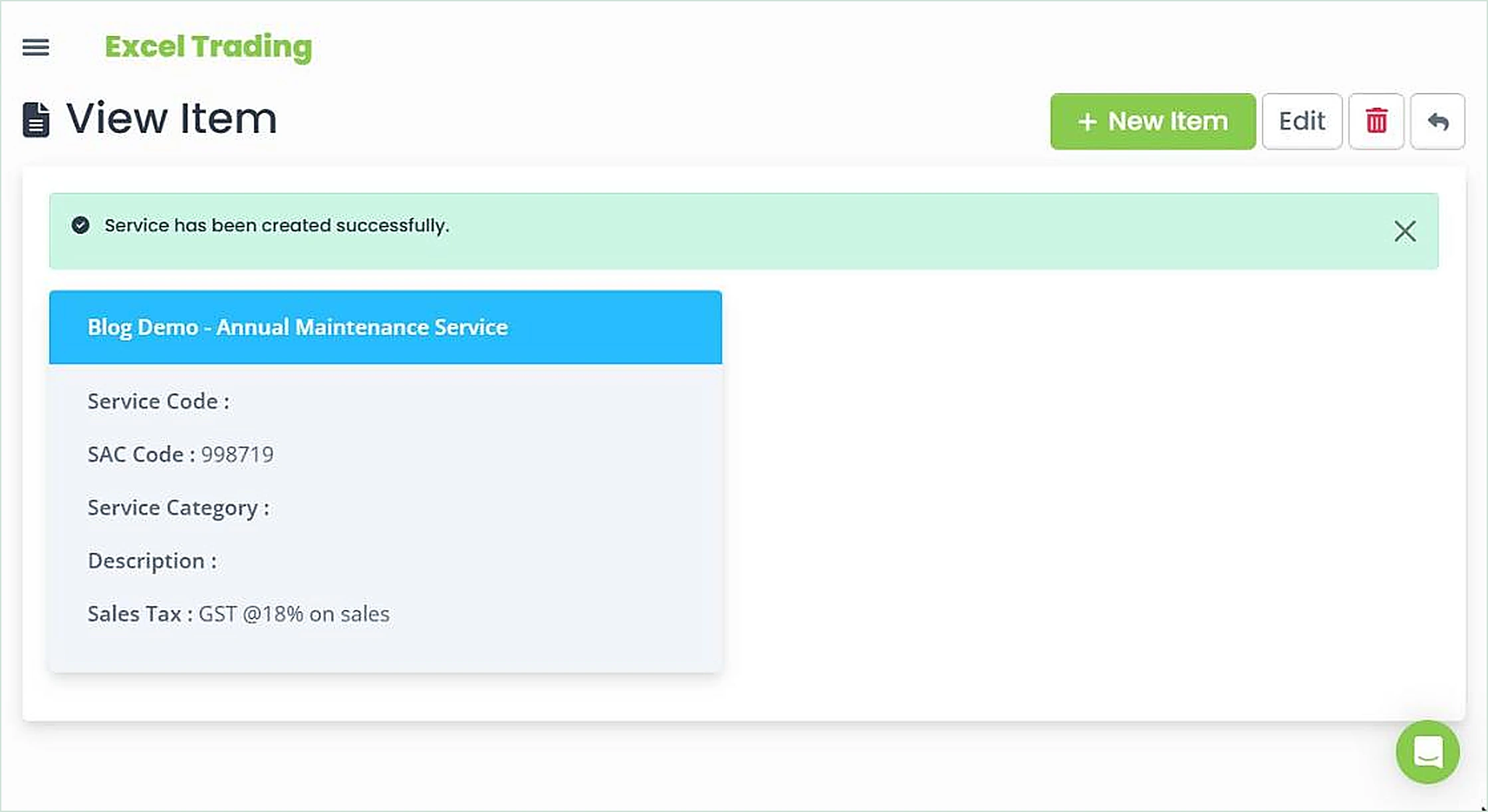
In the current ProfitBooks interface, the item type is set when you create the record and cannot be changed afterwards; the Item Type option does not appear on the Edit form. A service also skips the inventory section entirely, and its saved record uses the labels Service Code, SAC Code and Service Category. Choosing the right type at the start avoids having to delete and recreate a record once transactions already reference it.
Common Mistakes to Avoid When Setting Up a Product Master
- Inconsistent product names. Different spellings of the same item clutter the list and split its reporting.
- The wrong unit. A unit that does not match how you record the item distorts your quantities.
- A guessed HSN or SAC code. Classification should be verified against official sources, not assigned by eye.
- Duplicate records. The same item entered twice divides its stock and sales across two records.
- Inventory tracking on everything. Enable it only for goods you physically stock; on services and untracked items it just adds noise.
- Ignoring the sell and purchase settings. These decide where the item appears, so set them to match how you trade it.
- Never reviewing records. Product details drift over time and need an occasional check.
Most of these surface not during setup but weeks later, inside a report or a return that will not reconcile. A few minutes of care at creation saves that clean-up.
Best Practices for Maintaining Your Product Master
Keeping the master clean is mostly a matter of a few habits:
- Use a consistent naming convention for every item.
- Avoid duplicate records; search before you add a new item.
- Use the correct, consistent unit of measure.
- Verify HSN and SAC codes rather than guessing them.
- Set the sell and purchase configuration to match how you actually trade the item.
- Enable inventory tracking only where you genuinely need stock figures.
- Write meaningful descriptions that tell similar items apart.
- Review your product list periodically for duplicates, stale codes and drifting units.
A quarterly review of the item list, checking names for duplicates, confirming HSN codes still match current classifications and that units reflect how you transact, takes about an hour and prevents the slow decay that makes year-end painful. A clean product master is what lets every invoice, bill and report downstream be trusted without a fix-up first.
Set up your products once and keep your books in one place
ProfitBooks lets you maintain products and services with HSN or SAC codes, units, categories and inventory tracking, so the item details you configure flow straight into every invoice, bill and report.
Explore ProfitBooks inventory and accounting →
Frequently Asked Questions About Product Master Setup
What is a product master in accounting software?
A product master is the central record where a business stores reusable information about its products and services, including names, descriptions, units and classification codes. When you create an invoice or purchase bill, the software fills the item details from this record rather than requiring you to type them again.
What information should be included in a product master?
The key fields are the product name and description, the unit of measure, the HSN or SAC code, the sales and purchase configuration with their prices and tax accounts, a category, and the inventory setting where the item is stock-tracked. Not every business needs every field.
What is an HSN code in a product master?
An HSN code, from the Harmonized System of Nomenclature, classifies a physical good under India's GST system. It groups the item in the HSN-wise summary used in GST reporting. Services use a SAC instead, which is six digits and starts with 99.
What unit should I use when creating a product?
Use the unit that reflects how your business actually records and sells the item, and keep it consistent across purchase and sales entries. In ProfitBooks the unit is a free-text field, so aligning your labels with standard codes such as PCS, KGS or MTR helps your GST figures reconcile.
Can I create both products and services in ProfitBooks?
Yes. When you add an item you choose an Item Type of Product or Service. A product can be stock-tracked and uses an HSN code; a service has no inventory section and uses a SAC code.
Should I enable inventory tracking for every product?
No. Enable inventory tracking only for goods whose physical stock you need to monitor. Services and items you do not stock do not need it, and in ProfitBooks inventory tracking cannot be changed once the item is saved, so decide before you save.
Can I change a product into a service after creating it in ProfitBooks?
No. In the current ProfitBooks interface the item type is set when the record is created and is not shown on the Edit form, so it cannot be changed afterwards. If you picked the wrong type, you create a new record with the correct type.
Why should I create a product master before creating invoices?
Because every invoice inherits its item details from the product master. Setting products up first means the HSN or SAC code, unit and tax details are consistent from the first transaction, rather than needing a clean-up after dozens of invoices have already gone out.
Set Up Your Product Master for Better Record-Keeping
A well-maintained product master standardises your product details, settles the right unit and classification once, and makes every routine transaction quicker and more consistent. The quality of your invoices, bills, stock figures and GST summaries all trace back to the quality of these item records, which is why a little care at setup, and an occasional review afterwards, pays off across everything downstream. ProfitBooks gives small businesses a single place to maintain products and services and put them to work across invoicing, purchases and inventory.