Integrate Instamojo With ProfitBooks
On this page 2 sections
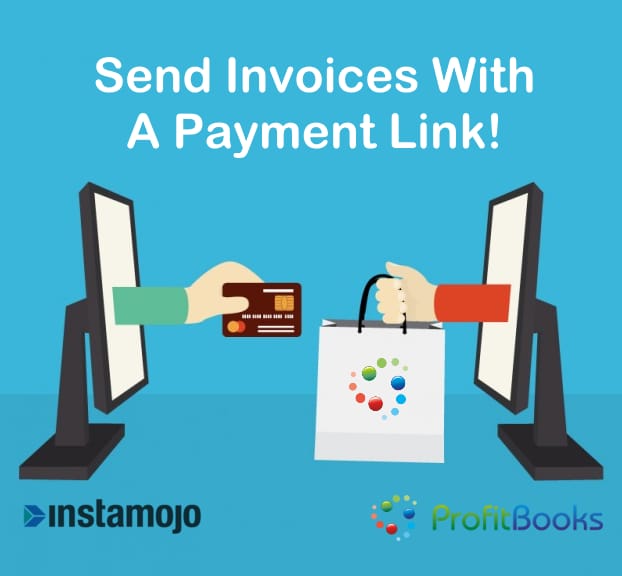
Now, get paid faster with ProfitBooks. You can now add a payment link to invoices when you email them to your customers. This guide shows how to integrate your Instamojo account and start receiving payments directly in ProfitBooks.
Meet Instamojo
Instamojo one of the best payment gateways in India. You can enable your customers to pay you using credit/debit card or netbanking. Sellers just need a working bank account to enroll themselves at Instamojo, and start selling online. Instamojo charges 2% of the successful transactions and service tax extra. Instamojo will collect the money on your behalf and send the amount in your bank account within 3 business days. There is no other fee to use the service.
Signup Free With Instamojo. As a ProfitBooks customer, you’ll get faster approval.
Steps To Integrate Instamojo With ProfitBooks
You can now integrate Instamojo with ProfitBooks and start collecting payments for the invoices that are emailed to your customers from ProfitBooks. Its assumed that you have active accounts on both Instamojo & ProfitBooks. Here are the steps:
Get some information from your Instamojo account
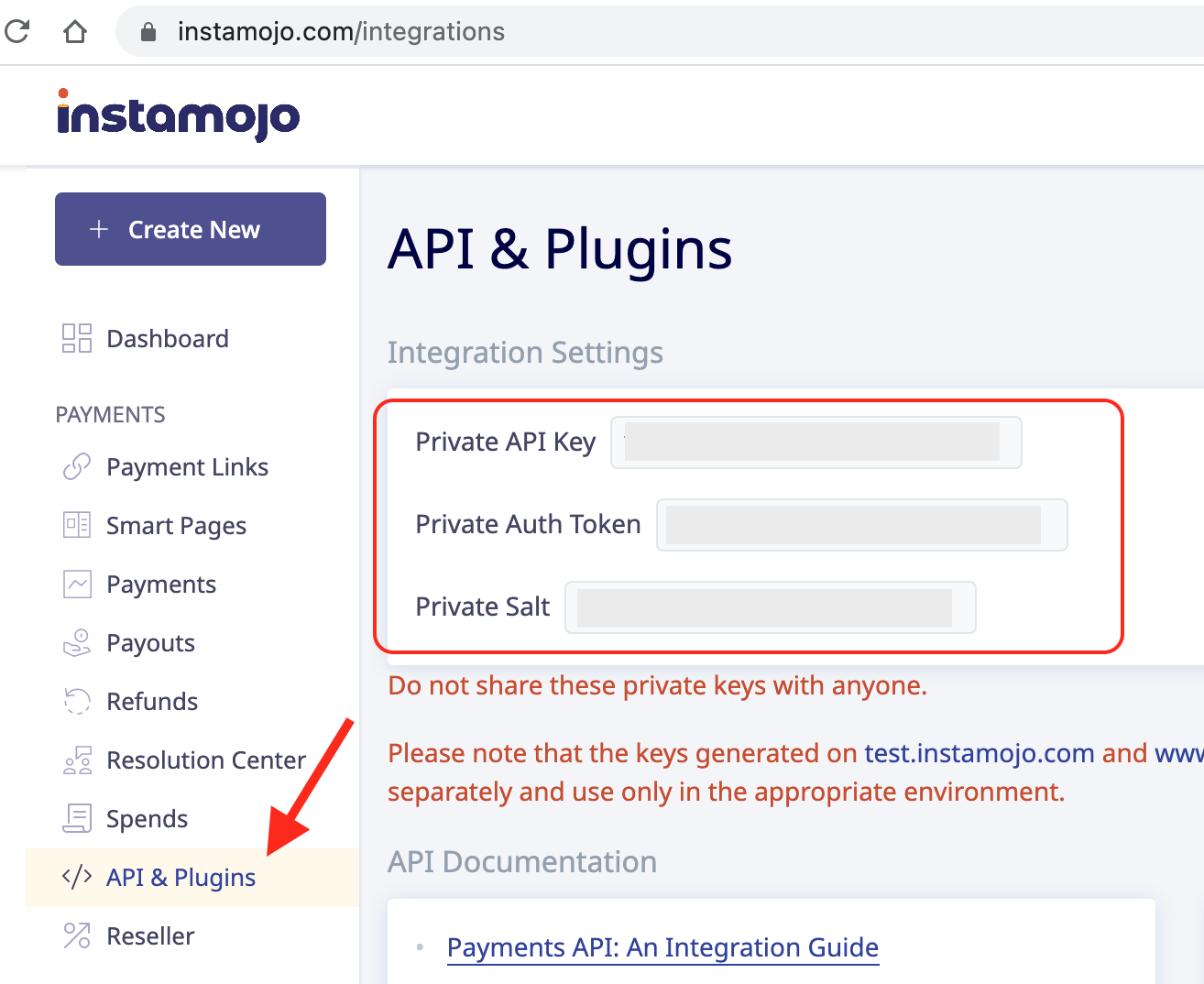
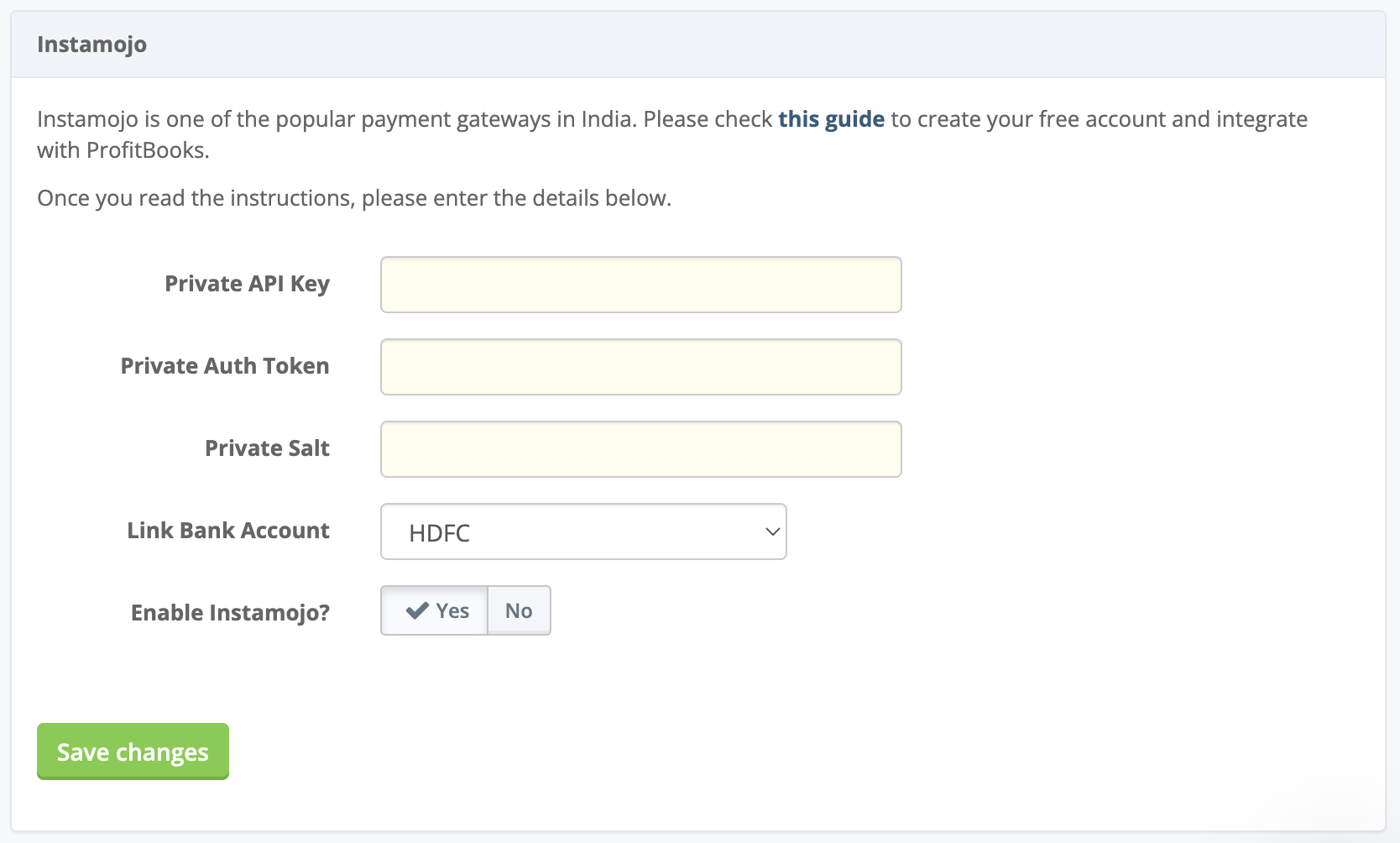
Login to https://www.instamojo.com/integrations with your registered Instamojo account and note details for Private API key is a secret token which is submitted to Instamojo alongside requests in order to identify the origin of the request, Private Auth token is to determine which account an API request is coming from and Private Salt Key. You can find these details by clicking on ‘API & Plugins’ link on dashboard as shown below.
Login to ProfitBooks account and go to Settings -> Invoices. Go to the section ‘Enable Instamojo Payment Gateway’ and enter the details. The Bank account you wish to receive payments in should be the same as that of the bank account provided while activating Instamojo account.
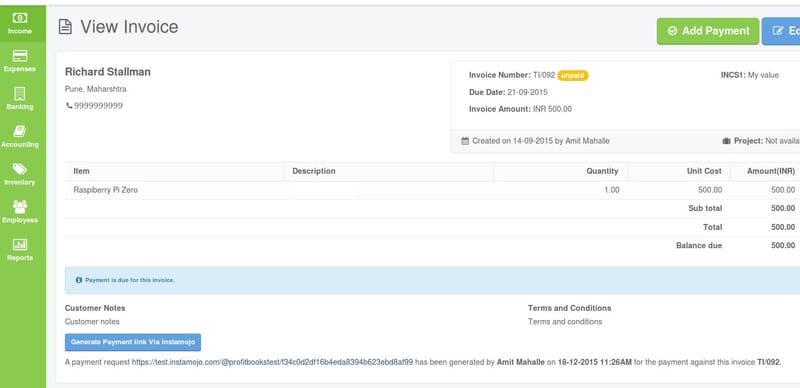
Now, when you create an invoice, you should see a button ‘Generate Payment via Instamojo’ as shown below.
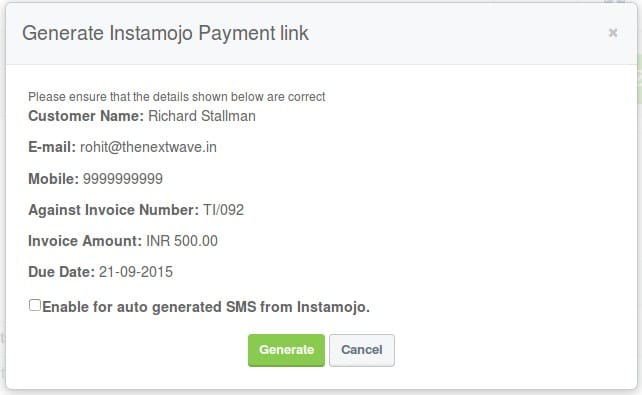
Clicking on this button will show a popup with all the payment details. If Mobile number of customer is provided, then checkbox can be enabled to send automated SMS containing the payment link from Instamojo to customer mobile. (This is an optional field)
**Email payment link
**
By default, the email invoice screen contains customer name, total amount due and due date. By checking Include payment link, you can append payment link with the existing text as shown below.
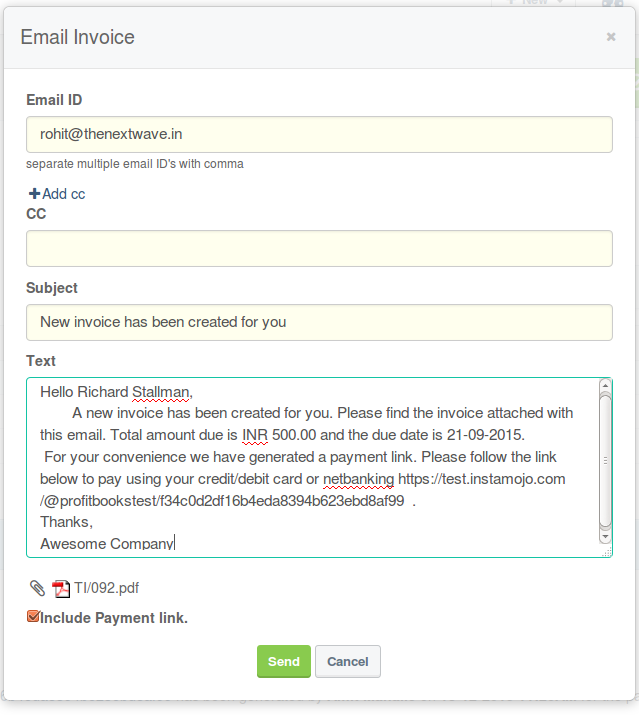
This payment link option remains hidden until the payment gateway is configured and until at least a link is generated.
After Successful generation, a summary appears just below the ‘Generate Payment’ button that contains details on when and who created the link as shown below.
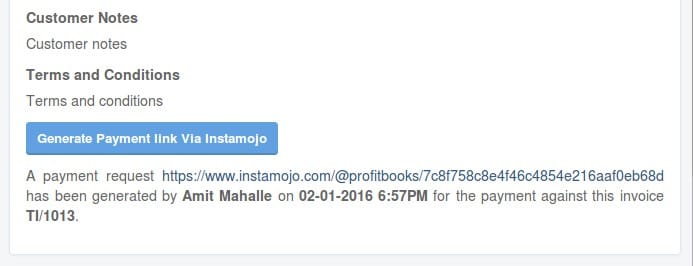
Each time you update the invoice, you have to generate a fresh link. Ensure that the summary shows correct amount.
Warning/Error Messages
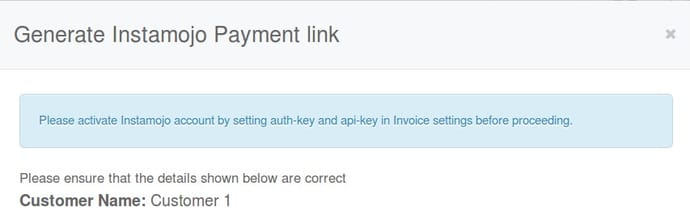
Above image illustrates the case when the payment gateway is not properly configured or not yet ready to use.
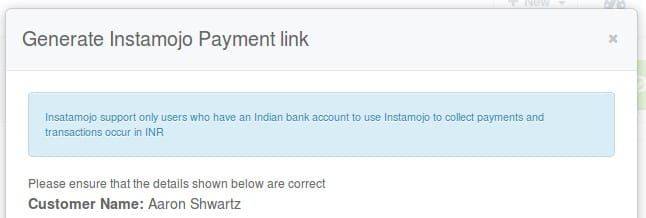
Instamojo only supports transaction in Indian Currency. For all invoices other than INR currencies a warning message appears as shown below.
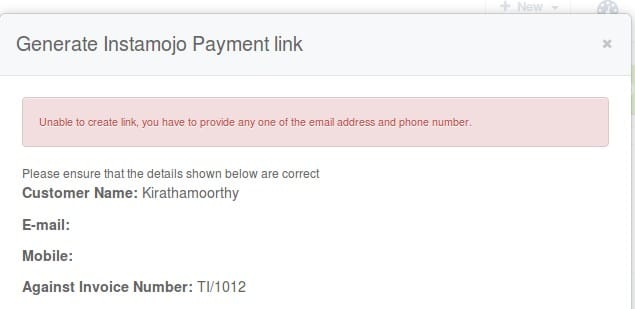
For ensuring identity of customers and to maintain communication with customers, it is mandatory to provide either email or mobile number. If either of this is absent in that case an error message appears as shown below.
Post Payment
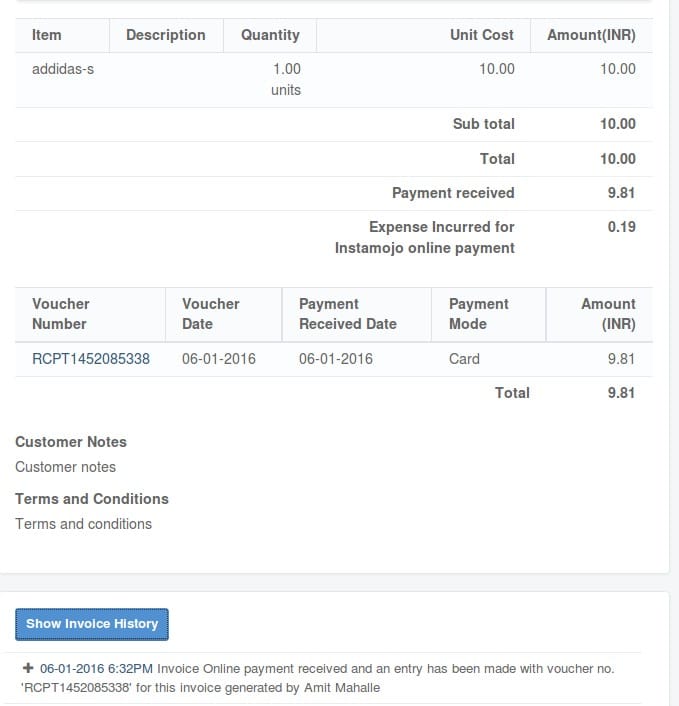
After a successful transaction from your customer, ProfitBooks receives a notification from Instamojo. Then, the Invoice status is marked as paid, a new receipt voucher for the received amount and an indirect expense entry for online payment fees is generated automatically.
As shown below, for a total amount of Rs 10.00 a payment of Rs 9.81 is a Receipt and 1.9% of 10.00 are shown as an expense Incurred for Instamojo online payment. In the Show Invoice History, the date and time of the payment is displayed.
 Hope this guide helps you in collecting payments faster using Instamojo & ProfitBooks.
Also read:
How to create professional invoices
How to manage business expenses