Import Contacts (Customers/Vendors) into ProfitBooks
On this page 2 sections
Imagine you have customers data stored in another system and you want to import it in ProfitBooks. Lets see how you can import contacts like customer's or vendor's list from a file easily.
Please follow below mentioned steps:
Login to ProfitBooks and go to Income -> Customers
Click on 'Import Customers' option available near 'Add New Customer' button
Download the sample file. Please make adjustments according into your customer file according to the format of downloaded sample file. Customer name is mandatory. If billing address and shipping address are same then fill only billing address field
Click on 'Browse', select the file having customer data and press 'Import' button
On next screen, you will see the status of import. Records marked as 'Success' are successfully imported into ProfitBooks
Click on 'Correct Customer' button to correct records that have not been recorded due to some reason (See the list below)
You can come back and work on the uploaded file anytime by clicking on the file name on Import screen
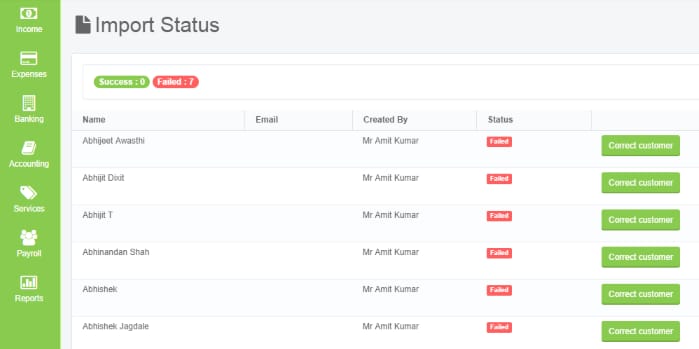
Import process can fail to import certain records due to following reasons:
Duplicate Records
Type Mismatch (Ex: Invalid date or phone number format)
Misplaced data (Ex: Date mentioned in Phone number column)
Similarly, to import vendors, please go to Expenses -> Vendors and follow the same steps.
This way you can import your contacts in bulk into ProfitBooks easily with few clicks.