
This guide explains how to set up business taxes in our easy to use accounting software.
Being in the business of managing accounting (on the cloud ☁️) for other businesses, taxes are our staple work.
So, we’ve made setting up business taxes in ProfitBooks simpler than cooking your lunch!
Here’s how you set up business taxes in ProfitBooks
Just go to the Accounting menu and click on Taxes.
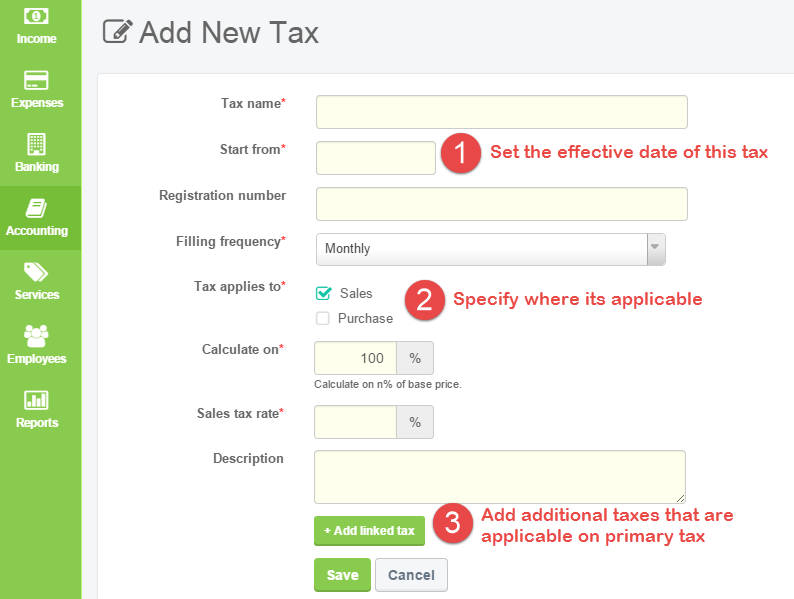
While most of the fields are self-explanatory, please make sure you pay attention to the following 3 fields:
Mention the effective date of the tax in the ‘Start Date’ field. This tax will start appearing only after the effective date.
Specify whether this tax is applicable on sales or purchases.
You can select both the options, and the system will create a separate tax code for Sales and Purchases.
If you select only ‘Sales’, this tax will appear only on invoices and estimates. Similarly, if you select ‘Purchases, ‘ tax will appear on Purchases and POs.
You can also specify whether this tax is calculated on the entire amount or just part of it. In some cases, businesses need to apply tax only to 80% of the base price. Leave it as 100% if this case doesn’t apply to your business.
Click on ‘Add Linked Tax’ if there are additional taxes applicable on the primary tax.

Adding Linked Taxes
In some cases, you might want to add additional taxes that are part of the same tax group.
Let’s look at some scenarios to understand how values for additional business taxes will be calculated.
Lets assume that you have a product and different taxes with the following sample values :
Product base price – Rs 100
Tax 1 (Primary Tax) – 15%
Tax 2 (Linked Tax) – 5%
Tax 3 (Linked Tax) – 14% of 60% of base price
Based on the above assumptions, you can add any primary tax, like VAT or Service Tax. You can add any business taxes on top of that.
Please refer to the table below to understand possible tax values in different cases:

Deleting The Tax
In ProfitBooks, you can mark tax as inactive instead of deleting it. This way association of that tax with old transactions is preserved.
To do this, just click on the ‘Mark Inactive’ button on respective tax section when you open Taxes page.
Conclusion
Setting up business taxes might seem complicated, but it doesn’t have to be.
By properly configuring business taxes, I can ensure accurate invoicing, maintain compliance, and avoid costly errors. Whether I’m applying sales or purchase taxes, linking multiple business taxes, or marking inactive ones, getting it right is crucial for smooth financial management.
Taking the time to understand how business taxes work also helps me make smarter financial decisions and stay on top of my company’s tax obligations.
If you want a hassle-free way to manage business taxes efficiently, ProfitBooks makes it easy with its intuitive accounting software.
Also Read..
Critical Tax Deductions Small Business Owners Can Leverage
12 Tax Deductions For Small Businesses
20 Tax Saving Tips For A Business Owner